Games
- 117 -
Setting the Parental Lock
➣
FAST TRACK: Press GAMES, 9, enter code, press STORE.
To prevent children or unauthorised users downloading games, you can set up a 4-digit
Parental Lock code. After setting the code, you will need to key it in each time you wish
to download a new game. (You won't need the code to play games, however.)
The Parental Lock must be set from the keyboard – you cannot use the GamePad.
♦ Note, if the code is set to 0000, this means Parental Lock is off. (When you
receive your
e-m@iler new, the code is set to 0000.)
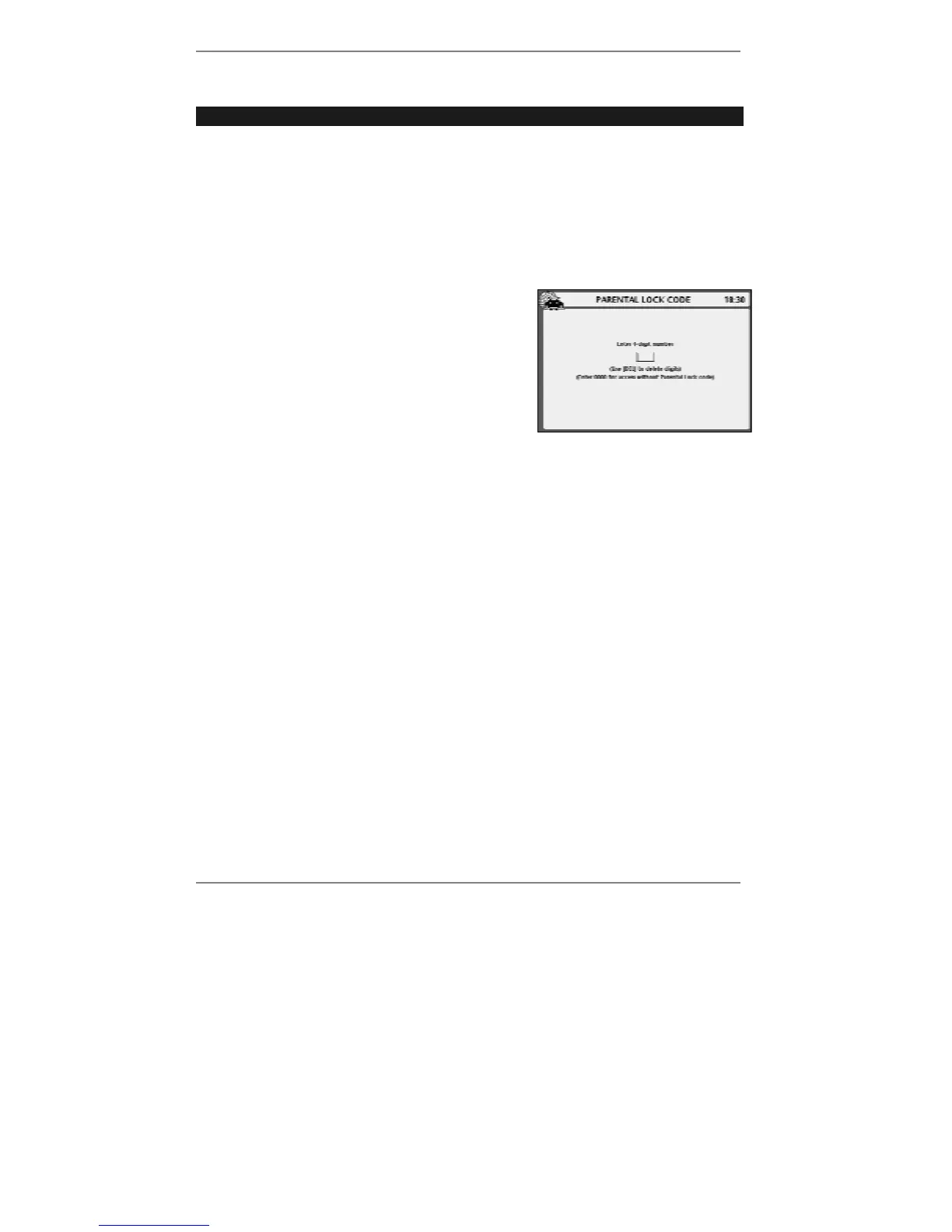
1. Press GAMES, 9 to receive the following
display:
2. Enter the 4 digits of your code (in the small
box at the centre of the display).
♦ If you previously set up a code, the digits will
appear as
****
as you type them in. You
must enter the correct code to continue.
& If the code is incorrect, the e-m@iler will beep – try again.
Once you've typed in the correct code, the small box will clear and you can then type in
a new code if required. Remember – type in 0000 for no Parental Lock.
3. Press STORE, then press STOP to return to standby display.
♦ If ever you forget your Parental Lock code, there is a way to reset it to 0000).
The section 'Removing all user PINs' can be found on page 163 of this book.
Error messages
♦ If NO GAMES LISTED is displayed, your e-m@iler has yet to make an initial
email call to collect the games list.
♦ If GAMES MEMORY FULL is displayed when you try to download a game, this
means that there aren't enough memory blocks available for it. Delete one of the
existing games, then try again.
♦ If CHECK CONNECTION is displayed while trying to download a game, your
e-m@iler has encountered a connection problem. The problem may have occurred
at your end of the line, in which case it is worth checking your telephone line
connection and trying again.



 To Next Page