Email
- 59 -
You may now compose another message (and store it again if you wish). You
can carry on repeating this process for any number of messages. When you've
composed your final message, hold down EMAIL to send all of the messages
together.
& Note, if you’ve attached a photo to your email (as described below), then
you cannot store that message – it will be sent as soon as you press EMAIL
(or "SHIFT and EMAIL ).
*Any messages left stored will be sent automatically after 8 hours.
Attaching a photo to your email
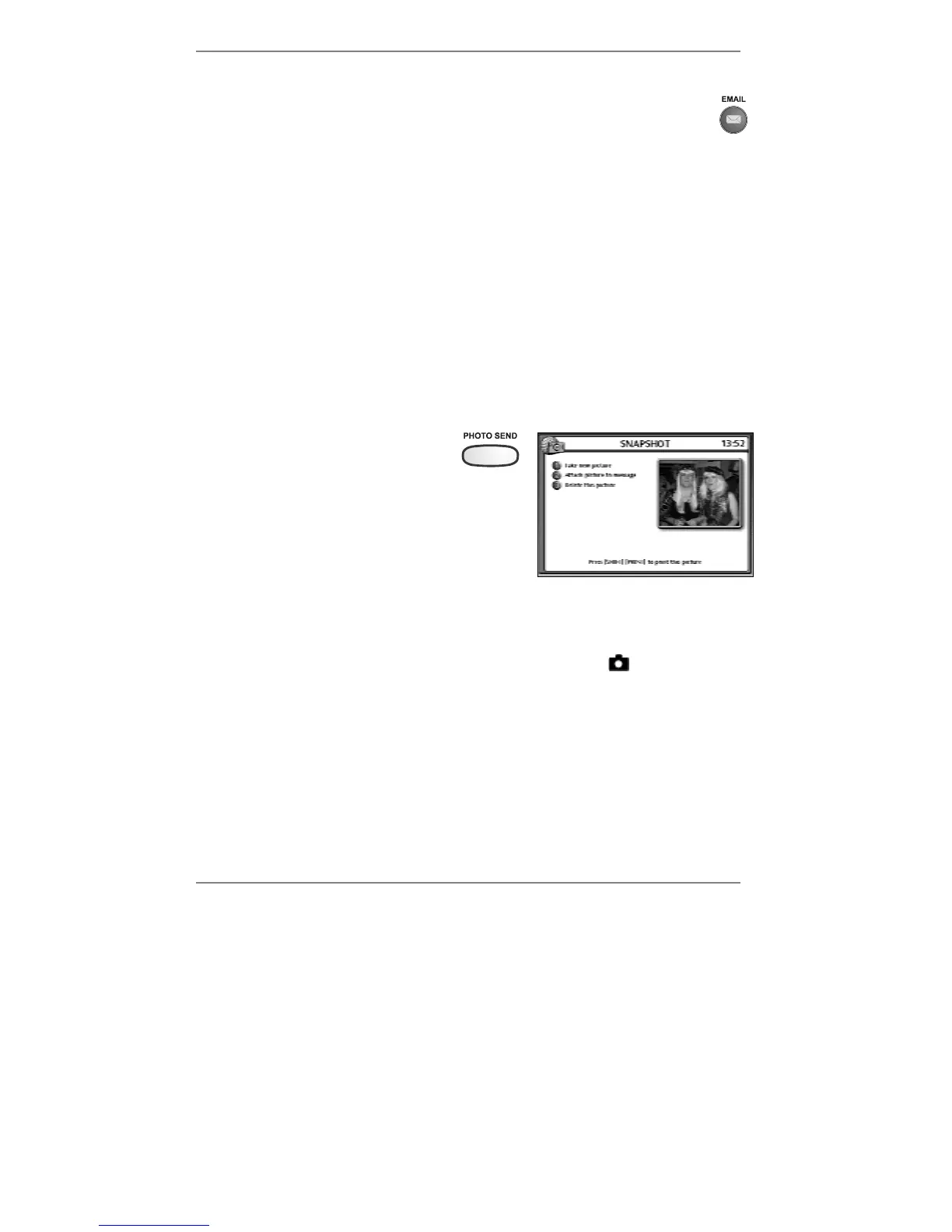
You can take a photo on the e-m@iler and attach it to your email message. To do this,
compose your message in the normal way, but carry out steps 1 to 3 (below) just
before you press EMAIL to send it.
1. Press PHOTO SEND – you will
see yourself on-screen.
2. Press 1 to take a picture.
(If you don’t like the picture, you can press 1 to
take it again.)
& If you’ve connected a printer to the e-m@iler (information on page 119), you
can press "SHIFT and PRINT to print the picture.
3. Press 2 to attach the picture to your message. (Note, symbol
will appear at top
left of display when a photo attachment is added.)
The cost of sending the email message with a photo attachment is indicated at
the bottom of the COMPOSE MESSAGE screen.
♦ If you wish to delete the photo attachment, press PHOTO SEND then press 3.
& Avoid saving and storing messages containing photo attachments as they
use up a lot of memory.



 To Next Page