Email
- 58 -
If you wish to verify that your message has been sent, press READ (on the
e-m@iler) to display the list of messages, then check that the symbol is
displayed next to your message.
If the symbol
or
is displayed instead, this means the message has
not been sent – see 'Unsent messages' on page 60.
& Tip – if you've previously stored the email address, you can type in the
Address Book entry before you press EMAIL to start composing.
Sending one message to multiple addresses
Follow the procedure 'Sending an email message' on page 56, but repeat step 2 for
each email address you wish to send to. Note, if you're typing in the email addresses
then you must separate each address with a comma, for example:
s.fox@amserve.com, liz-ward@a1.co.uk, bob@mail.net
If you're using stored email addresses from the Address Book, then…
♦ press ADDRESS BOOK
♦ select name (by typing it and/or using U D)
♦ press ENTER
…and repeat this process for each address you wish to place in the To: box.
& The maximum number of characters in the To: box is 256. The maximum
number of email addresses is 20. Note, if the list of email addresses is too long
to see, use
L and R.
Sending multiple messages on one email call
Follow the procedure 'Sending an email message' from page 56,
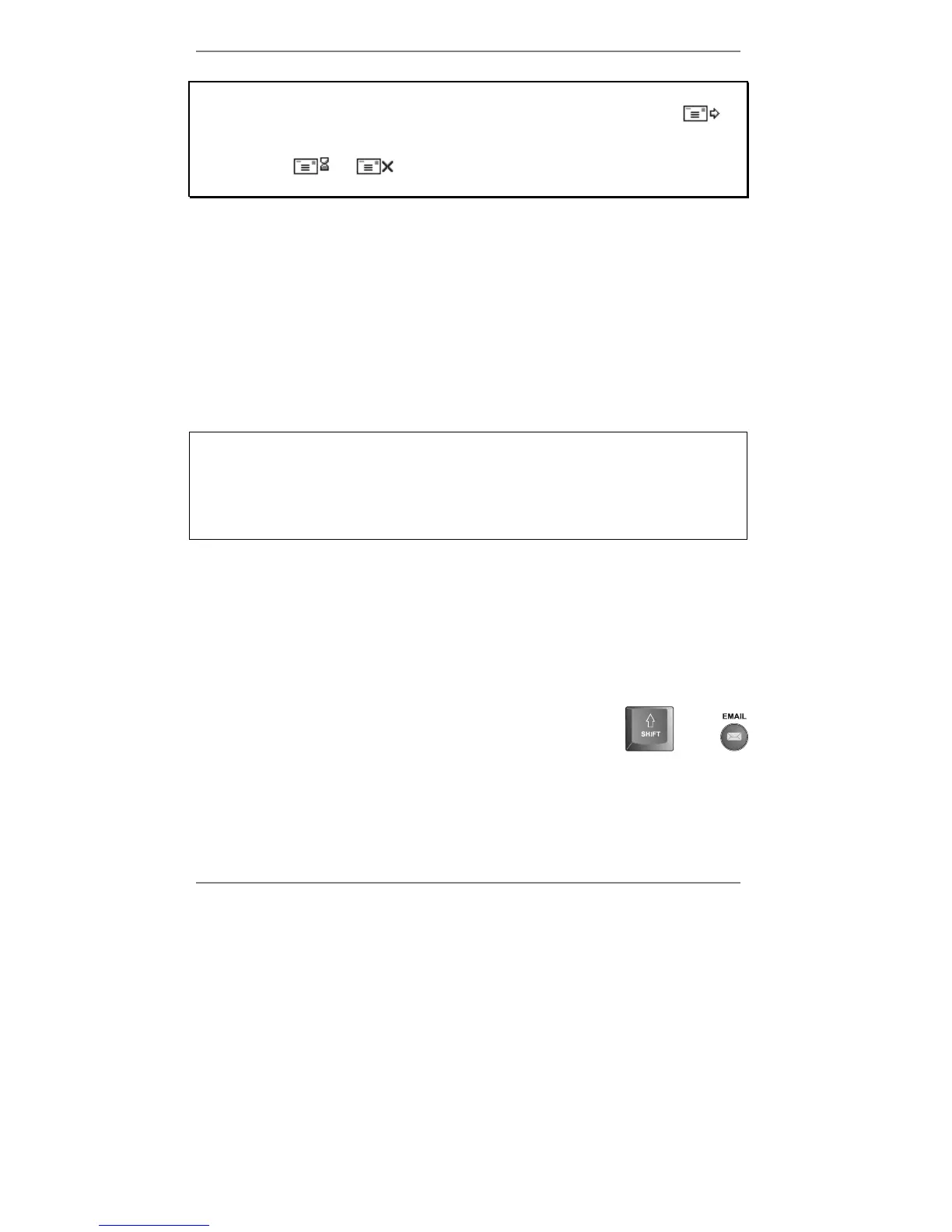
but at the final step 5 press both "SHIFT and EMAIL together
on the keyboard (the
e-m@iler will beep twice and return to
standby display).
and
♦ The current message is then stored* as a waiting message instead of being sent
straight away.



 To Next Page