Email
- 70 -
4. If you wish to forward this message to additional email addresses, repeat step 3
(separate each email address with a comma).
♦ Note the Subject: box's original title will be prefixed by FW: (short for forward).
♦ Note the original message is prefixed by > (see example below).
5. If required, move the cursor down to the
message area of the display and type in any
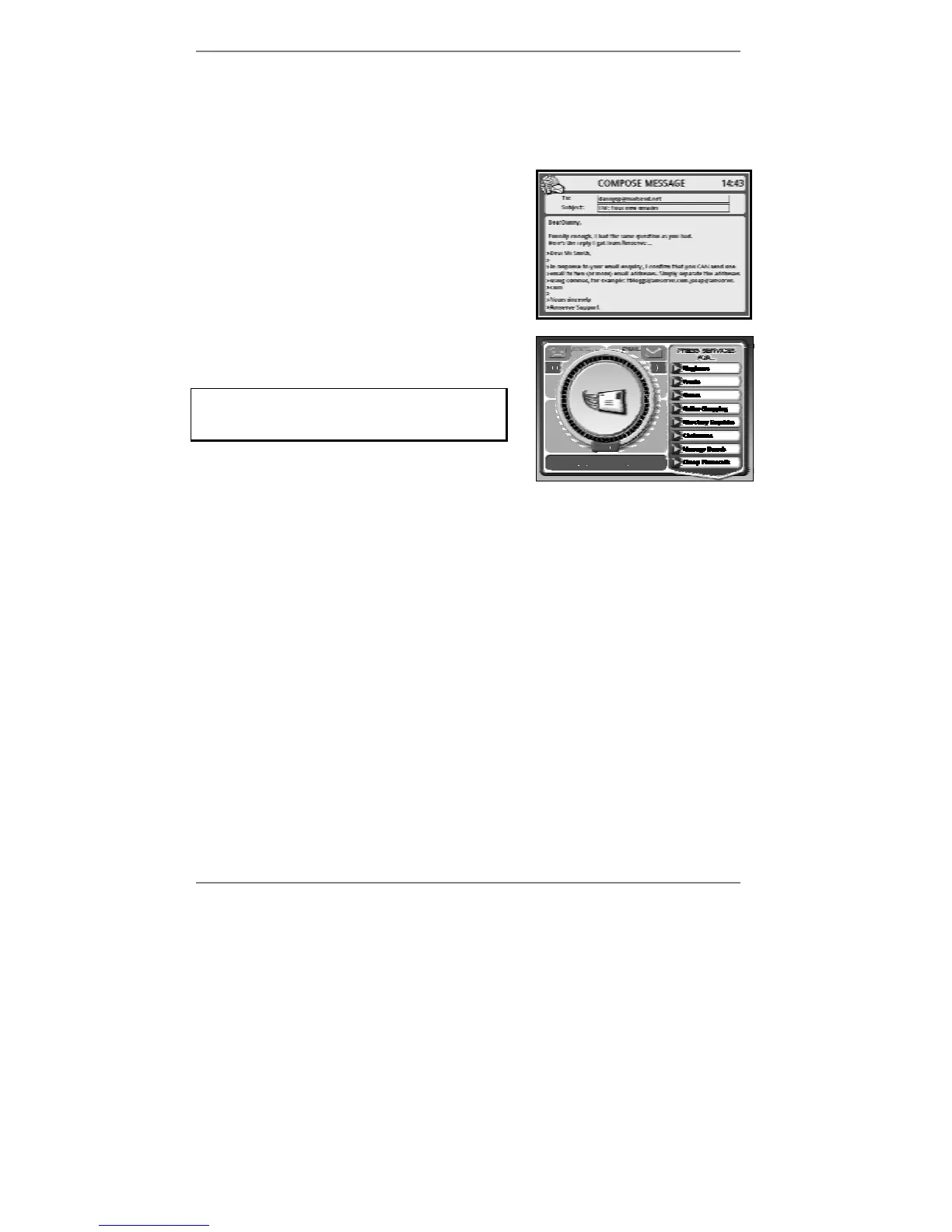
additional message/text (see example right):
(Note that the email address, subject and message
can all be edited.)
6. Press EMAIL to forward the message. The
following display will appear:
If you don't see the display: Dialling for
email, then the email address you've
entered is not valid. Go back to step 3.
Once the above display appears, the message will be sent.
7. Finally, press STOP to return to the standby display.
♦ Note you can forward previously composed fax messages as email.
& Note there may be reasons why your message cannot be forwarded (for
information see 'Unsent messages' page 60).
Sending email to an SMS mobile phone
As well as sending email to email addresses, you can also include an SMS address† in
the To: box so that the message is sent to a UK mobile phone equipped with SMS
(Short Message Service) texting.
†An SMS address is formed by adding @sms.amserve.com to the mobile phone
number, for example:
07930123456@sms.amserve.com



 To Next Page