Advanced settings
- 149 -
Now carry out the following instructions to download the required ringtones for
your ring groups. If you've already downloaded some (or all) of the ringtones
you require, go straight to step 5. (You can always come back and download
more ringtones later.)
1. Press SERVICES, 3, then press 1 to select E-MAILER RINGTONES.
2. Select the required ringtone category by pressing the corresponding number key.
After a while, the message: Dialling for ringtone will change to (for example):
Downloading The Simpsons.
& If the
e-m@iler beeps and DONE is displayed, this means that you've selected
a ringtone which is already downloaded – try again.
3. Wait a few minutes while the ringtone is downloaded and the
e-m@iler returns to
the standby display.
4. Repeat steps 1 to 3 for each ringtone you wish to download at present.
Next, you need to define your chosen ring groups by allocating ringtones to
them. This is shown in the following procedure.
IMPORTANT – Before continuing, we suggest you restore the standard ringtone
for general/unknown calls. To do this, press SERVICES, 3, 1, 0 (the e-m@iler will
beep) then press STOP repeatedly to return to standby display.
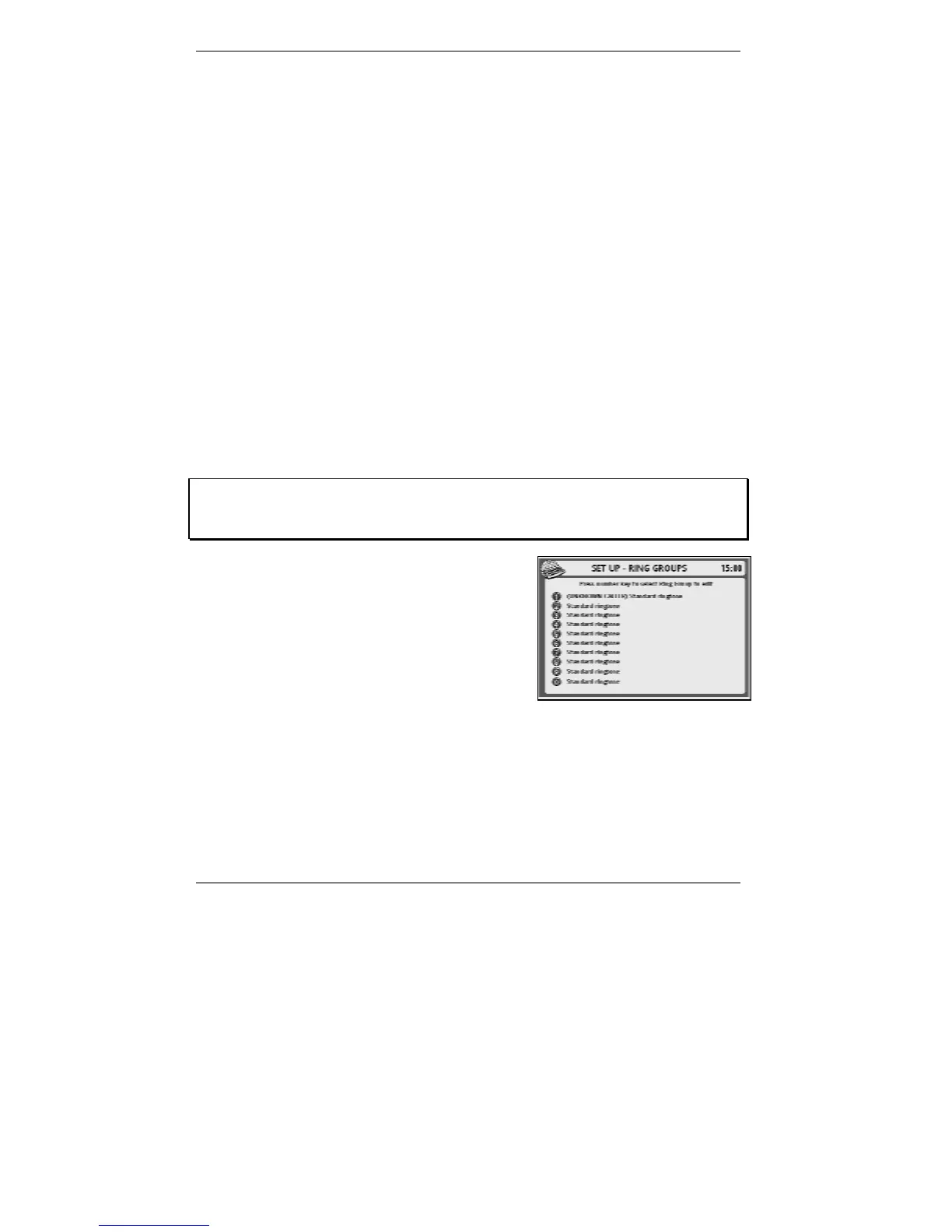
5. Press SETUP, 2, 5 so that the following
display appears (for example):
This display shows the currently selected ringtone
for each of the ring groups.
6. Press the number key for the ring group you
wish to define (for example 2).
& Note, before each ring group has been defined, it will be set to
Standard ringtone.



 To Next Page