Advanced settings
- 151 -
Using a ringtone to identify a particular caller
1. First, decide on a new ring group number (for example 7) for the caller in question.
2. Carry out steps 1 to 3 of the previous procedure to download a ringtone for this
caller.
3. Carry out steps 5 to 9 of the previous procedure to set the new ring group to the
newly downloaded ringtone.
4. Note, at this point you must press SETUP, 2, 5, 1 and re-set the required
ringtone for general/unknown calls (then press STOP repeatedly to return to
standby display).
5. Finally, edit (or create) the Address Book entry for the caller in question using the
newly defined ring group (for example 7).
Changing the withheld/unavailable ring group
The e-m@iler is factory-set so that calls which display Unknown caller,
Number withheld and Number unavailable are allocated to ring group 1.
However, you may use this procedure if you wish to
re-allocate calls that display Number withheld
(including calls from switchboards) and/or
Number unavailable (including calls from
abroad) to different ring groups.
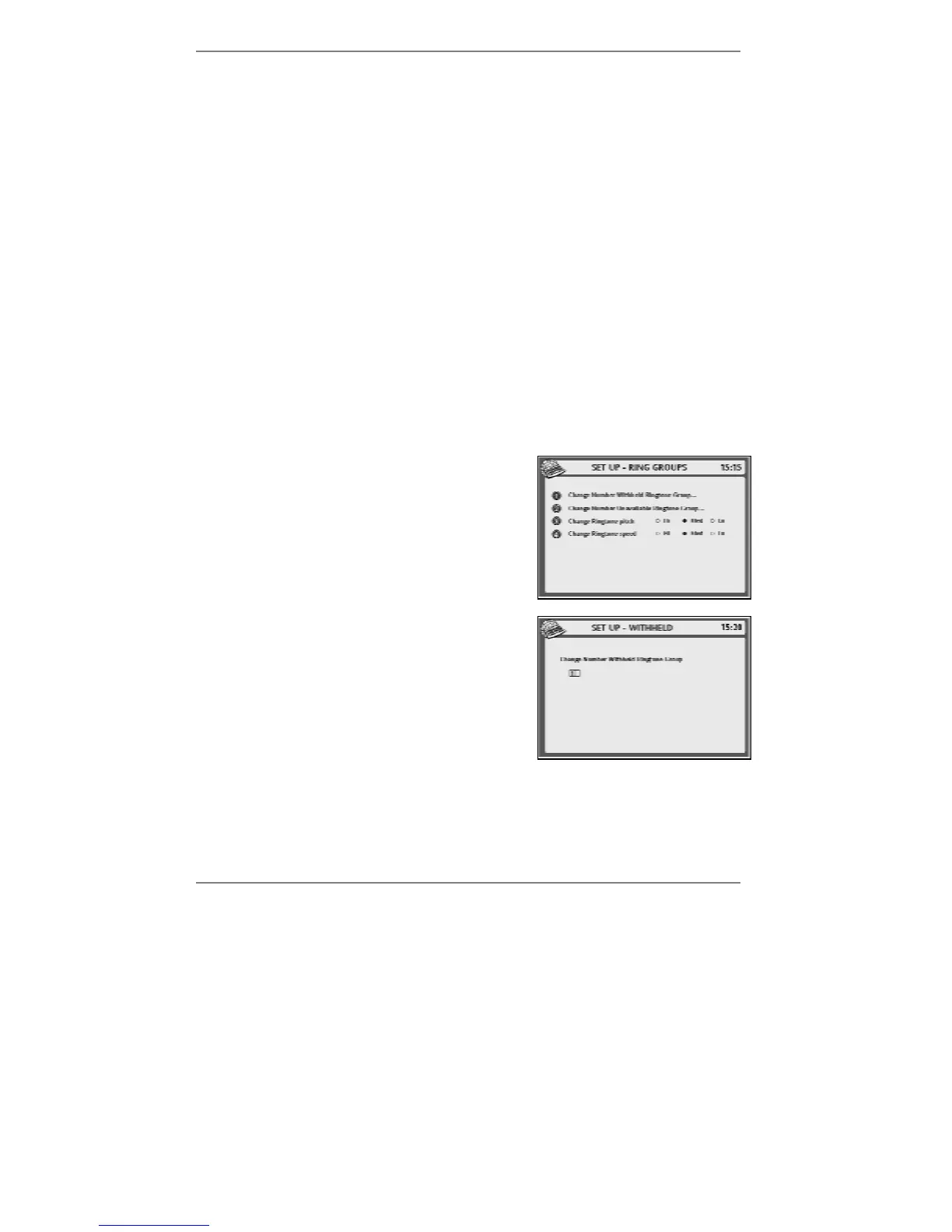
1. Press SETUP, 2, 6 so that the following
display appears (right):
2. Depending on whether you wish to change the
ring group for Number withheld or for
Number unavailable, press 1 or 2 so that
the following display appears (for example):
3. Press !DEL to delete the existing ring group
number, then type in the new number.
4. Press STORE.
5. Press STOP repeatedly to return to standby display.
& Note, calls that display Unknown caller (group 1) cannot be re-allocated
to any other ring group.



 To Next Page