Surfing the internet
- 93 -
Parental Lock
To prevent children or unauthorised users surfing the internet, you can set up a 4-digit
Parental Lock code. After setting the code, you will need to key it in each time you
enter Amsurf.
& Setting the parental lock for surfing also prevents access to any adult-
content in the SERVICES menu. The same code unlocks both Amsurf and
adult services.
Setting the Parental Lock code
➣
FAST TRACK: Press SETUP, 4, 6, enter code, press STORE.
♦ Note, if the code is set to 0000, this means Parental Lock is off. (When you
receive your
e-m@iler new, the code is set to 0000.)
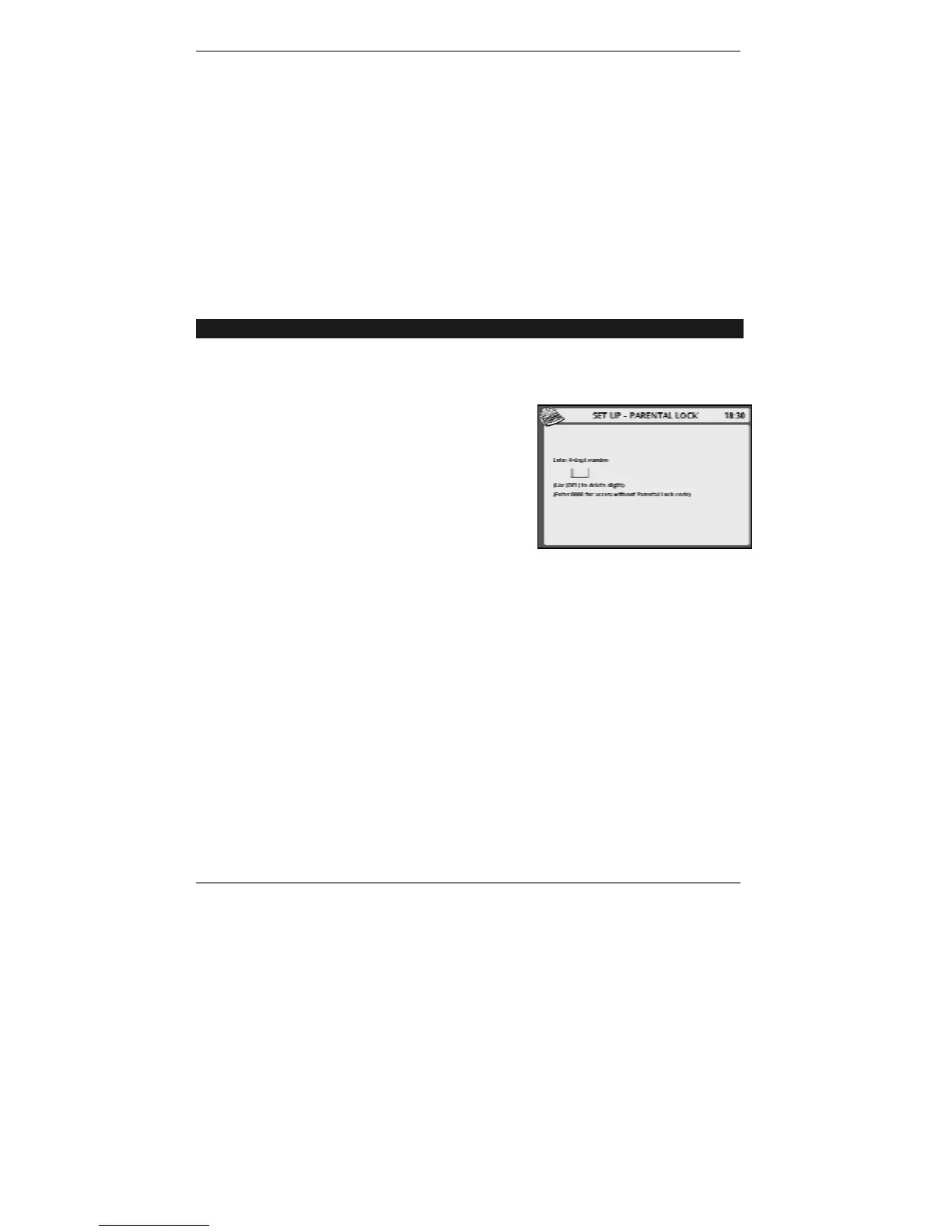
1. Press SETUP, 4, 6, to receive the following
display:
2. Enter the 4 digits of your code (in the small box
at the centre of the display).
♦ If you’ve previously set up a code, the digits
will appear as
****
as you type them in. You
must enter the correct code to continue.
& If the code is incorrect, the
e-m@iler will beep – try again.
Once you've typed in the correct code, the small box will clear and you can then type in
a new code if required. (The new code will be displayed in full.)
& Remember – type in 0000 for no Parental Lock.
3. Press STORE, then press STOP to return to standby display.
♦ If ever you forget your Parental Lock code, there is a way to reset it to 0000).
The section 'Removing all user PINs' can be found on page 163 of this book – cut
out and keep the section hidden if you don't want others to know how to remove
PINs (Personal Identity Numbers).
For information on other Amsurf settings, see page 142.



 To Next Page