Ringtones
- 96 -
Downloading a ringtone
➣
FAST TRACK: Press SERVICES, 3, 1, select required ringtone.
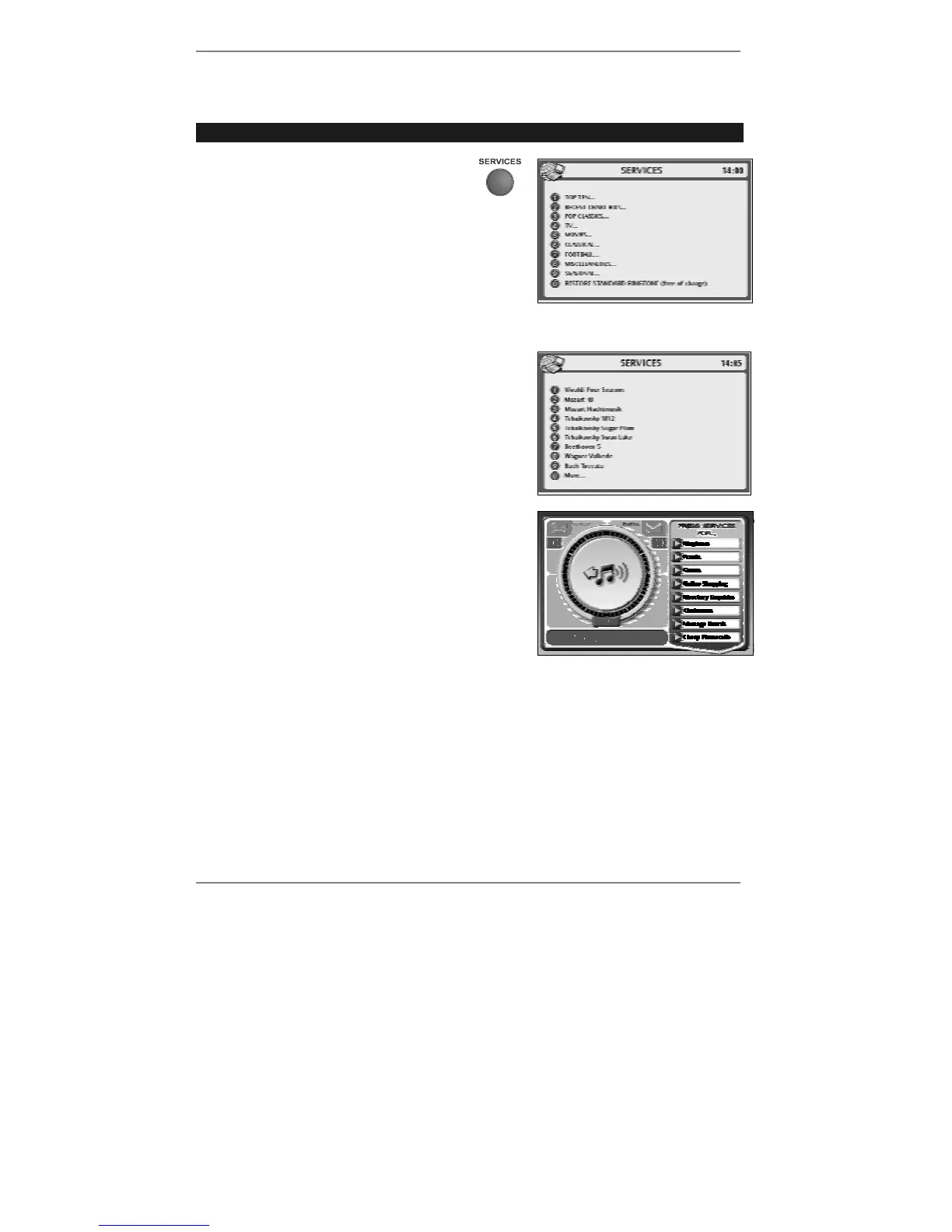
1. Press SERVICES, 3.
The e-m@iler ringtones cost is displayed.
2. Press 1 to select E-MAILER RINGTONES.
The following display will appear (see example
right):
3. Select the required ringtone category by pressing the corresponding number key.
Once you've selected a category, the following
display will appear (see example right):
4. To download the ringtone you require, press
the corresponding number key.
The following display will appear (right):
After a while, the message: Dialling for
ringtone will change to (for example):
Downloading Mozart 40.
Please wait a few minutes while the ringtone is
downloaded, after which the standby display will
appear.
& If, instead of the above display, the
e-m@iler beeps and DONE is displayed
after the ringtone title, this means that you've selected a ringtone which is
already downloaded.
After the download, all incoming calls will use the new ringtone (unless you've
set up personalised ring groups as described on page 147).



 To Next Page