Page 21
Chapter 4 Introduction to Your 2020 Pump
An insulin pump is a tool to allow you to better manage your diabetes by mimicking the
way a healthy pancreas delivers insulin. When connected to a properly inserted infusion
set, your pump delivers insulin at a continuous, low level (basal) rate, 24 hours a day. You
program delivery of a higher level dose (bolus) of insulin to cover food eaten or to correct
high blood glucose (BG).
Animas pumps are engineered and manufactured to the highest standards of quality.
Although it is a highly sophisticated medical device, it has been carefully designed to be
easy to use.
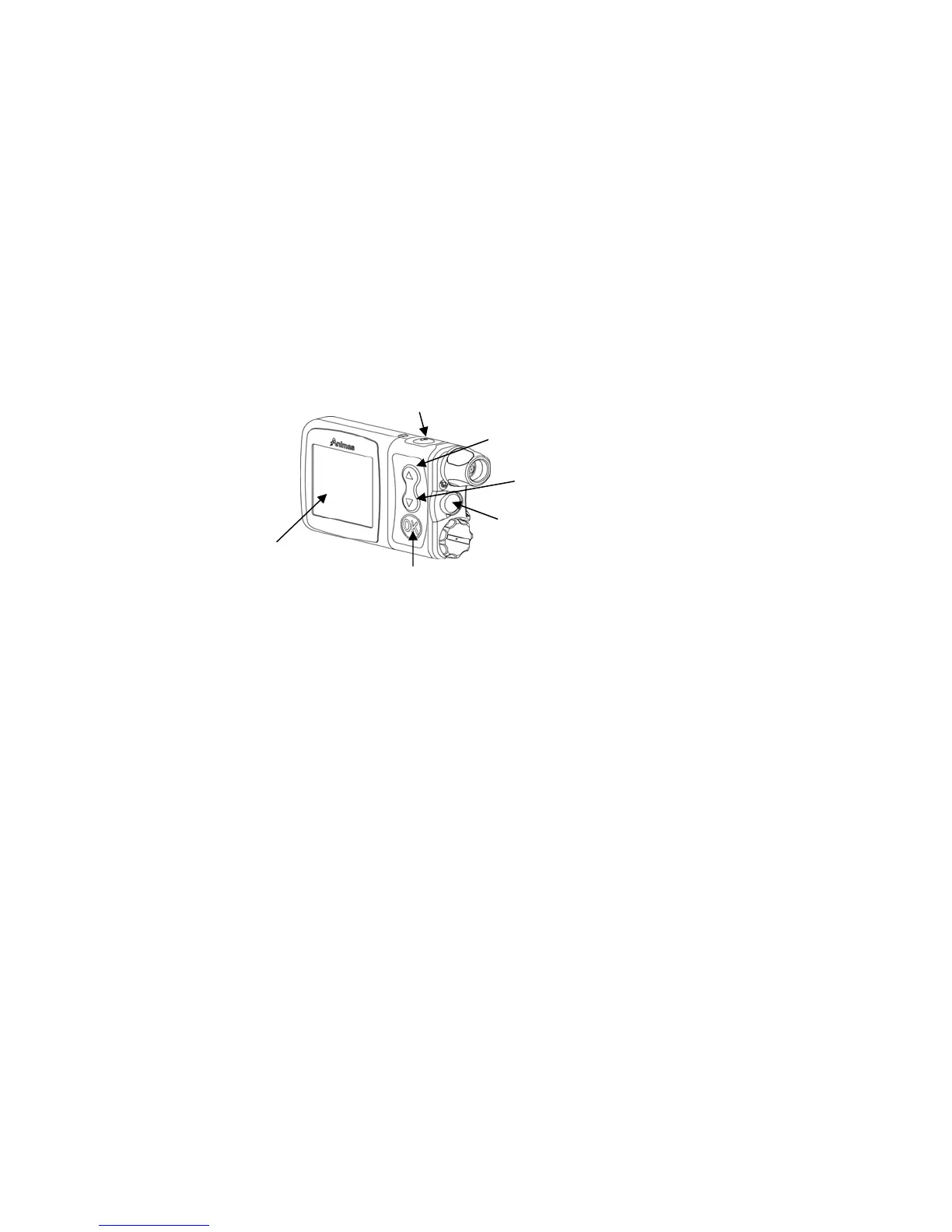
Get to Know Your 2020
Main Programming Buttons
There are 3 buttons for main programming functions. The Up and Down buttons allow you
to move through screen selections and to scroll up and down to enter values such as a bolus
amount. The OK button allows you to select an item or activate a function.
Programming Basics
• Your Animas pump is menu-driven, much like an ATM machine.
• Use the Up/Down buttons to scroll to the desired selection and then press the OK
button to select. If the cursor is flashing, it means the pump is in Edit Mode and by
scrolling with the Up/Down buttons, you can edit the flashing field.
• Once you’ve finished editing, press the OK button to confirm your entry and to exit
the Edit Mode.
Display Screen
All programming, operations, warnings and alarms are shown on the display screen.
Contrast Button
Pressing this button adjusts the contrast of your display. There are three contrast levels:
Dim, Default and Bright. To preserve battery life, your pump display will Auto-dim when a
button is not pressed for half the time your display time-out is set. While in Auto-dim
mode, you can restore the default contrast level you have set by pressing the Contrast
button on top of the pump. Pressing a function button while in Auto-dim mode will restore
the default contrast level as well as perform the function of the key. To adjust contrast
during a Call Service alarm, you must use the contrast button. See Chapter 11, Advanced
Features, Setup Advanced 4 – Contrast Adjustment and Display Timeout Setting.
Note: When viewing the pump display in bright sunlight, it is recommended you shade the
screen or move to a shady area for best visibility.
4
Display
Screen
OK button
Audio Bolus/ezBolus
button
D
n
n
Contrast button
Up button


 To Next Page