Page 39
10. When finished, scroll to Save/Review and press OK. If you have
edited the active program, it is now resumed automatically. The Basal
Options screen is displayed.
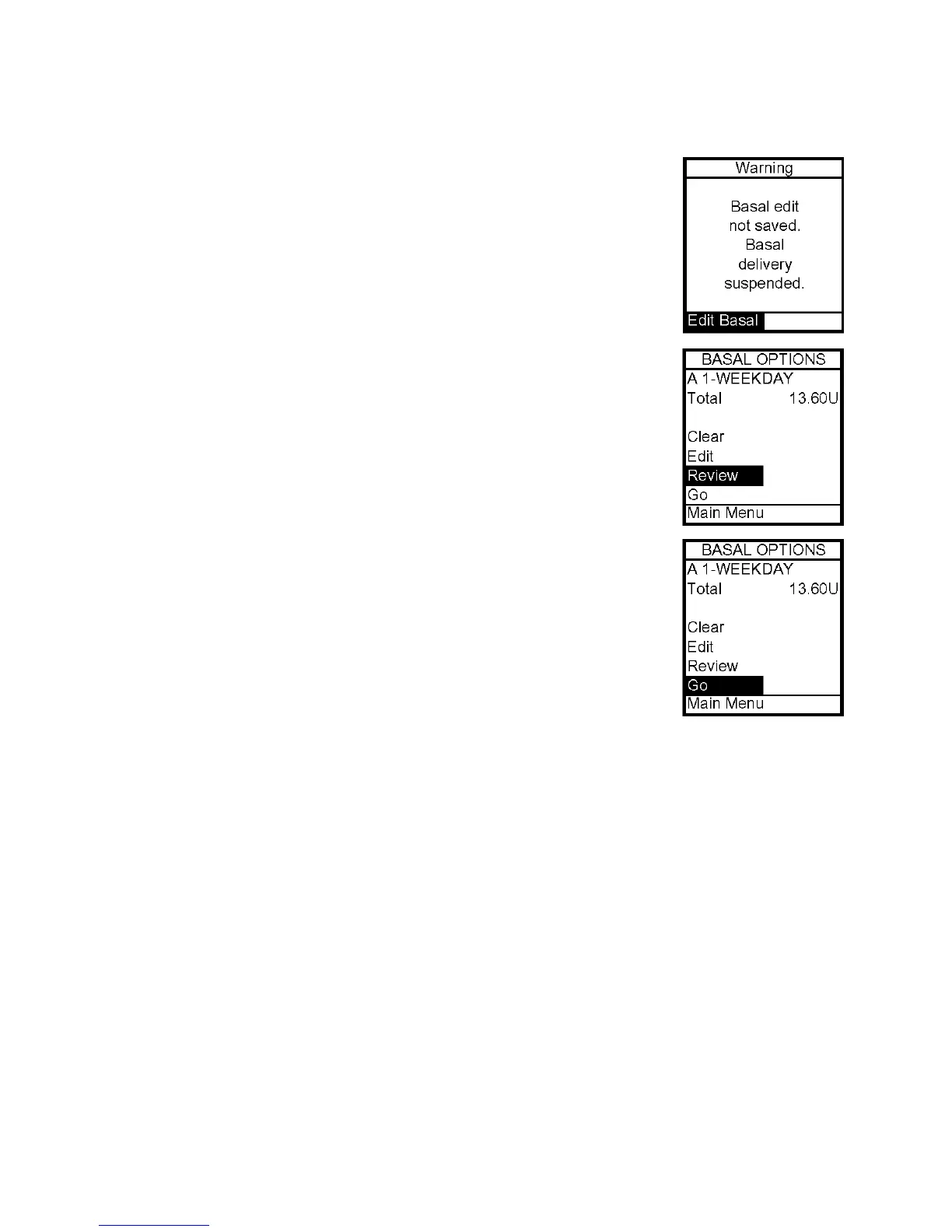
Note: If your screen display has timed out (gone to sleep) before you
have selected Save/Review while editing, a Warning screen will remind
you the basal edit has not been saved. See Chapter 14, Safety System
and Alarms.
11. Review is highlighted. Press OK to review your entries for
accuracy. Your basal segment settings are shown (5 on first screen, 5
on second screen and 2 on last screen). If you have more than 5
segments programmed, scroll to Next to see second and third screens
as desired.
12. Options is highlighted. Press OK. The Basal Options screen is
displayed.
a. If you’ve edited and saved/reviewed the active program, it is
resumed automatically. You can also select Go and the Home
screen is displayed, which shows the current rate of delivery for
the program that is active.
b. If you’ve edited an inactive program and wish to activate it,
select Go from the Basal Options screen. When you select Go, the
Home screen is displayed, which shows the current rate of delivery
for the program that is active.
Adding/Changing Segments in an Existing Basal Program
1. From Basal Menu, select desired program.
2. Edit is highlighted. Press OK.
3. Scroll up to highlight the field you wish to change or to next available blank line to add
a segment. Press OK to activate Edit mode. (The cursor will flash to indicate Edit mode.)
4. Use Up/Down buttons to set Start times and U/hr amounts.
5. Check that the AM/PM settings are correct.
If you program a segment to start at the same time as an existing segment, the previously
entered segment is deleted.
If you program a segment to start at a time that precedes an existing segment, the new
segment is automatically inserted in the correct place. You must then scroll to the new
segment, highlight the corresponding U/hr field and enter or change amount, if desired.
7



 To Next Page