Page 58
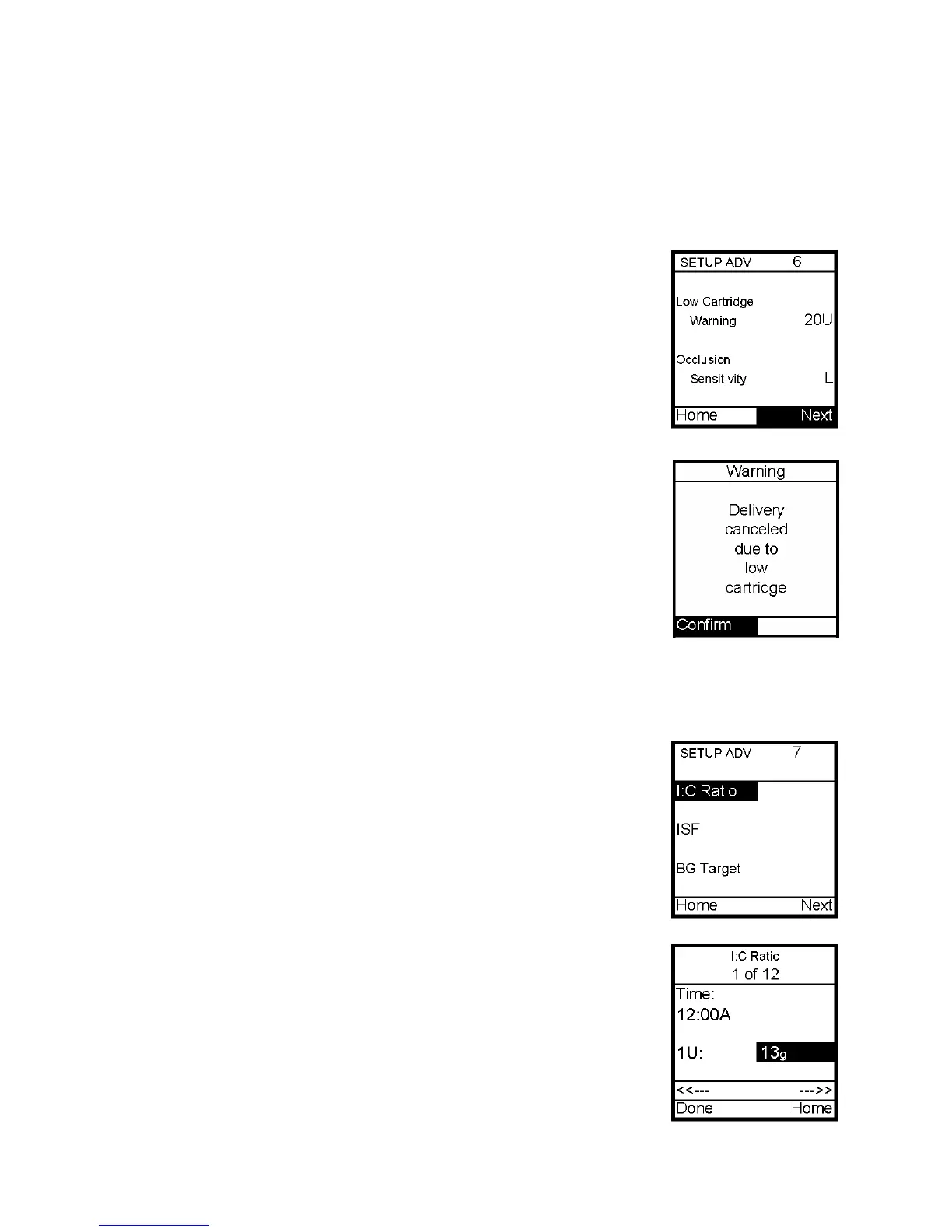
Setup Advanced 6 – Low Cartridge Warning Setting and Occlusion Sensitivity Setting
This screen allows you to:
• Set your low cartridge warning to alert you at 10, 20, 30, 40 or 50 units remaining
• Set your occlusion detection sensitivity to High (more sensitive) or Low (less
sensitive)
1. Use the Up/Down arrows to scroll to the desired field.
2. Press OK to change to flashing cursor for Edit mode.
3. Use the Up/Down arrows to change to desired setting.
4. Press OK when setting is made.
To move to the next Setup Advanced screen, scroll to the bottom of
the screen and highlight Next. Press OK.
To return to the Home screen, scroll to Home and press OK.
Note: The Low Cartridge Warning only alerts you one time. For
example, if you have it set to 30U and receive an alert, and then
change the setting to 20U, it will not alert at 20U until after the next
cartridge has been primed. If a bolus is delivered which causes a Low
Cartridge Warning, your remaining insulin may be less than the
Warning screen displays. If a delivery amount exceeds the low
cartridge setting, a Warning will be displayed and the delivery is
canceled.
Setup Advanced 7 – Personal Settings - Insulin to Carb (I:C) Ratios
Your healthcare team may recommend you use different Insulin to Carb ratios for different
times of day. When you use the ezCarb feature, your pump will
automatically select the I:C ratio for the current time of day.
The I:C Ratio screens allows you to:
• Set different I:C ratios for 12 different time slots
Note: If you set only one ratio, it will be used for the entire 24 hour
period.
From the Setup Adv 7 screen, scroll up to I:C Ratio. Press OK.
1. The first segment always starts at midnight. The last time slot
available is 11:30pm. Use the Up/Down arrows to scroll to the grams
field.
2. Press OK to change to flashing cursor for Edit Mode.
3. Use the Up/Down arrows to change to desired setting.
4. Press OK when setting is made.
5. To move to the next I:C Ratio screen, scroll to the forward arrows
and press OK.
11


 To Next Page