Page 57
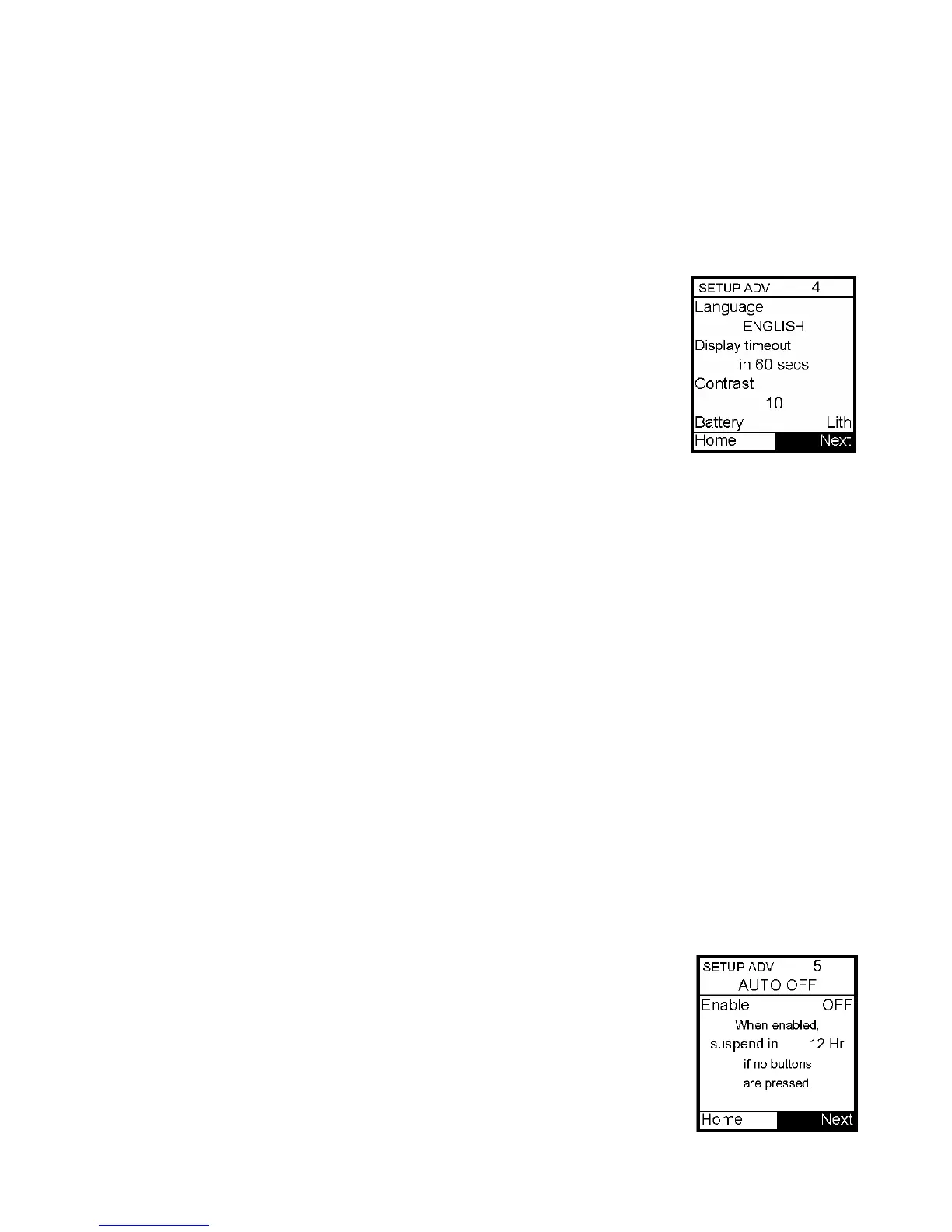
Setup Advanced 4 – Language Setup, Display Timeout, Contrast and Battery Type
This screen allows you to:
• Select a different language
• Set the length of time your display stays on before timing out to save battery life
o 15, 30, 45 or 60 seconds
• Select a contrast setting
• Select Lithium (recommended) or Alkaline battery type
1. Scroll to the desired field.
2. Press OK to change to flashing cursor for Edit mode.
3. Use the Up/Down arrows to change to desired setting.
4. Press OK when setting is made.
To move to the next Setup Advanced screen, scroll to the bottom of
the screen and highlight Next. Press OK.
To return to the Home screen, scroll to Home and press OK.
Contrast Button
Pressing the button on the top of your pump adjusts the contrast. There are three contrast
levels: Dim, Default and Bright. To preserve battery life, your pump display will Auto-dim
when a button is not pressed for half the time your display time out is set. While in Auto-
dim mode, you can restore the default contrast level you have set by pressing the Contrast
button on top of the pump. Pressing a function button while in Auto-dim mode will restore
the default contrast level as well as perform the function of the key. If in Call Service
Alarm mode, you must use the Contrast button to restore the default contrast level.
To return contrast setting to original factory default, press the Up Arrow and Contrast
button at the same time. When the word “Contrast” is displayed on the screen, press any
button to return to the default contrast setting.
Note: When viewing the pump display in bright sunlight, it is recommended you shade the
screen or move to a shady area for best visibility.
Setup Advanced 5 – Auto-OFF Feature
This screen allows you to set the pump to automatically suspend basal delivery and sound
an alarm if no buttons are pressed in a user-selected number of hours. This feature can be
used as a safeguard in case the user is unconscious.
1. Scroll to the desired field.
2. Press OK to change to flashing cursor for Edit mode.
3. Use the Up/Down arrows to change to desired setting.
4. Press OK when setting is made.
To move to the next Setup Advanced screen, scroll to the bottom of the
screen and highlight Next. Press OK.
To return to the Home screen, scroll to Home and press OK.
11



 To Next Page