Page 27
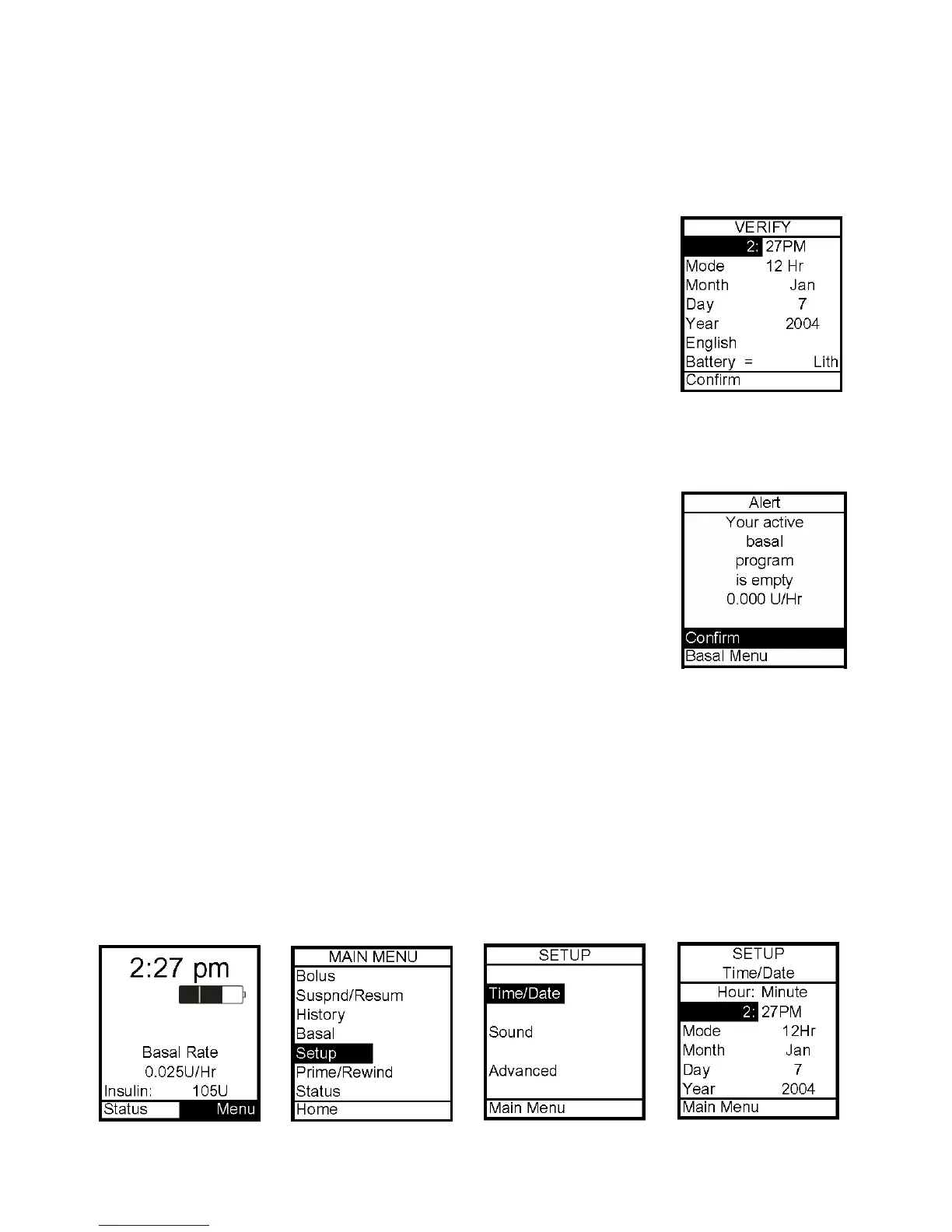
7. Check the displayed time/date, battery type and language. If correct, scroll down to
highlight Confirm and press the OK button. The Home screen will be displayed. For more
details on changing the time and date, see next section, Setup - Basics, Setting/Changing
Time and Date.
Note: The time and date must be programmed to Confirm the Verify
screen.
8. To change the battery type, highlight the battery field and press
OK to activate Edit mode (indicated by flashing cursor).
9. Use the Up/Down arrows to change battery type and press OK to
confirm and exit Edit Mode.
Note: The correct battery type must be selected in order for your battery life indicator to be
accurate. Lith = Lithium, Alk = Alkaline.
10. Scroll to Confirm and press OK. The Home screen is displayed.
Note: Until you have programmed a basal rate, the Alert screen shown
here will appear when the pump is awakened. Simply scroll to Confirm
and press OK to move past this Alert screen.
Setup – Basics
You can use your computer, with ezManager, to upload Time/Date and Sound settings. For
instructions on uploading basal program information, refer to your ezManager User Guide.
Setting/Changing the Time and Date
When you change your battery, the Verify screen allows you to edit the time and date.
You can also access the Time/Date screen by selecting Setup from the Main Menu.
1. From the Home screen, press OK to select Menu. Scroll to Setup on the Main Menu.
Press OK.
2. Scroll to Time/Date on the Setup Menu. Press OK.
5



 To Next Page