2-7 GUI Overview Instrument Overview
2-12 PN: 10580-00444 Rev. U MS2090A UG
Operating the Touch Screen
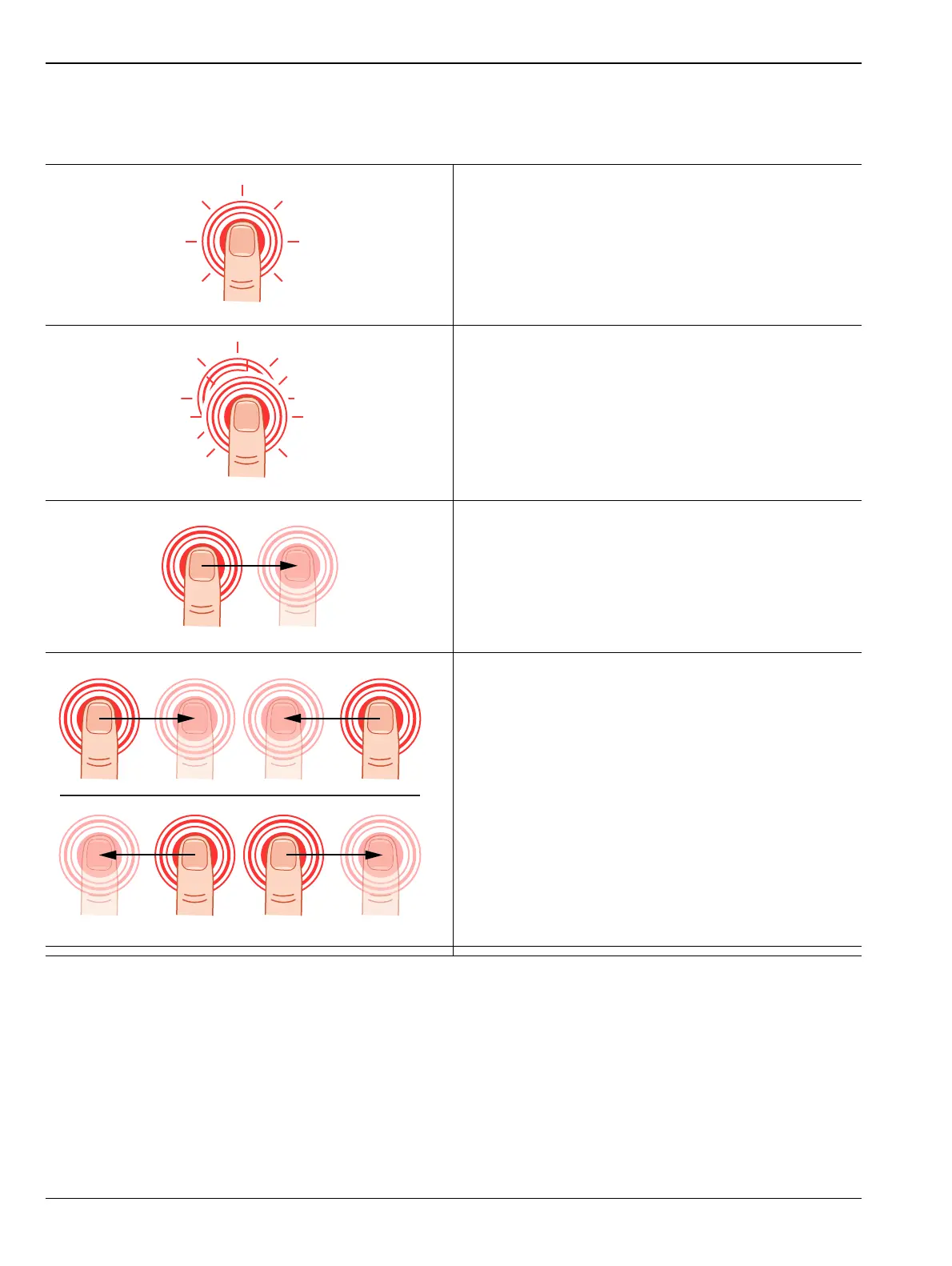
Field Master Pro uses common touch gestures to achieve a variety of operations. These include interactions on
hot areas by pressing, double pressing (or tapping), dragging, and pinching.
Single Press: Most controls require a single press or
tap. Touch the screen briefly and then release.
Double Press: Some controls require a double press or
tap. This action is similar to a double mouse click. If a
second press is not detected in a certain time period, the
action is dismissed or considered a single press.
Press and Drag: Some items can be dragged to a new
location. This action is accomplished by pressing and
holding the item lightly while dragging it to a new
location, then releasing. You can drag items such as
markers, limit line nodes, and the center frequency by
dragging the trace to the left or right.
Pinch: Some items can be reduced or expanded. This
action is accomplished by simultaneously pressing the
item with two fingers and holding the item lightly when
dragging the fingers in closer together or out farther
apart, and then releasing. You can pinch items in or out,
such as the frequency span by touching and holding the
trace in two positions, and then dragging your fingers
closer together to narrow the span or dragging your
fingers farther apart to widen the span.
Figure 2-7. Touch Screen Gestures













 To Next Page