B-4 Software Update Upgrading Software Options
B-2 PN: 10580-00444 Rev. U MS2090A UG
B-4 Software Update
To update your Anritsu instrument software, use a high quality USB memory device with at least 1 GB of free
space and FAT32 file system format.
1. Insert the USB memory device into your PC or laptop.
2. From a browser, go to the following Anritsu products page:
http://www.anritsu.com/en-US/test-measurement/products/ms2090a
3. On the product page, click Downloads.
4. Select the software update for your product and copy the downloaded software into the USB memory
device.
5. Insert the USB memory device into the one of the MS2090A USB ports.
Installing the Software
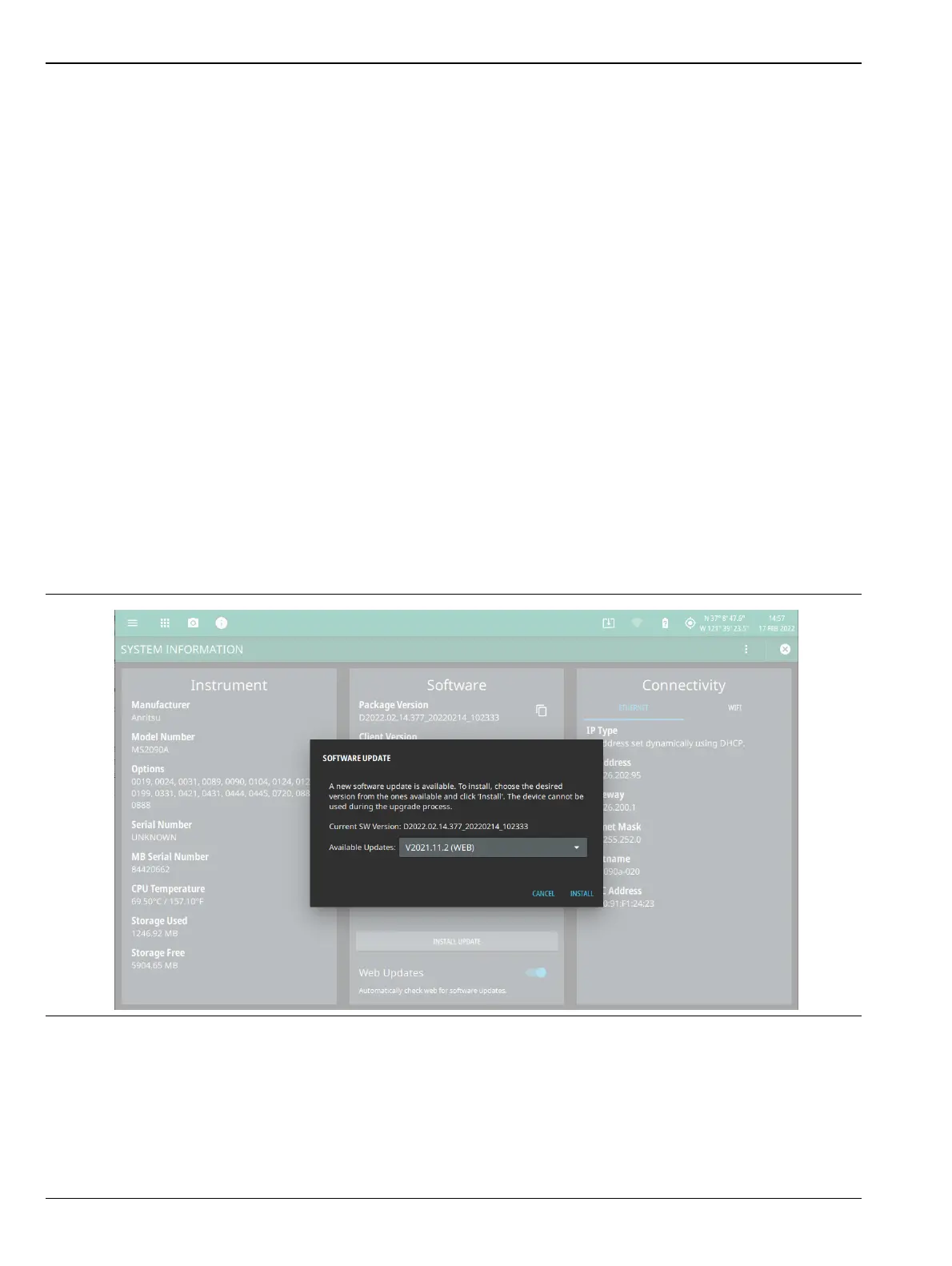
1. Start the software update via one of the two ways below (see Figure B-1):
• Access the upper left System Menu (3-line icon), then press SYSTEM INFORMATION >
INSTALL UPDATE. Refer to System Information Menu for more information.
• Select the software update icon from the “Title bar”. Refer to Common GUI Controls for list of GUI
icons.
2. Select the latest available update from the Available Updates drop-down and press INSTALL.
• A dialog will appear stating Software Update in Progress.
3. When the installation is complete, see “Verify the Software Update”.
Figure B-1. Updating the Software













 To Next Page