Instrument Overview 2-10 Settings Menu
MS2090A UG PN: 10580-00444 Rev. U 2-41
Options Settings
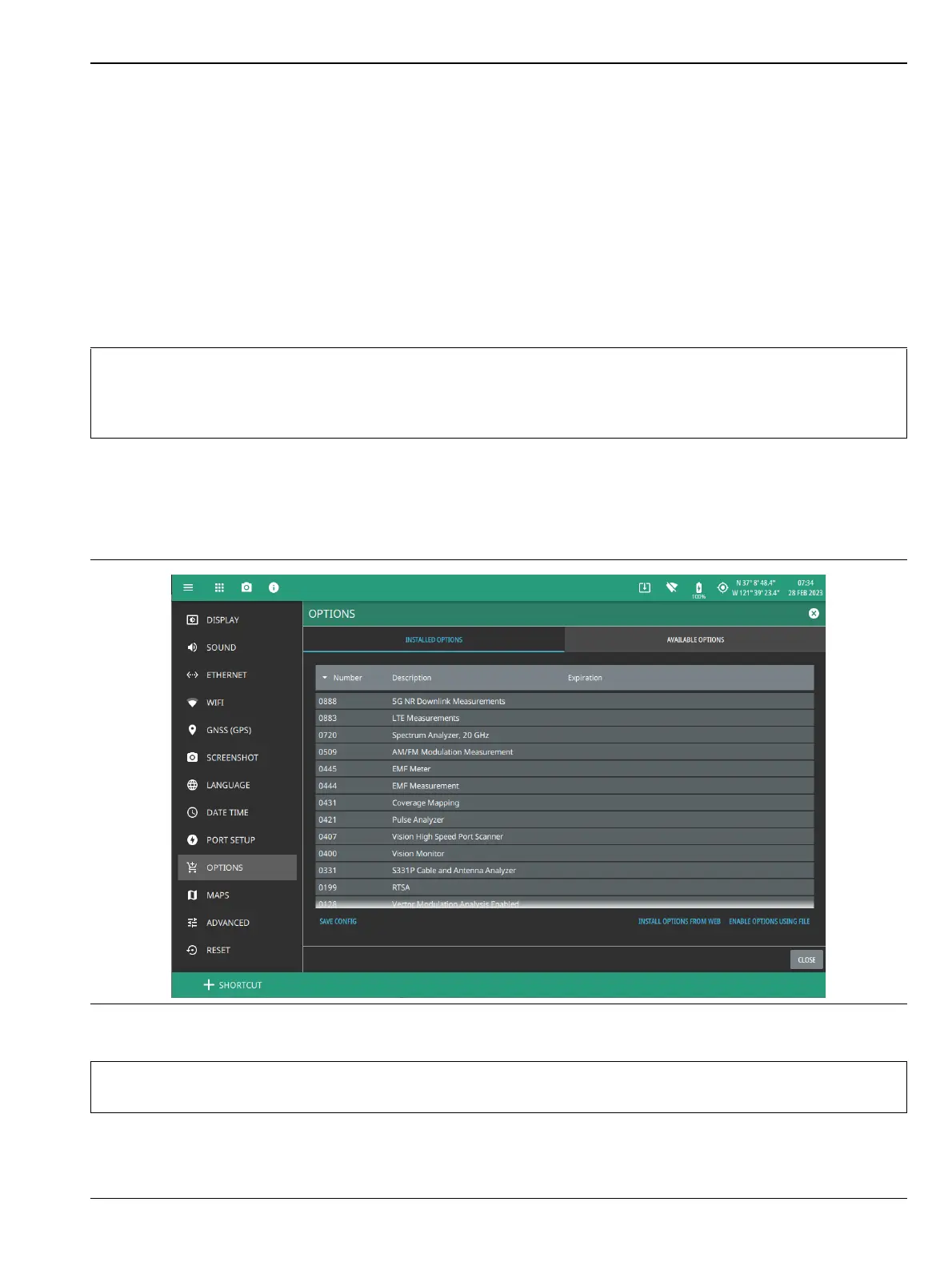
To view the installed and available options, follow the steps below:
1. Access the System menu (3-line icon in the upper left corner).
2. Navigate to SETTINGS to access the instrument settings menu.
3. Select OPTIONS to view the list of currently installed options in the left tab, and available options in the
right tab. Time-limited options will show the expiration date in the EXPIRATION column.
4. Some options can be installed using only a software file. Others may require additional hardware.
Contact your local sales or service representative for information on ordering or installing new options.
Refer to Appendix B, “Upgrading Software Options” for more information.
5. To upgrade your instrument with a specifically purchased option, select INSTALL OPTIONS FROM
WEB to install options available on the web. Ensure that the unit is connected to the Internet.
6. Select ENABLE OPTIONS USING FILE to install options file saved in USB memory device.
7. Select SAVE CONFIG to export the config file to Anritsu.
Note
Not all instrument models offer every option. For example, Coverage Mapping Option (0431) is
offered as a 90-day time limited option by ordering Option 9431. The option start time begins
when the user first activates the option. Please refer to the Technical Data Sheet of your
instrument for information on purchasing limited options
Figure 2-40. Options Settings
Caution
Once a time limited option is activated, the 90-day time period begins countdown and cannot be
halted. Ensure you intend to activate the option before selecting Activate.













 To Next Page