2-11 File Management Instrument Overview
2-48 PN: 10580-00444 Rev. U MS2090A UG
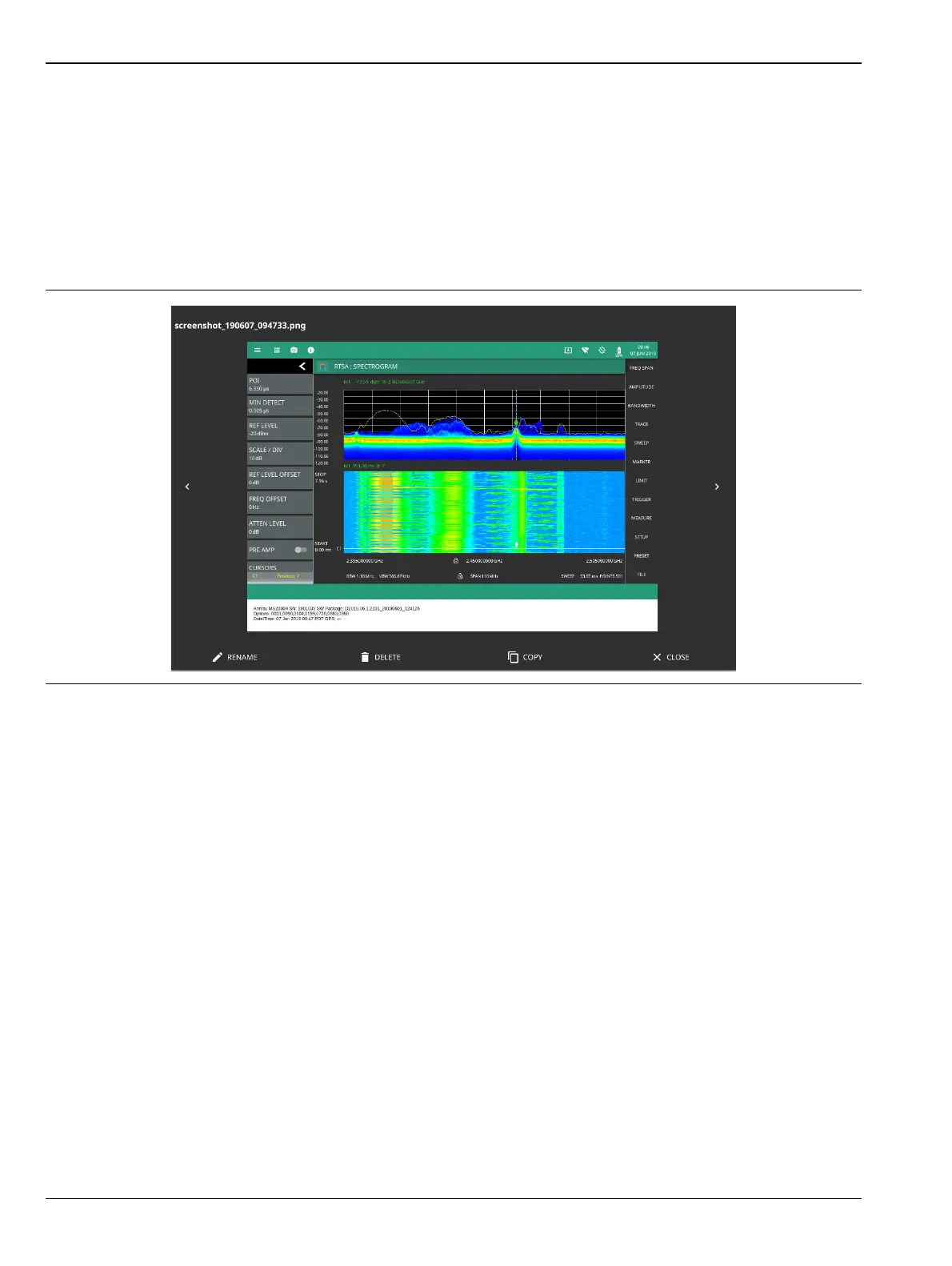
Previewing Screenshots
While in File Manager, you can preview screenshots on the instrument display simply by selecting the
screenshot file name. While the preview is displayed, you can use the controls to:
• Cycle forward and backward through each screenshot in the directory.
• Rename the file by selecting RENAME, then use the keypad to enter a new filename.
• Delete the file by selecting DELETE and then confirming your choice.
• Copy the file, then close the preview dialog and navigate to the desired location, then select the Paste
icon at the top of the File Manager.
FTP Access
An FTP server has been included in the instrument to allow direct access to files stored on the instrument
(or on a USB drive connected to the instrument) from a remote computer. To access the FTP server:
1. Connect the instrument to a network.
2. Use an FTP client of choice (such as Windows Explorer or File Explorer) and enter “ftp://” and the IP
address of the instrument as the host. For example: ftp://172.155.1.2
3. Enter the user name: ftp
4. Enter the password: serial number of the instrument
The serial number can be obtained from the System Information menu or through SCPI using the
"*IDN?" command.
Figure 2-47. Screenshot Preview













 To Next Page