Instrument Overview 2-11 File Management
MS2090A UG PN: 10580-00444 Rev. U 2-47
File Locations
Displays the available memory locations. Select the location that you want to access and the available files will
be displayed on the right side. You can select the column headers to change the sort order.
File Management Operations
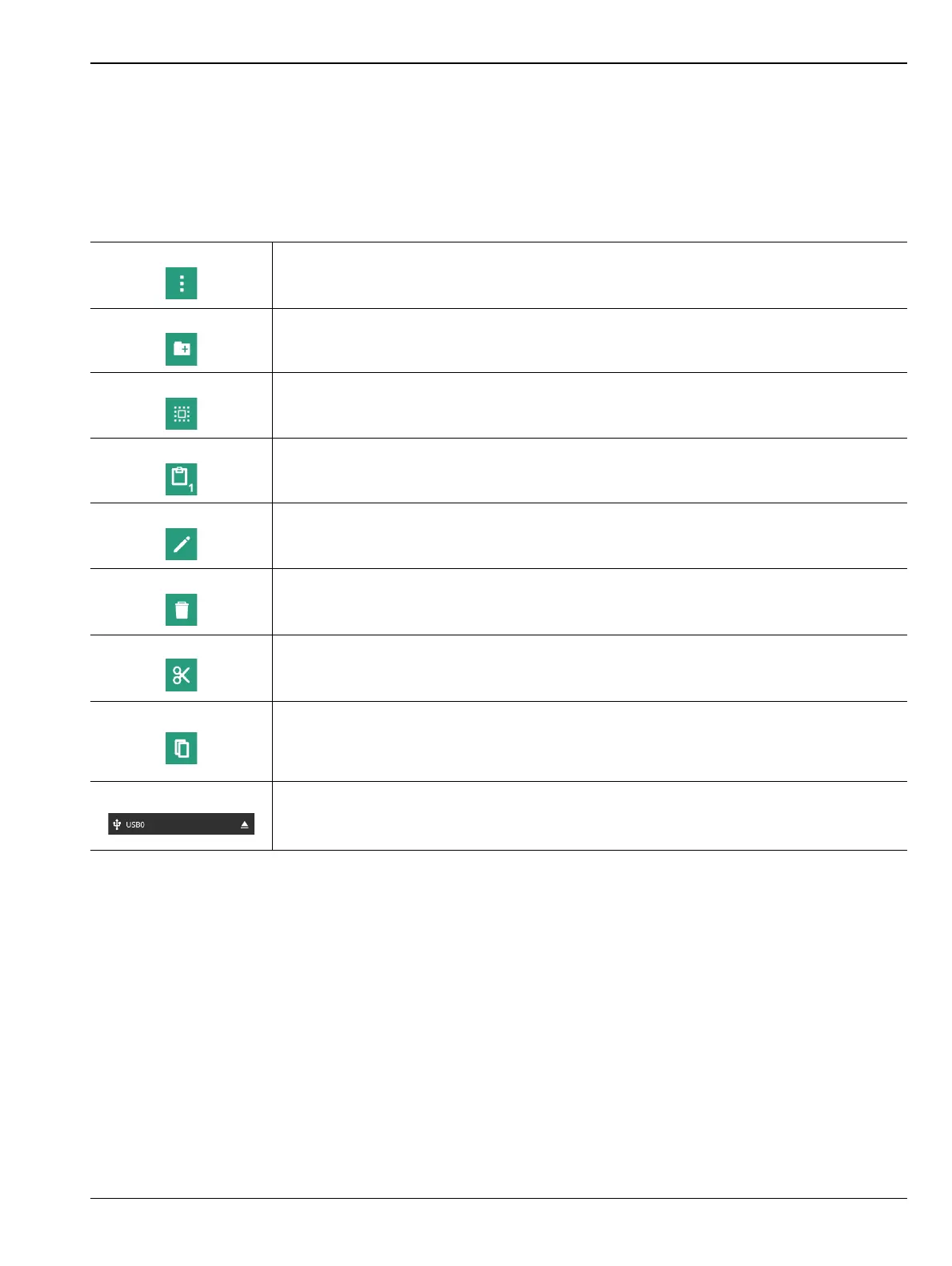
All file operations are selected via the following icons:
3-Dots
Use the 3-dots menu to refresh the displayed folder contents or to close the file
management menus.
New Folder
Use the New Folder icon to create a new directory in the current memory location. When
selected, the virtual keyboard is displayed, allowing you to enter a new directory name.
Select
The Select icon enables checkboxes next to your folder and file names. You can then
select multiple files to move, copy, or delete.
Clipboard
The Clipboard icon displays the number of items that you have selected and copied to the
clipboard. Use this icon to paste the copied items to the destination folder.
Edit
Use the Edit icon to change file or folder names. Select the item you wish to edit, then
select Edit to display the virtual keyboard and edit the item’s name.
Delete
Use the Delete icon to remove files or folders from memory. Select the item you wish to
delete, then select Delete to remove the item.
Caution: The item will be permanently deleted and cannot be recovered.
Cut
Use the Cut icon to move files or folders. Select the items you wish to move, then select
Cut to store the items on the clipboard. Navigate to the new location and select the
Clipboard icon to paste the items. The moved items are deleted from the source location.
Copy
Use the Copy icon to select files and folders to copy to a new location. Select the items
you wish to copy, then select Copy to store the items on the clipboard. Navigate to the
new location and select the Clipboard icon to paste the items. Copies of the items remain
in the source location.
USB Eject
Use the USB Eject icon to properly dismount the USB memory device before removing it
from the instrument port. Failing to properly eject the device could cause data corruption.
Figure 2-46. File Management Icons














 To Next Page