Instrument Overview 2-10 Settings Menu
MS2090A UG PN: 10580-00444 Rev. U 2-33
Wi-Fi Settings
Refer to “Network Settings” on page 2-29 for general network setup and information.
1. Access the System menu (3-line icon in the upper left corner).
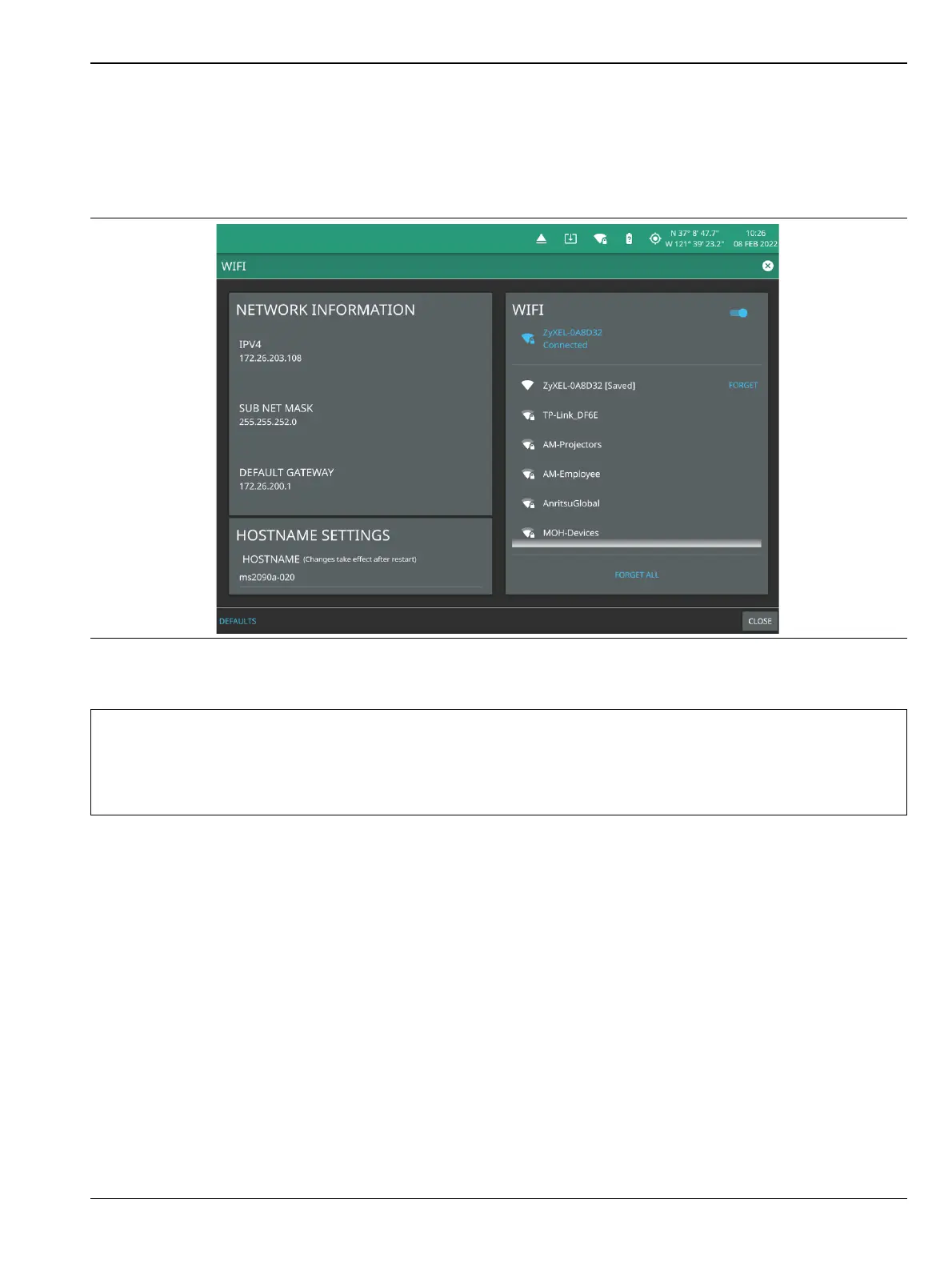
2. Select SETTINGS to access the instrument settings menu, then select WIFI to display the current
network settings (IP address, HOSTNAME, etc.).
The instrument IP, subnet mask, and gateway address are managed by the access point or wireless router.
3. Enable the Wi-Fi radio by toggling it on from the right-side panel, then select an access point from the
list.
4. When an access point is selected, the keyboard will display for you to enter the access point key (or
password).
5. The access point will display below the toggle as the active connection.
Figure 2-33. Wi-Fi Settings
Note
An active Wi-Fi connection to an access point must be established in order to enable DHCP.
If Wi-Fi becomes inactive, cycle the instrument power off and on, then verify that the Wi-Fi device is
connected to an access point.
Field Master Pro is not able to connect to networks that require sign-in through web servers.













 To Next Page