2-7 GUI Overview Instrument Overview
2-14 PN: 10580-00444 Rev. U MS2090A UG
Common GUI Controls
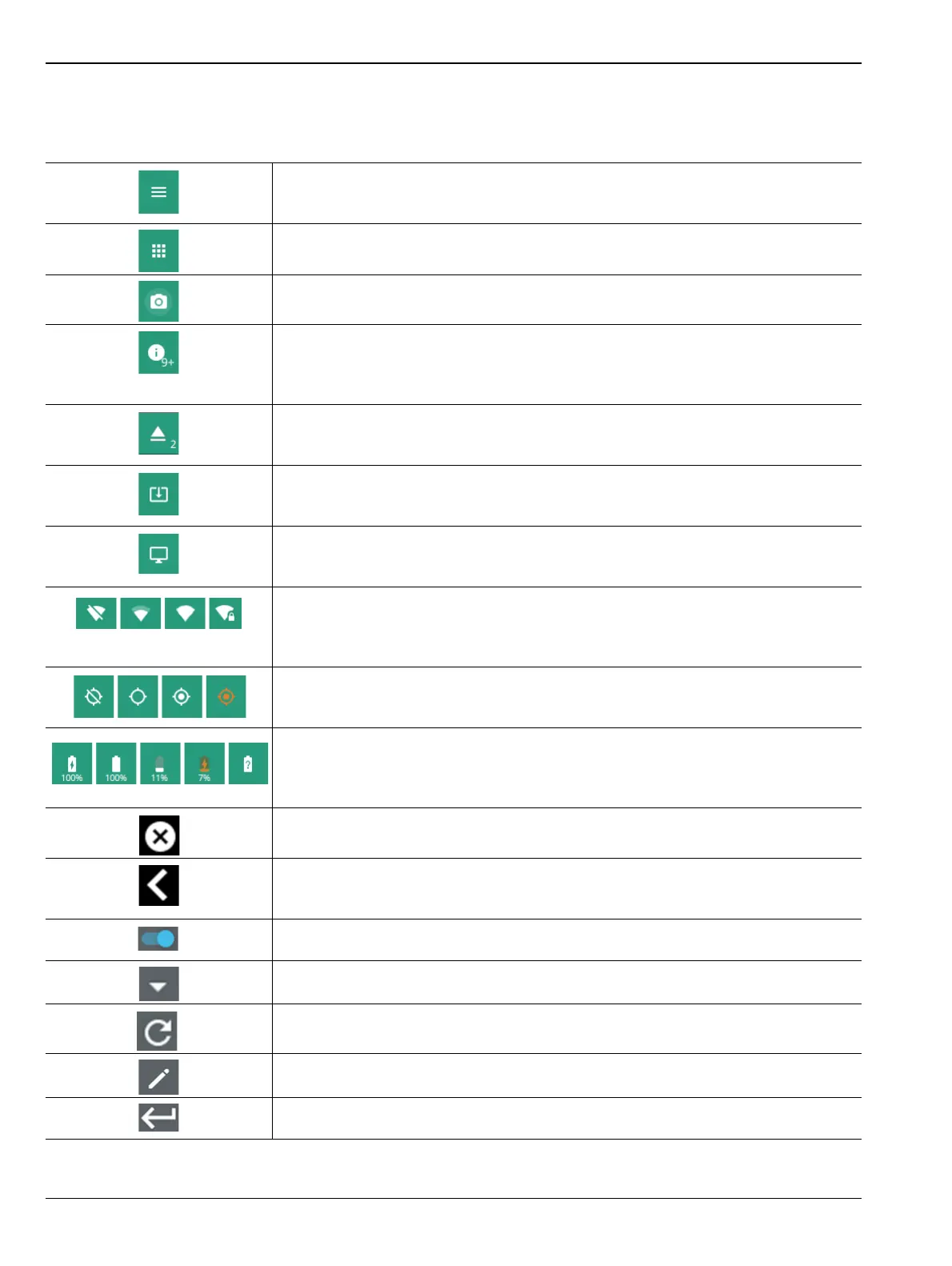
In addition to the touch gestures described in the previous section, the following table lists the most common
controls displayed in the toolbar of Field Master Pro.
The 3-line icon provides quick access to system information, settings, file
management, and built-in diagnostic tools. Refer to Section 2-9 “System Menu”
on page 2-21.
The 9-dot icon provides access for selecting the analyzers. Refer to
Section 2-8 “Selecting the Analyzer” on page 2-20.
The camera icon will capture a screen image and save it to a file. Refer to “Date
Time Settings” on page 2-38.
The notification icon provides access to informational and error messages. If
displayed, the number indicates the number of notifications. Refer to “Notifications
Icon” on page 2-22 and Appendix A, “Instrument Notifications and
Troubleshooting”.
The USB eject icon is displayed when the instrument detects one or more USB
devices. Select this icon to eject the USB device, or presents a dialog to select
which USB device to eject when more than one device is detected.
The software update icon is displayed when the instrument detects a valid software
package. Select this icon to open an updated dialog to select the software to install.
Refer to Section B-4 “Software Update” on page B-2.
The local host icon is displayed only on the MS2090A PC application when
connected to the local host instead of an instrument. The icon is not functional.
Refer to Appendix C, “PC Software”.
The wireless networking icon shows connection status (no connection, weak
connection, strong connection, connected to access point) and relative signal
strength. Select this icon to open the Wi-Fi settings menu. Refer to “Wi-Fi Settings”
on page 2-33.
The GNSS icon shows connection status (no connection, no fix, good fix, using last
good fix). Select the icon ro open the GNSS (GPS) settings menu.
Refer to “GNSS (GPS) Settings (Option 31)” on page 2-34 for detailed information.
The battery icon shows the current battery charge percentage and indicates that
the battery is charging with a lightning bolt. A question mark (?) indicates that the
battery is not installed or has a malfunction. Selecting the icon opens the battery
information dialog. Refer to “Battery” on page 2-49.
The close icon is used to close menu windows and other dialogs.
The chevron icon expands or collapses the status and table displays. A similar
chevron on the virtual keyboard may be for capital letters or to scroll through key
sets.
Toggle icon either enables or disables the feature. When highlighted in blue, the
item is enabled.
The drop-down icon exposes a list of items from which to choose.
The refresh icon restarts a process, such as a sweep or averaging count.
The edit icon allows editing of a feature or label.
The enter icon accepts an entry. A similar icon is found on menu buttons to indicate
an additional menu.
Figure 2-9. Common GUI Controls













 To Next Page