40
5. The wires will be copied to the folder.
6. To move an item just select Cut in step 3 instead of copy.
Deletingitems
The wire or Preprocess cannot be called up in a part, if it is you must first change or delete the part. If
you delete a wire or preprocess that is used in a part, you will get an error when you try to load the part to
run.
The Part cannot be called up in a job, if it is you must first change or delete the job. If you delete a part
that is used in a job, you will get an error when you try to load the part to run.
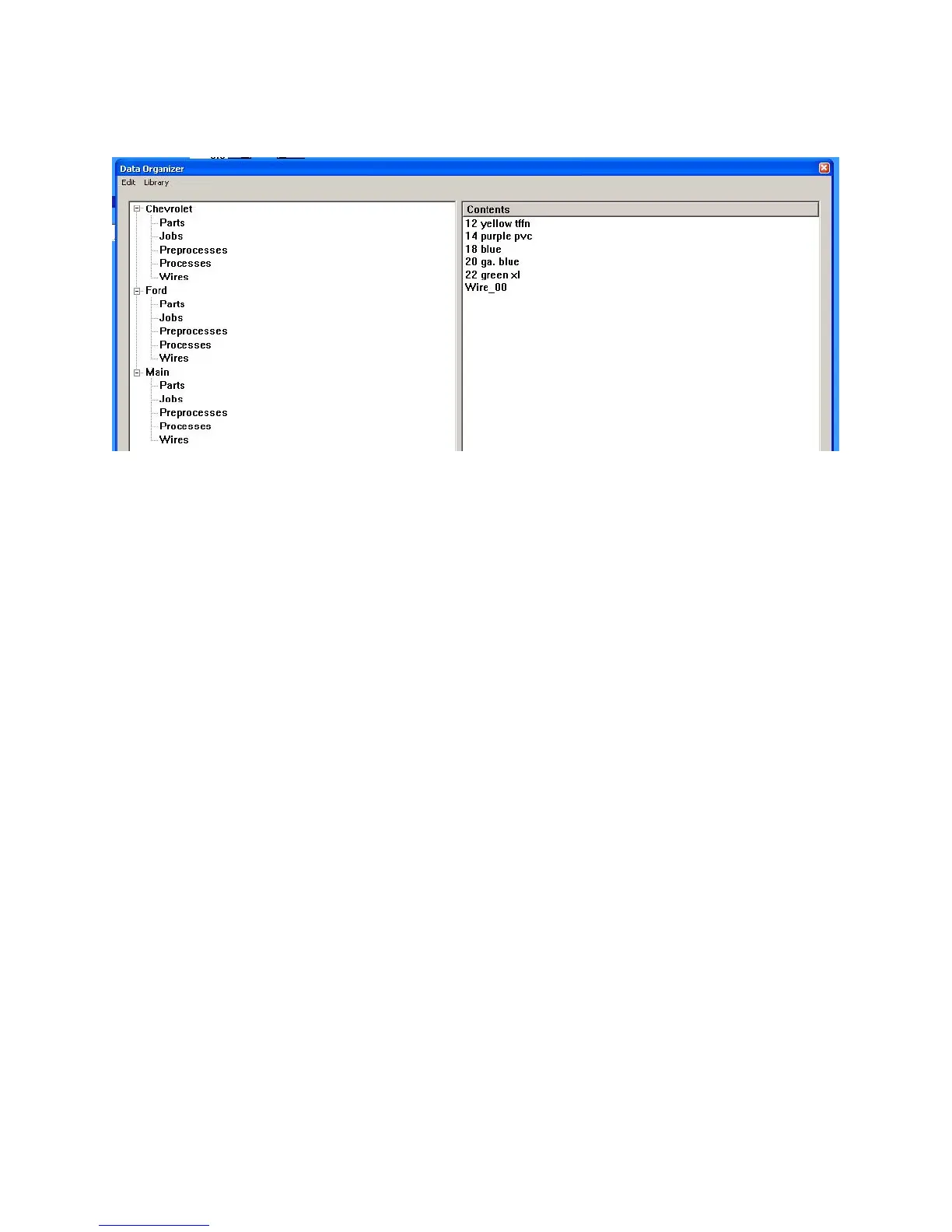
1. Select the folder and sub folder the data is located in. (example, Main - Wires)
2. Select the items to delete, right click and select delete.
UsingtheLibraryforwires,insteadofthecurrentfolder.
You can choose to run the machine in a mode where the wires displayed in the drop down of the main
menu are from a library instead of the particular folder you are in.
The location of the wires library is internally fixed at C:\Program Files (x86)\Artos
Engineering\CS326GUI\Folders\wires.mtx. If the (x86) directory does not exist then it is in location
C:\Program Files\Artos Engineering\CS326GUI\Folders\wires.mtx.
This way you can use the same wire list no matter what folder you are in. The only problem with this
mode is that when you add new wires or make changes they will not show up in any folder. This means
you cannot export or backup these new wires or changes. That’s why it is recommended that when
adding or changing wires, you follow these steps.
1. Turn off library mode
2. Select to work in the Main folder. This will keep all your wire info in
3. Add the new wire or make changes.
4. Go to the data organizer – Main – Wires
5. Select the wire you added or changed.


 To Next Page