86
CREATING A LABEL
Opening a new label, existing label to edit, or existing label to save to a new name.
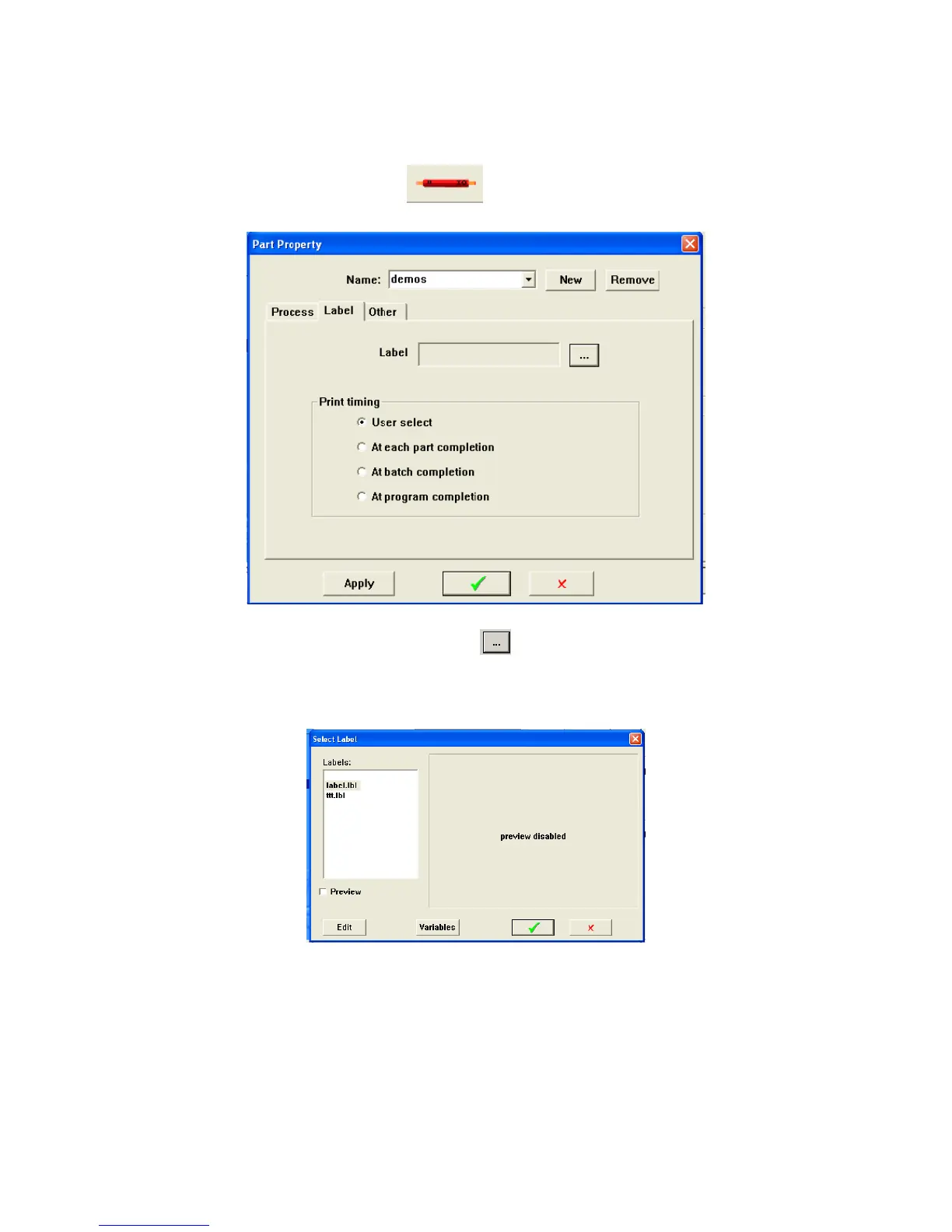
1. Click on the Parts Properties Icon
to open the Parts Properties window.
2. Select the Label tab. Click the browse button
. If you would like to edit an existing label
select the name of that label and click Edit (you can edit an existing label and save to a new
name). To create a new label select the blank line at the top of the list and click EDIT. Clicking
Edit will open the NiceLabel Pro software.
3. If the Artos software is covering the Nicelabel window, go to the task bar and click the “Nicelabel
Pro” icon to bring it forward.
4. If you opened an existing label that you plan on saving as a new name, or you opened a new
blank label this is a good time to click File – Save As. Enter the new name you would like to use
for this label. The location you should save this to is C:\Program Files (x86)\Artos


 To Next Page