129
1. Connection Mode – there are two connection modes available for
selection. The connection state displays.
⚫ Bluetooth – when paired to a wireless device, the connection state
displays as “Paired”, otherwise, it displays as “Unpaired”.
⚫ Firmware upgrade – updates the V200 with the latest version of
firmware via Internet.
2. Bluetooth Listing
The list section displays the serial numbers for all the V200 devices
available for pairing. Tap a VCI device to start pairing. The Bluetooth
status icon displayed on the middle of the screen indicating the received
signal strength.
11.4.1 Bluetooth Connection
The MaxiVCI V200 needs to be connected to the vehicle, so that it is powered
during the synchronization procedure. Turn the vehicle’s ignition to the ON
position. Ensure the tablet has sufficient battery life or is connected to an
external power supply.
➢ To pair the MaxiVCI V200 with the Display Tablet
1. Power on the tablet.
2. Insert the 16-pin vehicle data connector of the MaxiVCI V200 to the
vehicle data link connector (DLC).
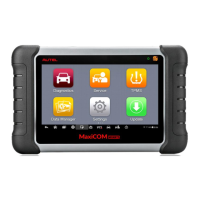
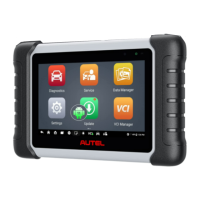
3. Tap the Settings application on the MaxiTPMS Job Menu of the
tablet, and select VCI Manager.
4. Tap Scan at the upper right corner of the tablet’s screen. The device
will automatically search for available V200 units.
5. The device name may display as Maxi suffixed with a serial number.
Select the appropriate device for pairing.
6. When paired successfully, the connection status displays the
device name with the message Paired.
7. Once paired, the VCI button on the upper right corner of the screen
will display a green check and the Connection LED on the MaxiVCI



 To Next Page