135
① Navigation and Controls
⚫ Return Button – returns to the MaxiTPMS Job Menu.
⚫ Update All – downloads all available updates.
⚫ Search Bar – searches specific update item by inputting the file
name. Example: enter a vehicle manufacturer.
② Main Section
⚫ Left Column – displays TPMS button and manufacturer buttons.
TPMS Button – downloads the TPMS service software for all
available vehicles.
Manufacturer Buttons – downloads the manufacturer specific
service software.
⚫ Middle Column – displays update software version and a brief
introduction about the new changes to the software operation or
capabilities. Tap the vehicle brand of your selection to open an
information screen to view more details.
⚫ Right Column – displays update button, which also works as an
update progress bar indicating the completion status in percentage
when downloading the software selected.
➢ To update the TPMS service software and diagnostic software
1. Ensure the tablet is connected to a power source and has a stable
connection with the Internet.
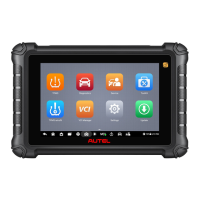
2. Tap the Update application button from the MaxiTPMS Job Menu;
the Update screen displays. Tap button on the upper right
corner to have all the downloadable items in updating status. This
will also update all the items at once if not second tap button
to suspend or resume the updating process.
3. If you only want to update one or some of the item(s), tap the
Download button on the right column of the specific item(s).
4. Second tap the Download button to suspend or resume the
updating process.
5. When the updating process is complete, the software will be
installed automatically. The previous version will be replaced.
There is NO separate download button for the tablet's software. The software
is downloaded with the software package.



 To Next Page