4-50
TotalAlert Innity™ HTM Medical Gas Notication System
4107 9016 60.01
Alarms
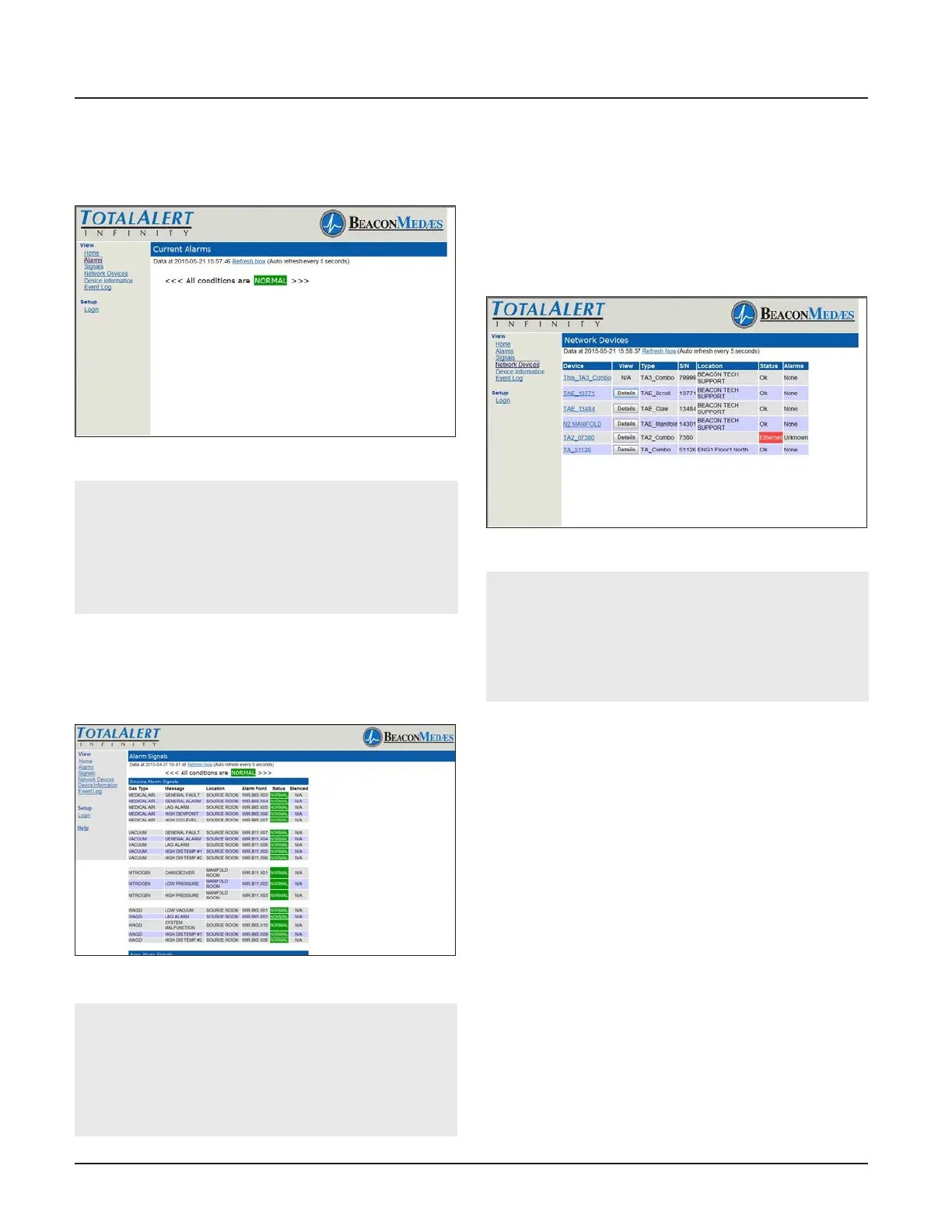
1. Click Alarms to view current alarms (Figure 4.159).
2. Click Refresh to view the most recent information.
Figure 178: Alarms Page
NOTE:
The Alarms page provides a snapshot of the cur-
rent alarm conditions. If a new alarm occurs, the
page is not updated until the page is reloaded by
Autorefresh or by clicking on Alarms or Refresh
links.
Signals
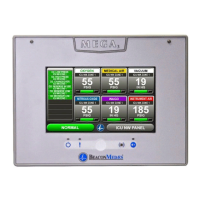
1. Click Signals to view all local signals monitored by
this alarm panel (Figure 4.160).
2. Click Refresh to view the most recent information
Figure 179: Alarm Signals Page
NOTE:
The Signals page provides a snapshot of the cur-
rent alarm conditions. If a new alarm occurs, the
page is not updated until the page is reloaded by
Autorefresh or by clicking on Signals or Refresh
links.
Network Devices
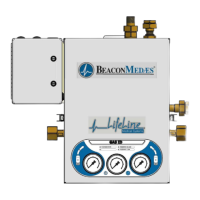
1. To view all devices on the network, click Network
Devices (Figure 4.161).
2. Click Refresh to view the most recent information.
3. Click the Device link to jump to the home page of
the listed alarm.
4. Click the Details tab to show detailed information
about the device.
Figure 180: Network Devices Page
NOTE:
The Network Devices page provides a snapshot
of the current alarm network. If a device is added
to the network the page is not updated until the
page is reloaded by Autorefresh or by clicking on
Network Devices or Refresh links.
Device Information
Click Device Information to view the Device Information
page (Figure 4.162).
Event Log
1. Click Event Log to view the Event Log page (Figure
4.162).
2. Click Refresh to view the most recent information.
3. To create a downloadable text le, click the Create
a Downloadable text le link.
4. Right click the link to save the event log to a le.


 To Next Page