4-52
TotalAlert Innity™ HTM Medical Gas Notication System
4107 9016 60.01
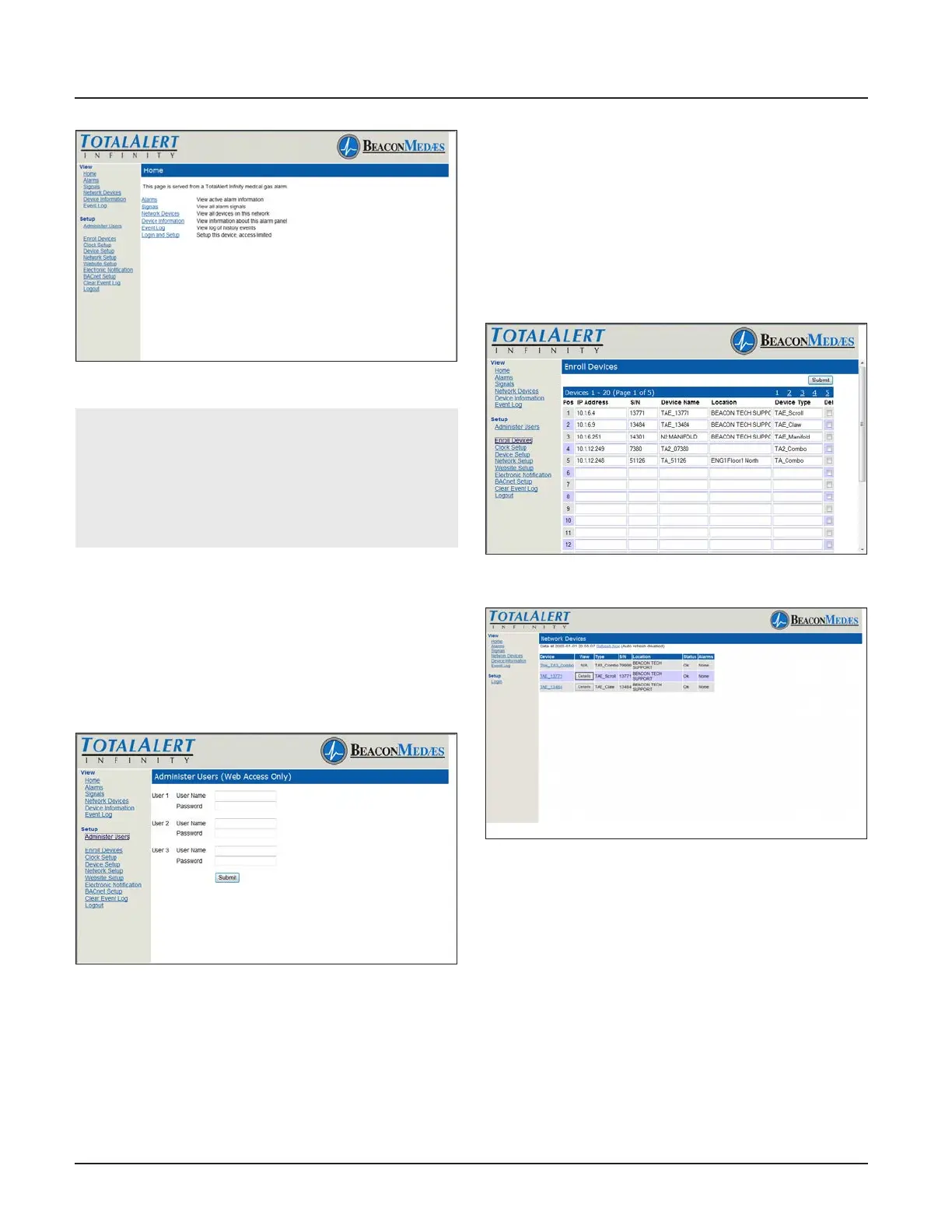
Figure 184: Logged In
NOTE:
Logging in applies only to the computer on which
the login occurs. If more than one PC is being used
to access the alarm web pages, each one must be
logged in individually. The computer stays logged
in until the user closes the browser.
Administer Users
Each TotalAlert Innity™ panel allows for three total
Administer Users
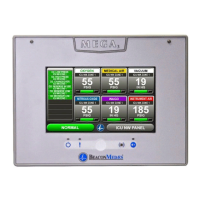
1. Click on Administer Users to access the Administer
Users Setup page (Figure 4.166)
2. Enter the User Name and Password then click
Submit.
Figure 185: Administer Users
Enroll Devices
The TotalAlert Innity™ provides the ability to enroll up
to 100 TotalAlert Embedded devices connected to the
medical gas network. Central and combination alarms
are the only alarms that allow for enrolled devices.
TotalAlert Innity™ Area alarms can now be enrolled via
Ethernet to the TotalAlert Innity™ central alarm. This
allows for the user to see the fault condition (gas type
and pressure reading) and which Area panel the condi-
tion is for.
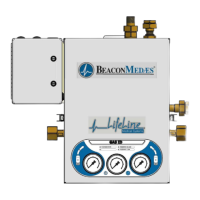
1. Click on Enroll Devices to access the Enroll Devices
Setup page (Figure 4.167).
2. Enter the device IP address and Serial Number.
The Device Name, Location, and Device Type will
automatically ll (Network will refresh).
3. Click Submit.
4. To delete an enrolled device, click Del box of device
to delete and click Submit.
Figure 186: Enroll Device Setup
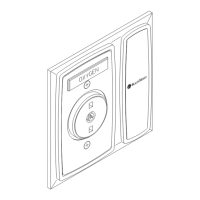
Figure 187: Network Devices Screen
Set Clock
1. Click Clock Setup to access the Clock Setup page
(Figure 4.170).
2. Set the current date by inputting the year, month,
and day.
3. Set the current time by inputting the current hour
and minutes.
4. Click the SET tab to complete. When the SET tab is
pressed, the date and time are set on the system
and seconds are set to zero.


 To Next Page