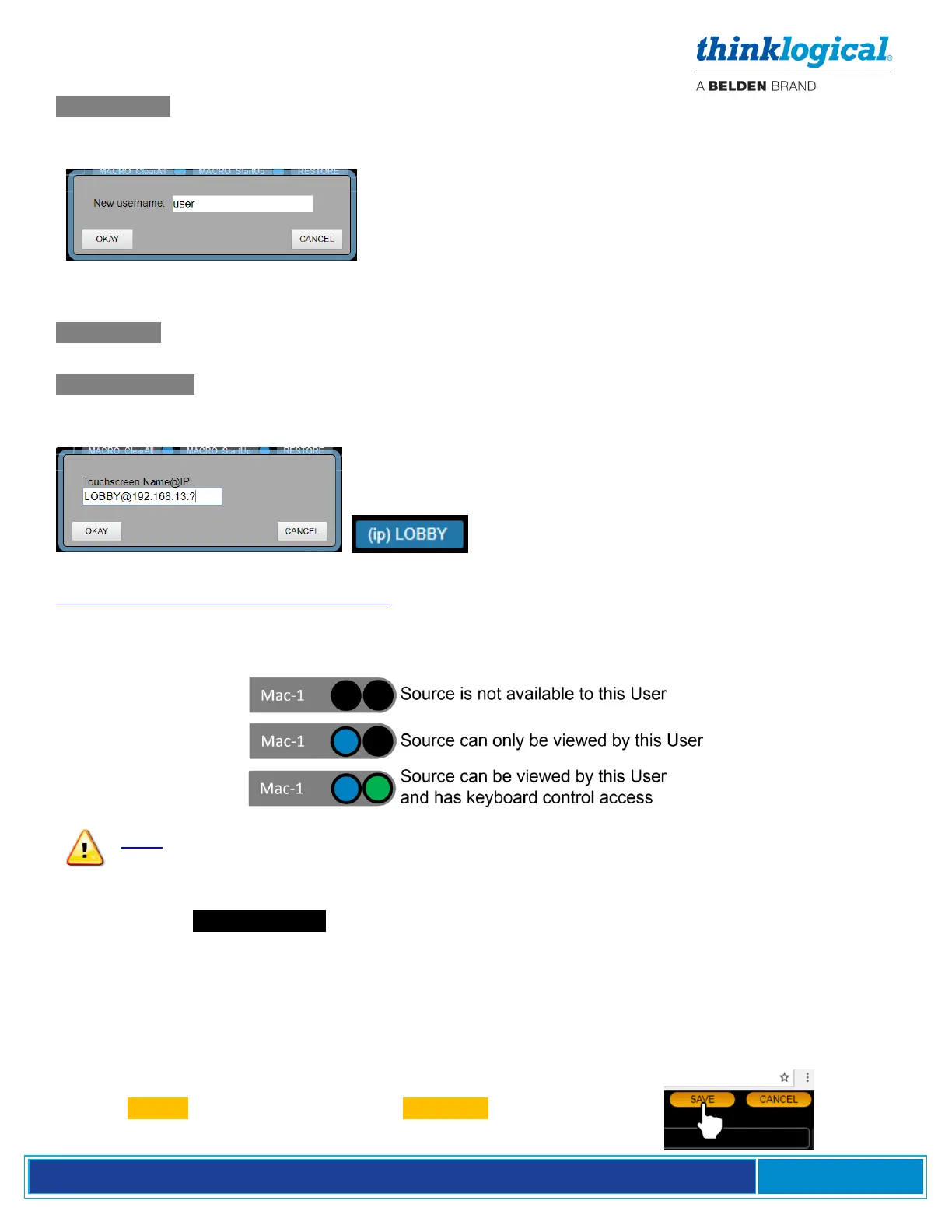
NEW USER This type of user applies to systems where asset availability is controlled by a log-in,
such as the OSD and when logging into the SMP2 via a browser over the network. Selecting this item
displays a window where a username is entered.
The default password for newly created users is also the username. To change this password, see
How to Create or Modify a User or Password on page 14.
KBD USER Keyboard User applies to the physical keyboard and its location at a workstation console.
This is normally not reconfigured unless the initially created names have changed under the KBDS tab.
TOUCHPANEL This is where Thinklogical Touchpanels are added and configured. The Touchpanel
name (default name is LOBBY) and the IP address of the Touchpanel are entered here. The resulting
USERS/KBDS icon will display this name and indicate that it is a Touchpanel by the (ip) designation.
For more information on installing Thinklogical Touchpanels, see Manual_Touch_Panels.pdf at
https://www.thinklogical.com/downloads/
Assets: Once a new user is added, assets are then made available by selecting the appropriate
colored-coded dot. In the case of Sources, there are two dots, defined as follows:
Note: To restrict assets (if necessary) via OSD or user login:
1) Deselect all assets for the kbd-user.
2) Enable selected assets for a User (otherwise they will be added together).
The right frame, USER DETAIL , has six categories that can be configured:
PAGES – These are the pages that will be available on a Touchpanel or browser login for the operator
to choose from. These options will appear as tabs at the bottom of their screen.
START PAGE – Only one category may be configured here. This is the first page an operator will see
upon Touchpanel or browser login.
POOLS, SRCS, DSTS, MACROS – System assets that can be made available to a User.
Click on SAVE to activate the change or CANCEL to discard changes.



 To Next Page