THE DRAG (Drag N Drop) TAB
The Drag N Drop Graphical User Interface makes it easy for users to visualize their workstations on-
screen and switch Sources and Destinations by simply moving an icon. As room configurations
evolve over time, icons representing Sources and Destinations can be added or removed from
the layout as required, making it simple to adapt to changing requirements.
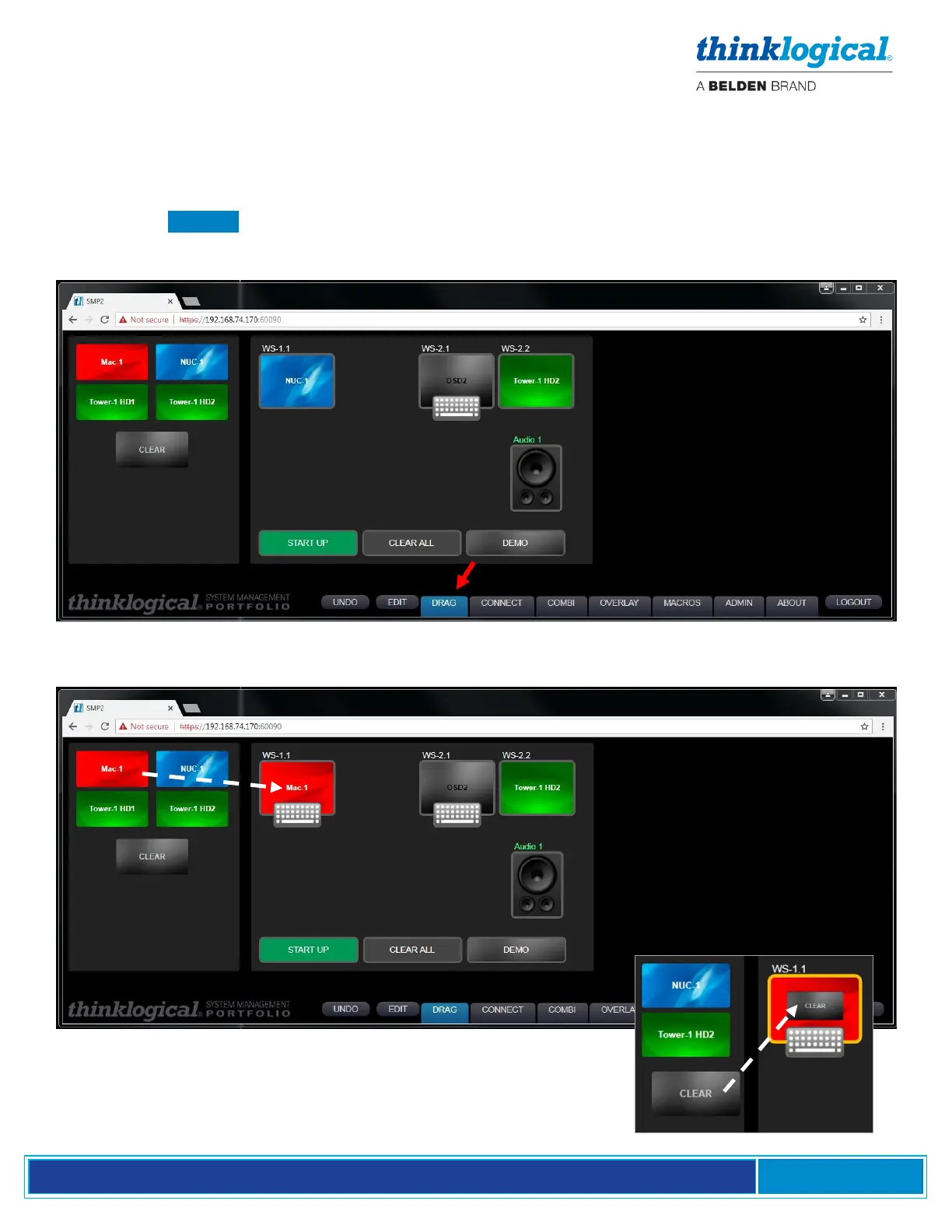
Click on the DRAG Tab. The Souces, OSD and Destinations in the demonstration example are
graphically depicted below in the Drag N Drop GUI, with Sources on the left, unconnected Destinations
on the right, and Macros below.
Connections are made by dragging a source icon, from the source frame or from another destination,
to a desired destination. The Keyboard icon indicates that Mac-1 has control of the keyboard.
To clear a Source or Destination, drag the
CLEAR icon to the icon to be cleared.



 To Next Page