Appendix H: Intuitive Mouse Setup
If the Intuitive Mouse feature is being setup in the system, it must first be configured in the SMP2 as
described on pg. 29. The extenders must also have this feature enabled.
Hardware Settings:
• On the chassis LCD supporting an Intuitive-Mouse-capable Transmitter, the MS Screen Select
must be set to YES. This lets the computer know that it should use Absolute Position for the mouse.
• On an Intuitive-Mouse-capable Receiver, MsScrn Sel Disable must be set to NO.
Note: All TLX Extenders support Intuitive Mouse, as do some Velocity extenders, such as
the VQM-HA0006-LCRX.
Extenders support Intuitive Mouse at the HID ports, not the USB 2.0 ports.
The back channel is required for Intuitive Mouse; both fibers connected.
Software Configuration:
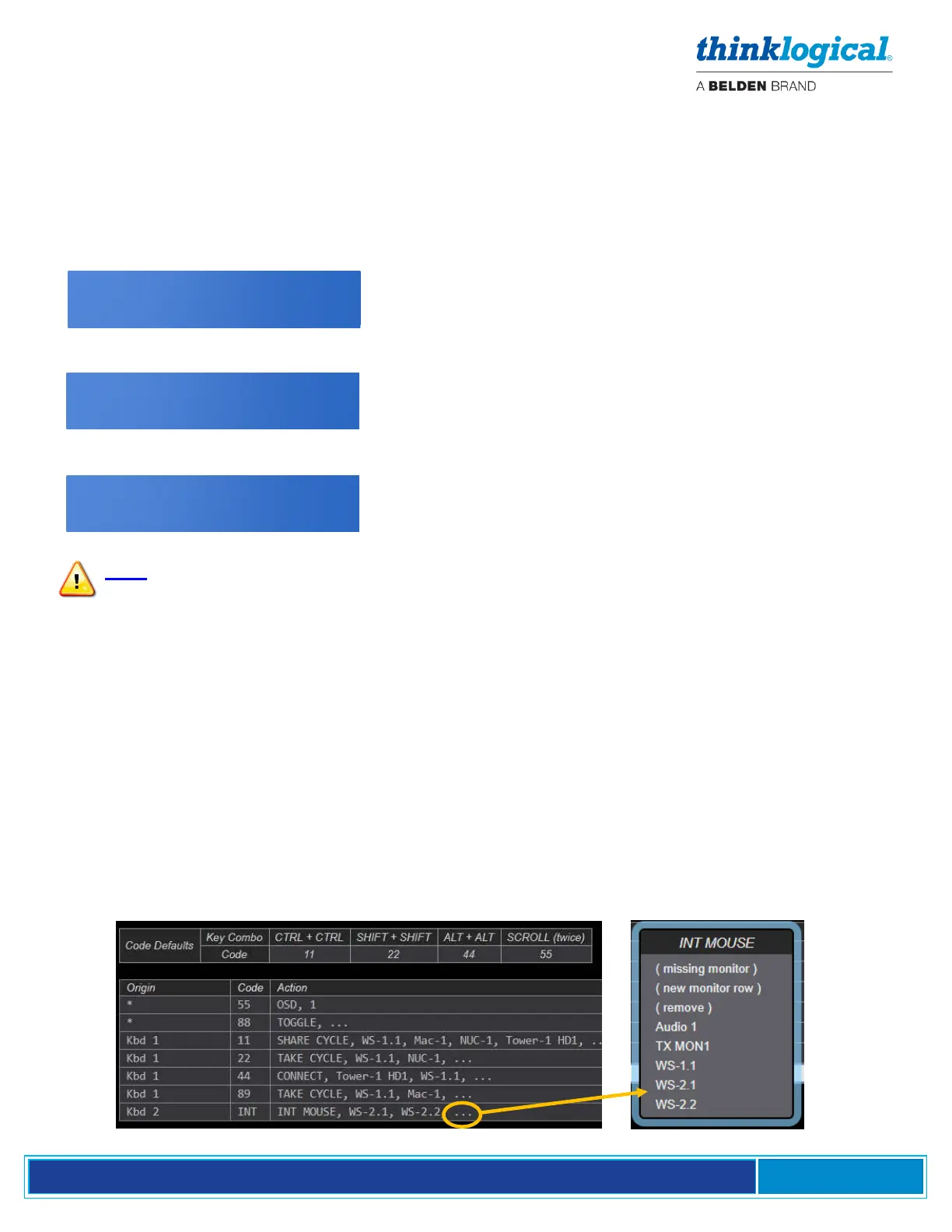
Each keyboard requiring INT Mouse must create a Hotkey. This is done in the SMP2 application
admin/hotkeys tabs as shown below. This example is for two monitors mounted side by side.
• Add a new line for the hotkey and select the keyboard.
• Select “INT MOUSE” in the Action column. The Code column will autofill with “INT.”
• Monitors must now be defined in the Action column. They must be in the same order as they are
installed at the desk.
• Left-click on the ellipsis (…) and a menu will pop up that includes provisions for monitor and row
selection.



 To Previous Page