Balance System SD (with v4.X software) 21
5. Getting Started
The Biodex Balance System software program is easy to master. Follow the screen prompts as
they lead from step-by-step through testing and training protocols or software utility options.
Touch the desired screen icons to make a selection. Option choices progress logically based on
the selections made.
If the unit is plugged in, there will be power to the display. The screen saver can be set to go
dark after a time-out period. The screen saver is not enabled as a default setting, but this can
be adjusted in the System Utilities. When the screen is dark and the unit is plugged in, touch
the screen to activate it.
The following screen icons and buttons are consistent whenever they appear throughout the
entire Balance System SD program:
• <HOME>: Touch this icon to return to the Main Menu.
• <NEXT>: Touch this key to advance to the next screen.
• <BACK>: Touch this key to return to the previous screen.
• <OK>: Touch this key to confirm selections or entries; advances to the next screen.
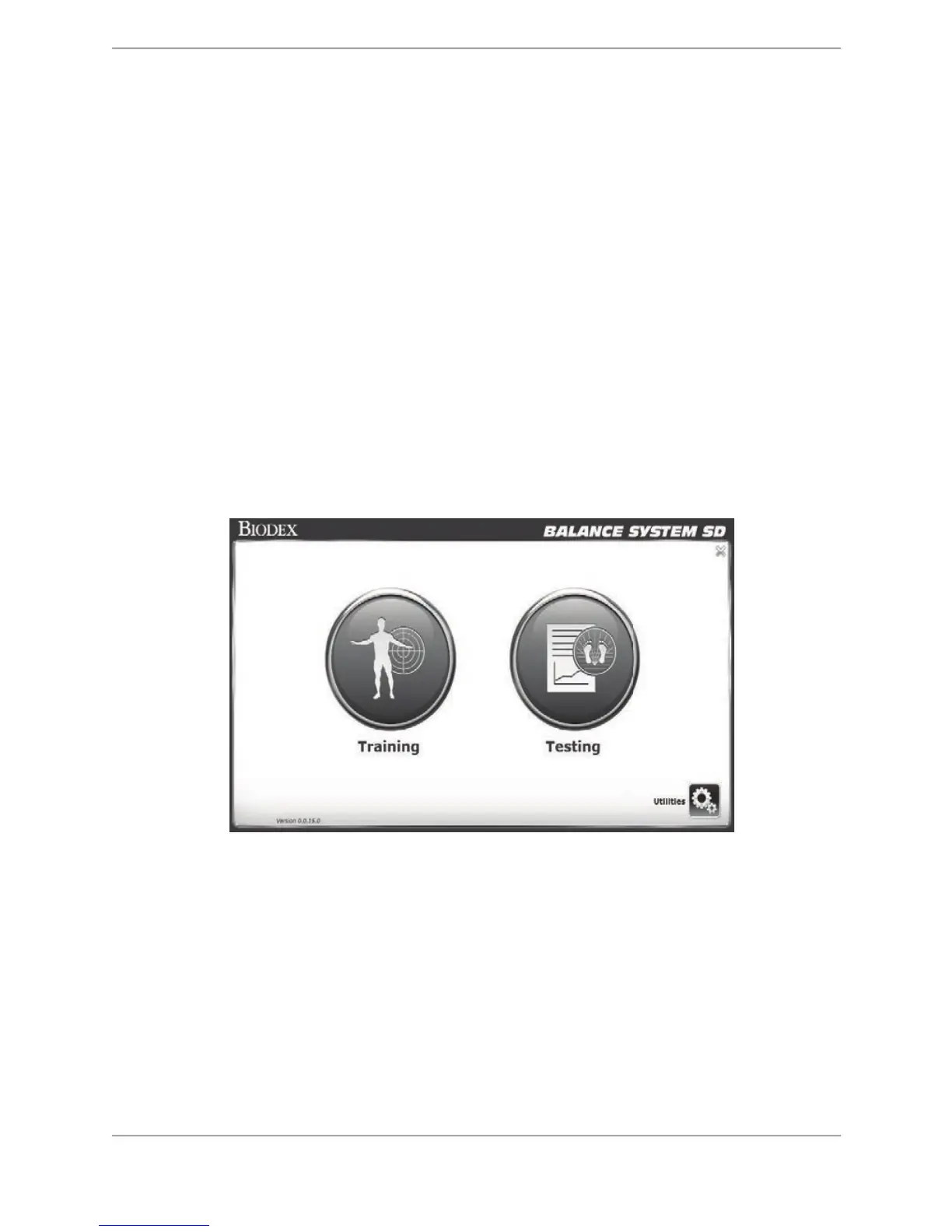
Figure 5.1. The Balance System Main Menu.
NOTE: When accessing the System Utilities, the user will be prompted to enter the default
access ID code, which is 159.
Figure 5.1represents the Main Menu/Home screen for the Balance System. Both Training and
Testing have the Patient Setup screen in common. Touching either button from the Main Menu
will display the Patient Setup screen. A session of Training or Testing can be performed by
entering/selecting patient information from the existing patient list or without entering any
information other than Patient Height. In the latter case, the application will require the user to
enter the test result along with the patient information after the session is completed.
It is important that the user understands how the patient information is set up in the Balance
System before proceeding to either the Testing or the Training sections.


 To Next Page