Balance System SD (with v4.X software) 89
Patient Management
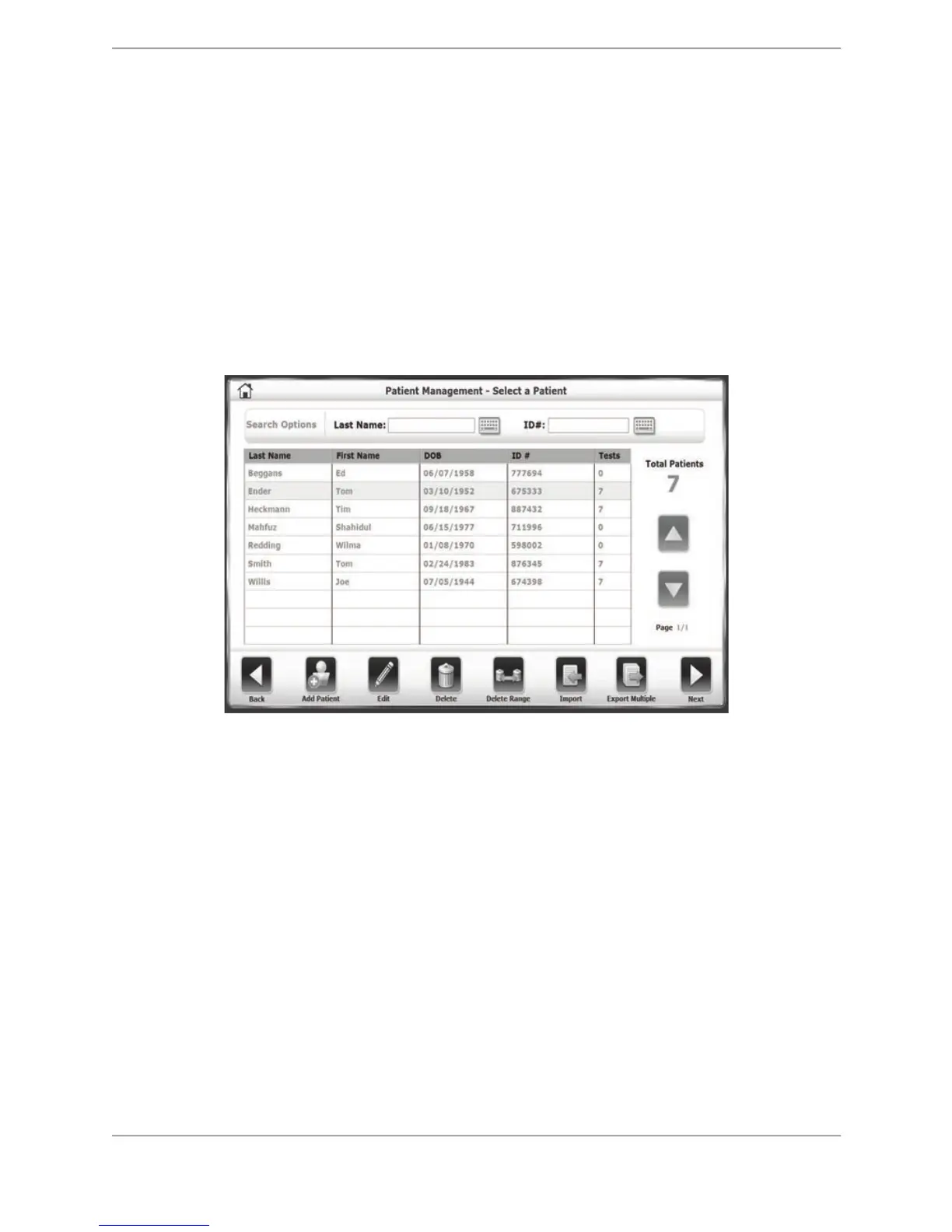
To advance to the Patient Management screen, select a Patient screen from the Utilities Menu,
touch <Patient Management>. Enter 159 at the Access ID Code prompt and touch <OK>. The
Patient Management screen is displayed.
From this screen, new patients can be added with the <Add Patient> button. Touching this
button displays screens similar to the Patient Setup screens that are available prior to any
Training or Testing session.
To edit a patient’s profile information, select a row on the Patient Management - Select a Patient
screen and touch <Edit>. The patient’s information can be edited and saved from the resulting
screen.
Figure 8.31. The Patient Management – Select a Patient screen.
To view an individual’s records or an individual’s test results from the main Patient
Management screen, select the row containing the patient information to be viewed and touch
<Next>. From the Patient Management – Test Results screen, select <Edit>. The stored test
results screen for that particular test are displayed.


 To Next Page