Balance System SD (with v4.X software) 91
To Delete an Entire Range of Patient Files:
1. Touch the <Delete Range> icon. A screen is displayed on which the user has the option to
select a range of patient records to delete: All records, Records From a certain date to
present time, records Prior To a certain date, or all records between certain dates
(From/To). The system prompts to ensure the selected files are to be deleted.
2. Touch <OK>. The selected files are deleted and the system returns to the Patient
Management screen.
3. The option of deleting a certain type of test; only Fall Risk Tests, for example is available.
Printing and Editing Stored Results
To Print a Stored Test Result:
1. Select a particular row at the Patient Management. Select a Patient screen and touch <Next>.
At the Patient Management – Test Results screen, touch <Edit>. The system displays the
Stored Test Results screen for the selected patient.
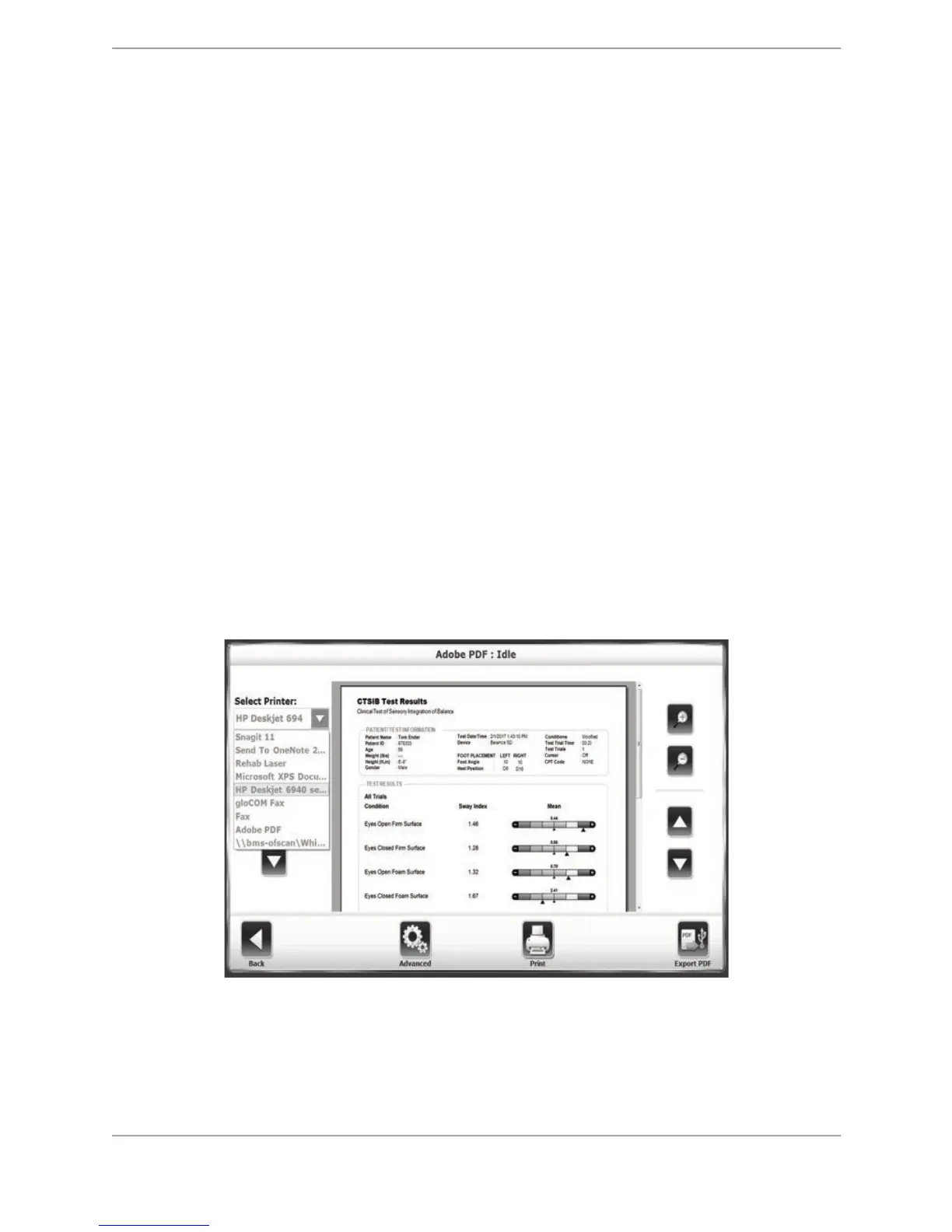
2. Touch <Print Results> to print out the patient file. At the Print screen, the user has the
option to send the record to a connected printer (by selecting it in the Select Printer drop-
down menu), or to export the document to a PDF without printing it.
3. When <Export PDF> is selected, the PDF will be exported to an automatically generated
folder titled BioReports on a USB flash drive. An error message is displayed if a USB drive is
not inserted in one of the USB ports on the device’s display at this point.
Figure 8.34. Print screen.
4. From the Stored Test Results screen, the user has the option of viewing a Progress Report,
initiating a repeat of the same test, or editing the various codes and comments (e.g., CPT,
ICD, G-Code) associated with the patient.


 To Next Page