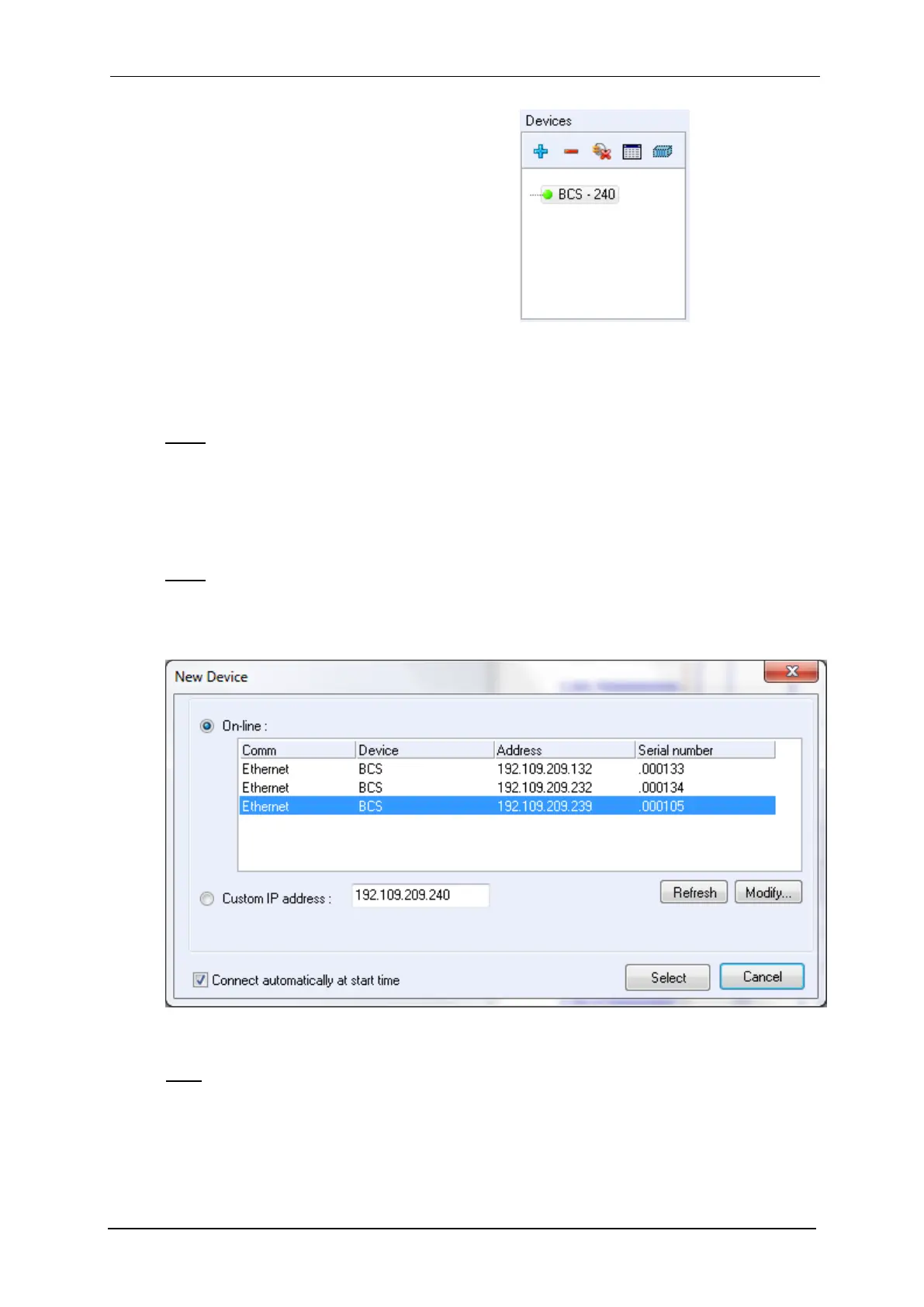
2) In the “Devices” frame, click on the
“+” button to add the instrument of in-
terest in the list.
Only one session of BT-Lab
®
is
needed to control several instru-
ments.
Note: This step is required only for the first time. The instruments configured previ-
ously are saved and will be displayed in the list of device each time BT-Lab
®
is
opened. In that case, go directly to step 6.
3) The window shown in the Fig. 43 below appears. Click on “Refresh” to see the in-
struments present on your network.
Note: The automatic search frame shows the name of the instruments detected with
their serial numbers (#). A MAC address is given to each instrument at the factory.
The MAC address is used to detect the instrument in a LAN even if its IP Address is
not valid in the network.
Fig. 43: “New Device” window to select and add an instrument to the current devices.
4) Select the instrument and click on the “Select” button.
Note: If the IP address of the instrument is not valid, it has to be changed (see next
paragraph).



 To Next Page