124
Section 5. Using MIDI to Operate the VF-1
Program Change Map Settings
When using Program Change messages sent from an external
MIDI device to select VF-1 Patches, you can freely specify the
correspondence between the Program Change number that
was received and the VF-1 Patch that will be selected.
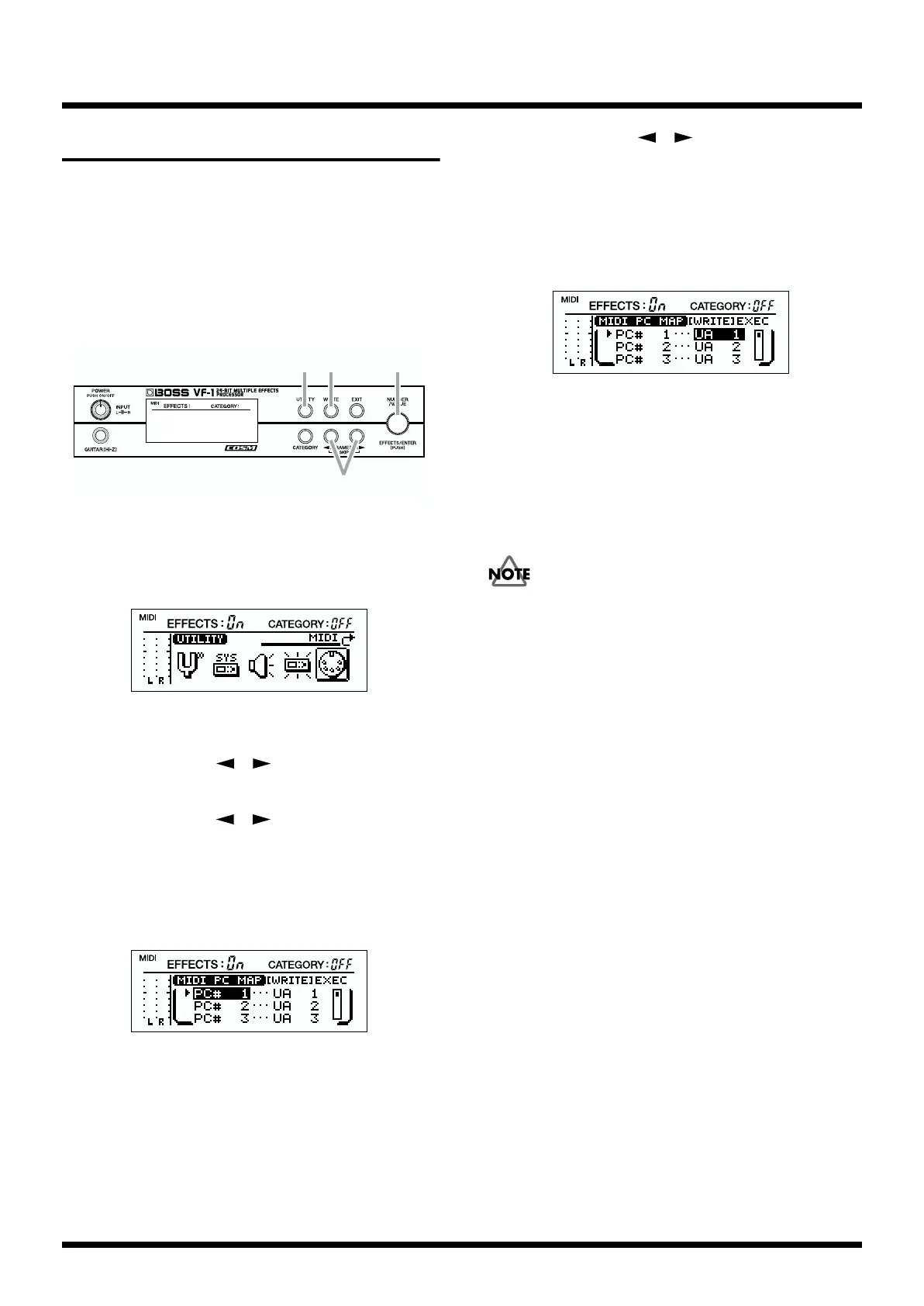
Making settings
fig.5-11
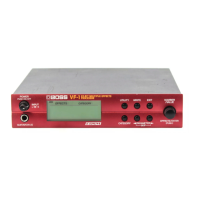
1. Press [UTILITY].
2. Rotate [NUMBER] to select “MIDI.”
fig.5-03
3. Press [ENTER].
4. Use PARAMETER [ ][ ] to select “MIDI PC
MAP.”
5. Use PARAMETER [ ][ ] to move the cursor to the
program number (PC#), and rotate [VALUE] to select the
program number that will be received.
The setting will change more rapidly if you hold down
[CATEGORY] while you rotate [VALUE].
fig.5-12
6. Use PARAMETER [ ][ ] to move the cursor to the
patch number, and rotate [VALUE] to specify the patch
number that will be selected when the program number
(selected in step 5) is received.
The setting will change more rapidly if you hold down
[CATEGORY] while you rotate [VALUE].
fig.5-25
7. Repeat steps 5–6 as necessary to specify the
correspondence between incoming program numbers
and the patches that will be selected.
8. Press [WRITE] to save the program change map settings.
The settings will be discarded unless you press [WRITE].
9. Press [UTILITY] to return to Play mode.
Never turn off the power while the display shows “Keep
Power ON!” If the power is turned off while this display is
shown, the VF-1 may malfunction or its data may be lost.
* If you press [EXIT] in step 7, you will return to step 2. If you
press [EXIT] once again you will return to Play mode.
1,9 8
4,5,6
2,3,5


 To Next Page