29
Section 2. Creating Sounds
Section 2
Editing the settings of each
effect
Each effect consists of several different parameters. You can
create new effect sounds by modifying the settings of these
parameters.
fig.2-13
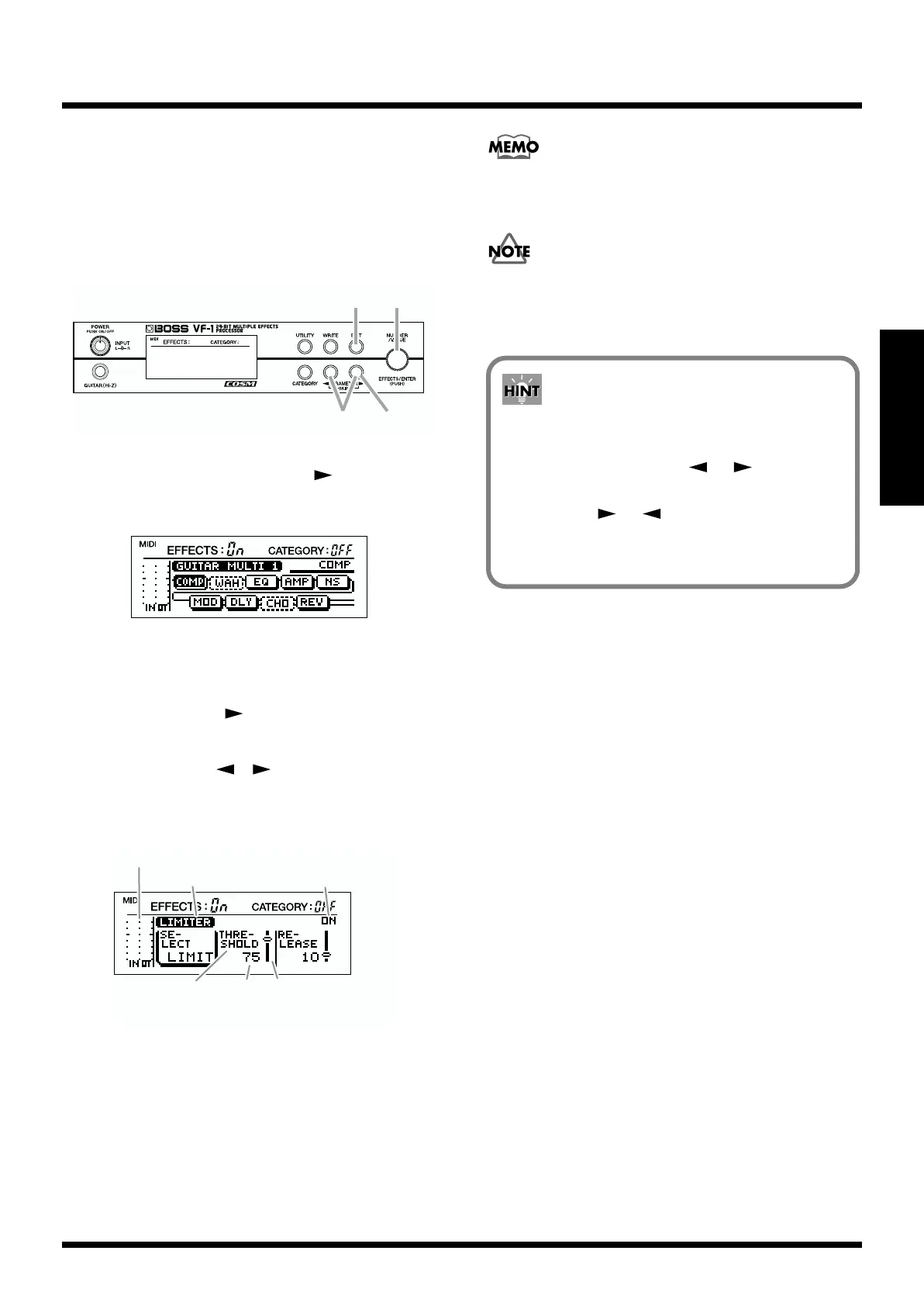
1. In Play mode, press PARAMETER [ ].
The following algorithm display screen will appear.
fig.2-12
2. Rotate [VALUE] to select the effect whose settings you
wish to edit.
3. Press PARAMETER [ ] to display the parameter
screen.
4. Use PARAMETER [ ][ ] to select the parameter
that you wish to edit.
< Display example >
fig.2-14a
5. Rotate [VALUE] to edit the value.
The value will change more rapidly if you hold down
[CATEGORY] while you rotate [VALUE].
6. Press [EXIT].
7. Repeat steps 2–6 to create your effect sound.
Even when another parameter is selected, you can press
[ENTER] to switch the effect on/off.
If you wish to keep your modified settings, you must
perform the Write operation (p.38).
4
2,5
1,3
6
Effect name
Parameter Value Value slider
(corresponds to the value
of the parameter)
Effect on/off
Level meter
The Skip function (SKIP)
You can skip to the first parameter in each effect by
holding down PARAMETER [ ] ([ ]) for the
direction in which you wish to go, and pressing the
PARAMETER [ ] ([ ]) for the opposite direction.
This is particularly useful for algorithms that have a
large number of parameters.


 To Next Page