32
Section 2. Creating Sounds
Copying effect settings
(Effect Copy)
You can copy the settings of an individual effect from
another patch to an effect in the currently selected patch. This
function is convenient when you wish to use effects with
similar settings in two or more patches.
* The Effect Copy can be applied to the effects that
share the same Algorithm.
fig.2-22
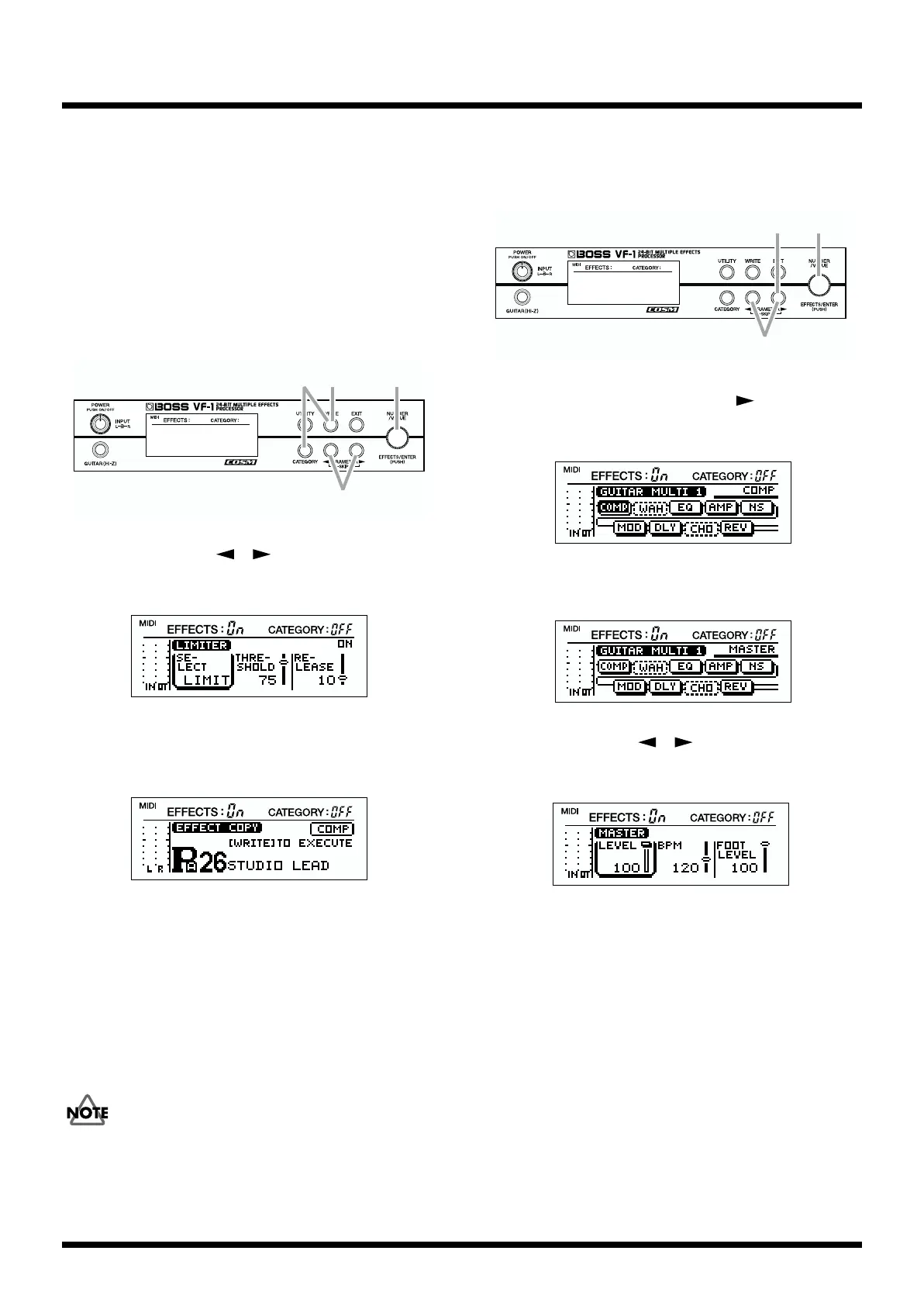
1. Use PARAMETER [ ][ ] to access the settings for
the copy-destination effect.
fig.2-61
2. With the effect settings displayed, hold down
[CATEGORY] and press [WRITE].
fig.2-23
3. Rotate [VALUE] to select the patch number that contains
the copy-source effect.
The number will change more rapidly if you hold down
[CATEGORY] as you rotate [VALUE].
4. Press [WRITE].
The effect data will be copied, and you will return to the
display screen in which you were.
If you wish to keep the modified settings, perform the Write
operation (p.38).
Setting the output level
Here’s how to adjust the final output level from the patch.
fig.2-24
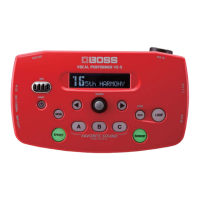
1. In Play mode, press PARAMETER [ ].
The following display will appear.
fig.2-12
2. Rotate [VALUE] to select “MASTER.”
fig.2-201
3. Use PARAMETER [ ][ ] to select “MASTER
LEVEL.”
fig.2-25
4. Rotate [VALUE] to adjust output level.
The setting will change more rapidly if you hold down
[CATEGORY] as you rotate [VALUE].
Range: 0–100
* After adjusting “MASTER LEVEL,” check the output level in
the level meter (p.31).
1
324
3
2,4
1


 To Next Page