6.3.2 Channels
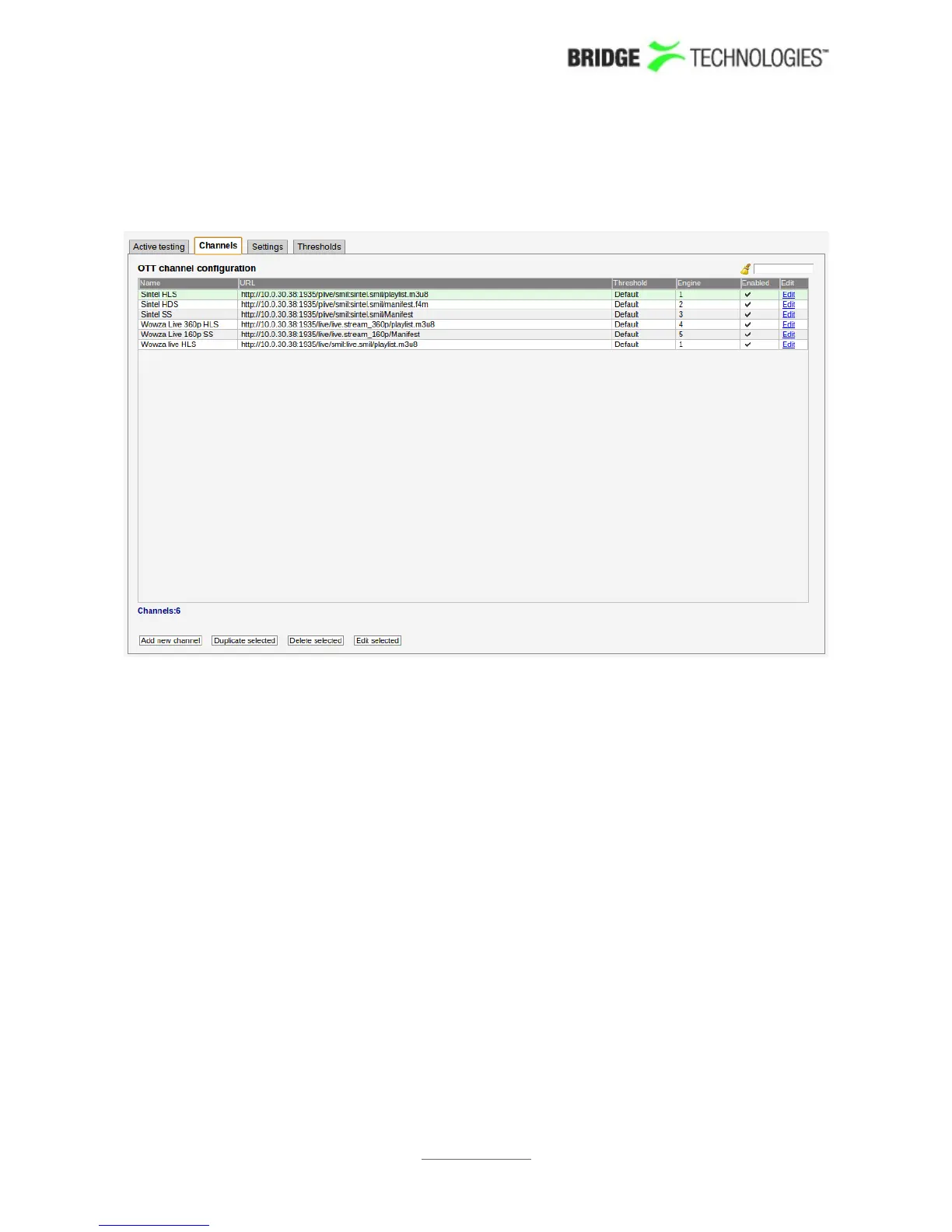
The OTT Channel Configuration list shows OTT channels configured by the user. To add
a channel to the list click the Add new channel button. This will open the Edit
channel pop-up view, allowing the user to define channel parameters. A list channel
entry can be selected by clicking the channel; the list entry will be highlighted. Several
list entries can be selected by using regular Ctrl + click functionality. Clicking the
Duplicate selected button will open the Edit channel pop-up view with all channel
parameters duplicated, except the channel name. Clicking the Delete selected will
delete the highlighted list entry. Clicking the Edit selected will open the Edit
channel pop-up view associated with the highlighted channel. Batch editing is
supported; this is convenient if a new threshold template should be assigned to a
number of channels or if monitoring of several channels should be enabled or
disabled. Select the channels and click the Edit selected button. Parameters differing
between channels will be indicated in the Edit selected pop-up view by an asterisk
wildcard symbol.
The search field allows searching for one for more list entries containing a user defined
text string.
The column named Engine indicates which OTT engine is assigned to what channel.
The probe can be licensed with anywhere from 1 up to 5 OTT engines. Each engine is
capable of handling 10 channels.
PROBE USERS' MANUAL VERSION 5.0
2014 © BRIDGE Technologies Co AS - Bentsebrugata 20 - N-0476 Oslo, Norway - tel: +47 22 38 51 00 -
www.bridgetech.tv
69


 To Next Page