38
Section 4 MC-III™ Panel Mount Flow Analyzer
Connecting to the Software
Important: Before attempting to load the interface software, verify that the MC-III Panel Mount is
connected to a computer with an RS-485 to RS-232 converter (see Communication Cable
Assemblies, page 92). See Section 2 for RS-485 output wiring diagrams (Figures 2.10
through 2.12, pages 23 and 24).
Once the software is installed, the program will automatically launch with the click of the NuFlo MC-III icon
on the desktop.
To connect to the MC-III software, perform the following steps:
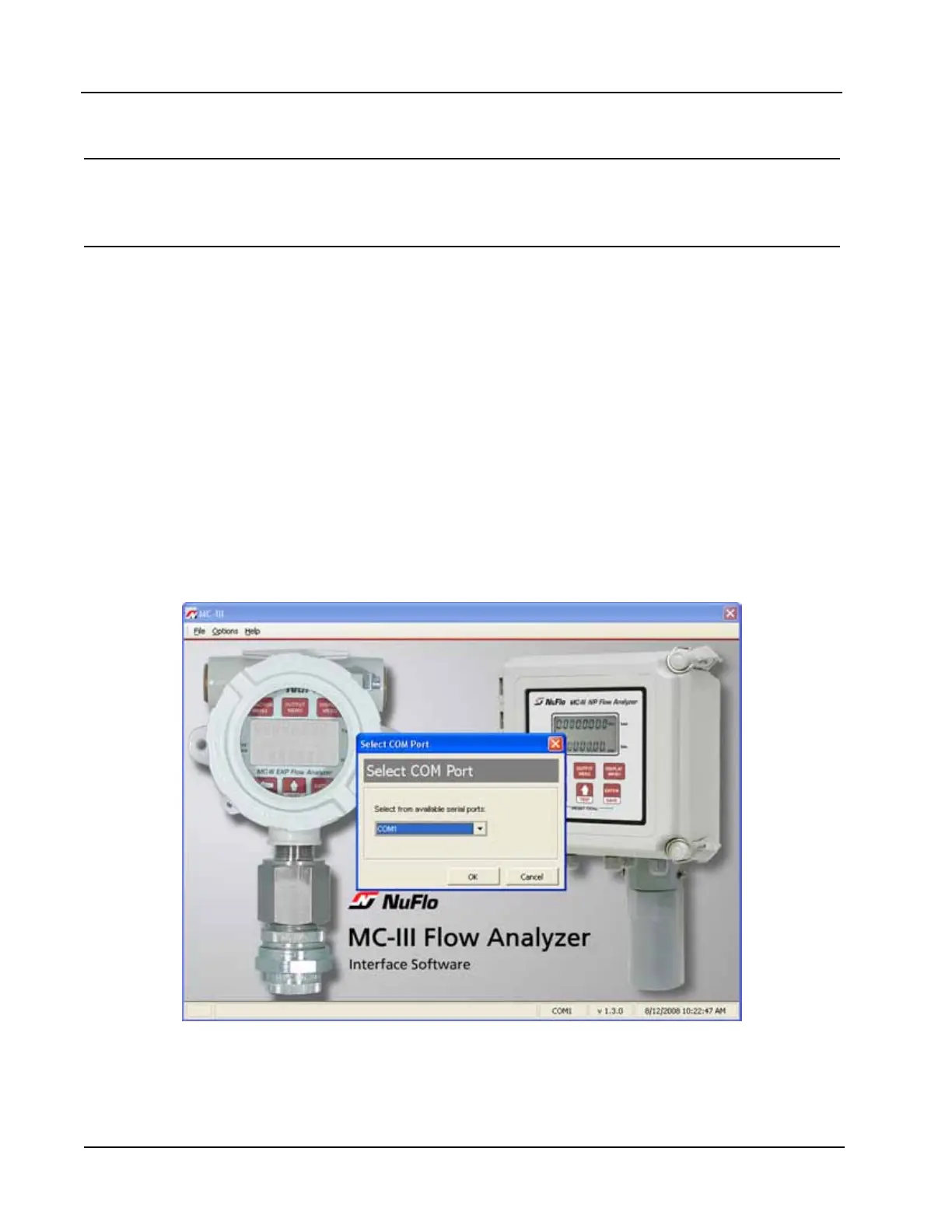
1. Click on the NuFlo MC-III icon on the desktop, or select Start>Programs>NuFlo>MC-III>MC-III. The
Welcome screen (Figure 4.2) will appear and a Select COM Port window will prompt the user to select a
communications port be used for connecting with the MC-III Panel Mount (Figure 4.2).
2. Select a communications port from the dropdown list and click “OK.” The software will attempt to con-
nect with the MC-III Panel Mount (via an RS-485 to RS-232 converter). This automatic launch feature is
referred to as an “express connect.”
3. If the internal time and date programmed into the instrument differs from the time and date displayed on
the computer by more than 60 seconds, the software will prompt the user to synchronize the instrument
time/date to match the computer time/date (Figure 4.3, page 39). This ensures that the instrument dis-
plays correct time, regardless of time zone differences.
Figure 4.2—Select COM Port window




 To Next Page