A-3
MC-III™ Panel Mount Flow Analyzer Appendix A
To change an autorun setting —that is, to initiate an autorun action, to terminate an autorun action, or to
change to a different autorun action at the next connection—select Autorun from the Program Options menu
(Figure A.3, page A-2), select the appropriate checkboxes, and click “OK.” Verify that the “Always do...”
checkbox is checked if the selected function is to be automated upon each software connection.
Communications Options
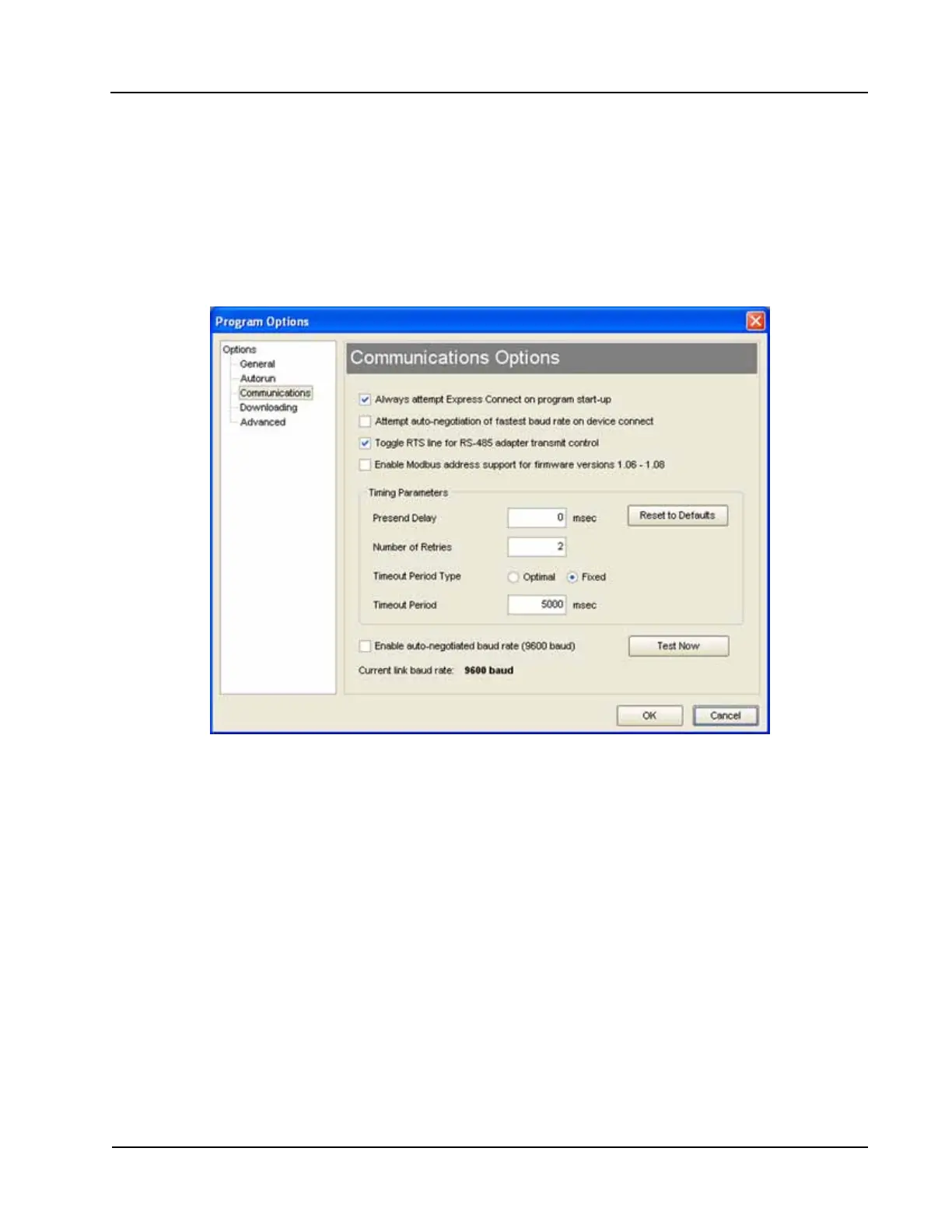
The Communications Options screen (Figure A.4) allows users to customize communication parameters for
optimizing performance, depending on the communication path.
Figure A.4—Menu for changing communication parameters
Express Connect Option
By default, the interface software automatically attempts to connect to the instrument when a user clicks on
the desktop application icon. This feature is controlled by the “Always attempt Express Connect on program
startup” checkbox setting in the Communications Option screen (Figure A.4).
When multiple devices are daisy-chained together in a network, the “express connect” function can interfere
with the user’s ability to connect to a specic device. To disable the Express Connect function, deselect the
“Always attempt...” checkbox and click “OK.”
The software will now attempt to connect with the instrument
only when the user clicks on the LCD image on the Welcome screen or selects File>Express Connect. For
more information, see Software Connection in Multi-Device Network, page 41.
To cancel the “express connect” function without disabling the autorun option, the user can toggle between
connect/disconnect by clicking in the LCD area of the device on the Welcome screen.




 To Next Page