84
Section 5 MC-III™ Panel Mount Flow Analyzer
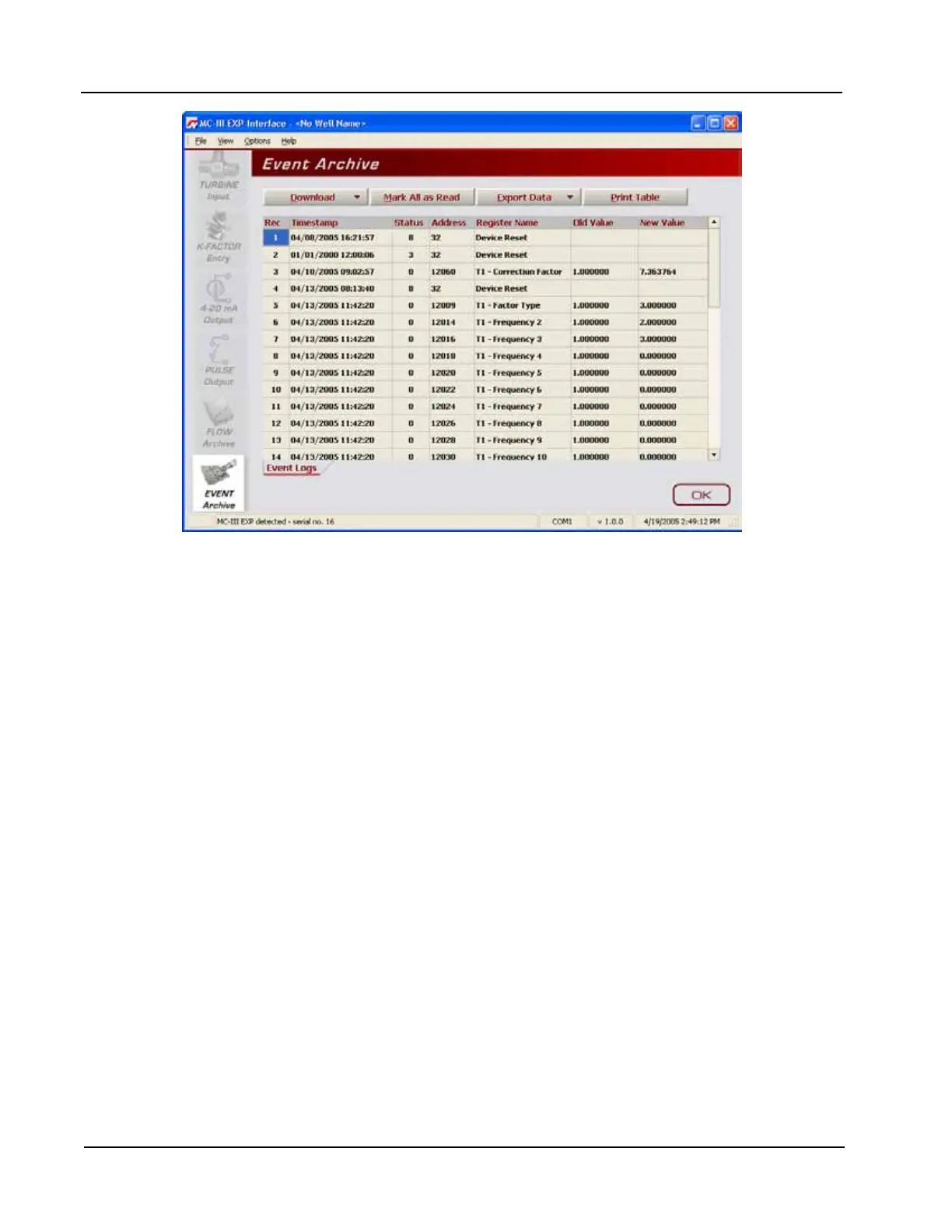
Figure 5.16—Downloaded event logs
Printing/Saving a Report
To print an event log, press the “Print Table” button in the upper right corner of the Event Archive screen. A
Print Preview screen will appear, displaying the image to be printed.
To print the report, select File>Print from the task bar.
To save the report, perform the following steps:
1. Select File>Save from the task bar. A “Save Report As” window will open.
2. Enter a lename. The lename extension will be .rps.
3. Click “Save.” By default, log archive reports are saved in C:\NuFlo log data\MC-III\<WELL NAME>,
however the user can specify a new location, if desired.The “wellname” folder will bear the well name
that appears on the Wellsite Information screen. If no well name is entered on this screen, the folder will
be named “NO_WELLNAME.”
The procedure for printing and saving an event log report is nearly identical to the procedure for printing and
saving a ow log report. See the ow log screen captures, pages 71 through 73, for reference.
Exporting Event Logs
Event logs can be directly exported to an .xls or .csv le for ease in viewing and distributing. To export a le,
perform the following steps:
1. Click the “Export Data” button near the top of the Event Archive screen and select the .xls or .csv format
(Figure 5.17, page 85).




 To Next Page