ConnectlngtoaTVorVCR
•••••
~~~~~~~~~~~~~~~~~~~
[MENU]
¢I
# LINE-IN
MODE
.0.
IDesired connection type*
.0.
Press to display the video
input screen.
* Select the setting according to the type of
connection used.
[ S VIDEO]: Connection type
D.
[ VIDEO]: Connection type
D.
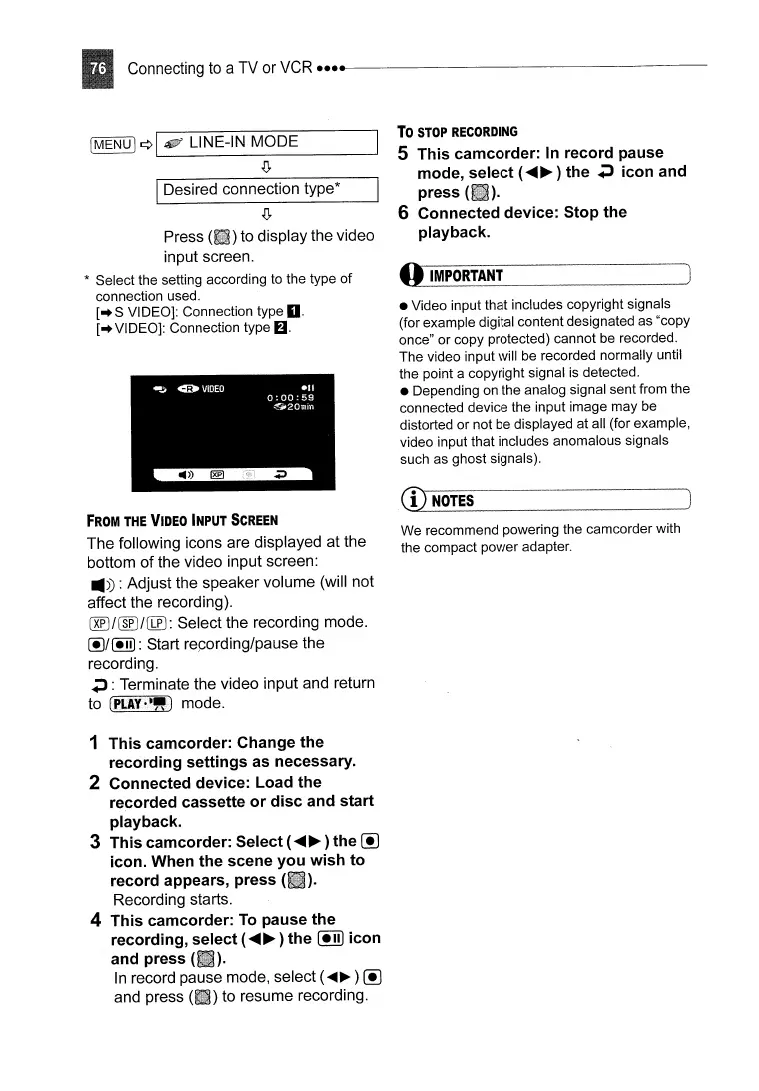
FROM
THE
VIDEO
INPUT
SCREEN
The
following icons are displayed at the
bottom
of
the video input screen:
.))
: Adjust the speaker volume (will not
affect the recording).
CREJ/~/(TIJ:
Select the recording mode.
@/~:
Start repording/pause the
recording.
.;l
: Terminate the video input and return
to
(PLIY·-") mode.
1
This
camcorder: Change
the
recording
settings
as necessary.
2 Connected device: Load the
recorded cassette
or
disc
and
start
playback.
3
This
camcorder: Select
(~~
) the (!J
icon. When
the
scene
you
wish
to
record appears,
press
(
).
Recording starts.
4 This camcorder:
To
pause
the
recording,
select
(~~
)
the
(!])
icon
and press
In record pause mode, select (
....
~
) (!J
and press to resume recording.
To
STOP
RECORDING
5
This
camcorder:
In record pause
mode,
select
(~~
) the
.;l
icon
and
press
6 Connected device:
Stop
the
playback.
o
IMPORTANT
• Video input that includes copyright signals
(for example digital content designated as "copy
once" or copy protected) cannot be recorded.
The video input will
be
recorded normally until
the point a copyright signal
is
detected.
• Depending on the analog signal sent from the
connected device the input image may be
distorted or not be displayed at all (for example,
video input that includes anomalous signals
such as ghost signals).
CD
NOTES
We recommend powering the camcorder with
the compact power adapter.



 To Next Page