~~~~~~~~~~~~~~~~~~~~_
••••
Connecting
to
a
Co~puter
PC
Connection
Diagrams
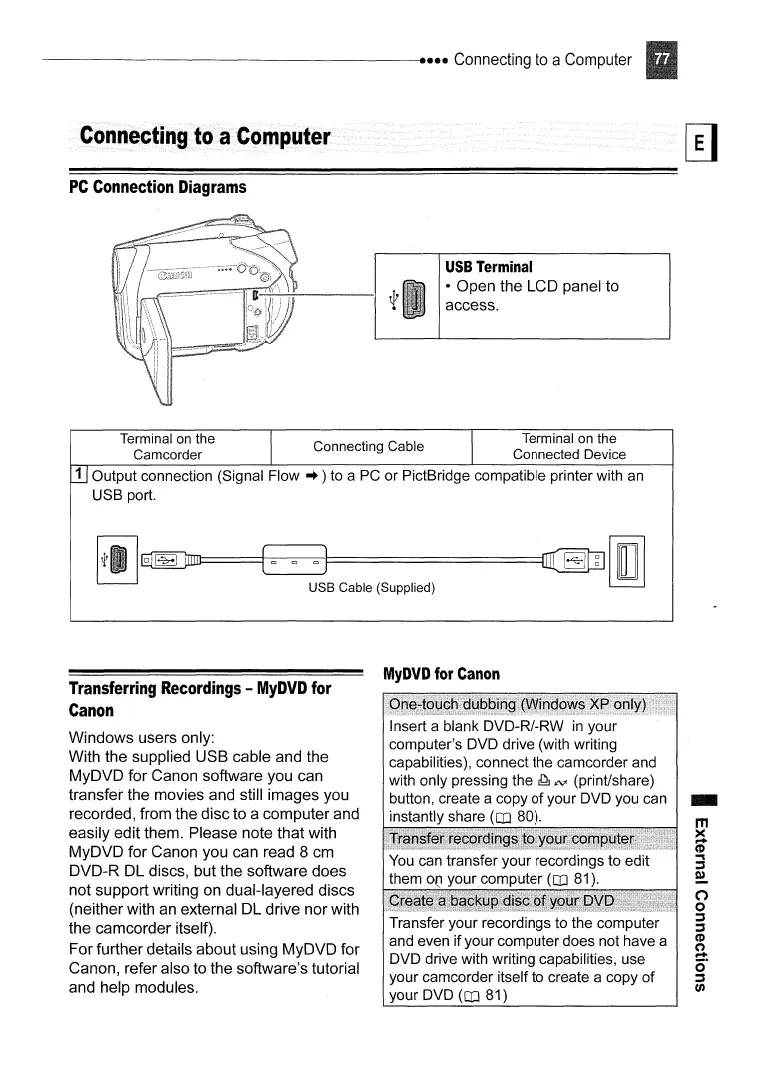
USB
Terminal
• Open the LCD panel to
access.
Terminal
on
the I I Terminal on the
Camcorder Connecting Cable Connected Device
[II
Output connection (Signal
Flow"
) to a
PC
or PictBridge compatible printer with
an
USB port.
ijl~~~l:::=:::::===============~[IDJ
~
USB Cable (Supplied)
Transferring
Recordings
-
MyDVD
for
Canon
Windows users only:
With the supplied USB cable and the
MyDVD for Canon software you can
transfer the movies and still images you
recorded, from the disc to a computer and
easily edit them. Please note that with
MyDVD for Canon you can read 8 cm
DVD-R DL discs, but the software does
not support writing on dual-layered discs
(neither with
an
external DL drive nor with
the camcorder itself).
For further details about using MyDVD for
Canon, refer also to the software's tutorial
and help modules.
MyDVD
for
Canon
Insert a blank DVD-R/-RW
in
your
computer's DVD drive (with writing
capabilities), connect the camcorder and
with only pressing the
~;tV'
(print/share)
button, create a copy
of
your DVD you can
instantly share
(CO
80).
You
can transfer your recordings to edit
them
0(1
yourcomputer
(CO
81).
Transfer your recordings to the computer
and even if your computer does not have a
DVD drive with writing capabilities, use
your camcorder itself to create a copy
of
your DVD
(CO
81)



 To Next Page