Connecting
to
a Computer ........
-------------------
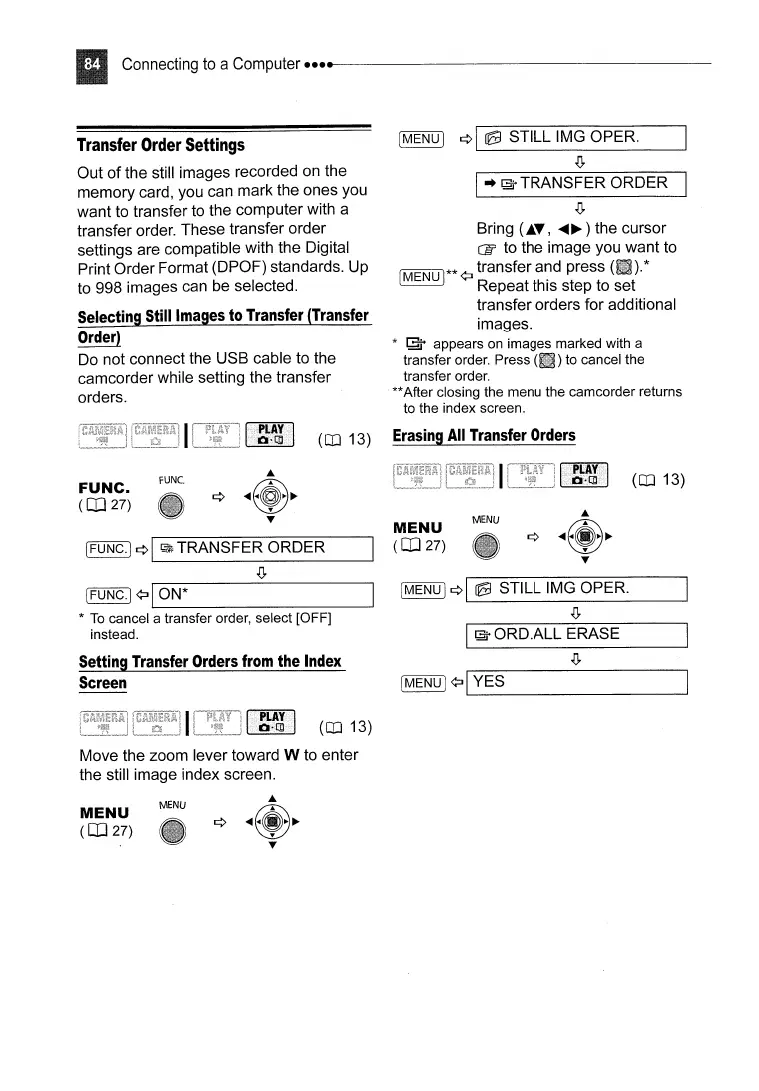
Transfer
Order
Settings
Out
of
the still images recorded on the
memory card, you can mark the ones you
want to transfer to the computer with a
transfer order. These transfer order
settings are compatible with the Digital
Print Order Format (DPOF) standards. Up
to 998 images can be selected.
Selecting
Still
Images
to
Transfer
(Transfer
Order)
Do not connect the USB cable to the
camcorder while setting the transfer
orders.
[MENUI
¢I
re
STILL IMG OPER.
.jJ,
I
..
~
TRANSFER ORDER
.jJ,
Bring
(AT,
....
~)
the cursor
ctl
to the image you want to
[MENU
1**
¢J
transfer and press *
Repeat this step to set
transfer orders for additional
images.
*
1;;3+
appears on images marked with a
transfer order. Press
(II)
to cancel the
transfer order.
**After closing the menu the camcorder returns
to the index screen.
(OJ 13)
Erasing
All
Transfer
Orders
IFUNC.I
¢\
~
TRANSFER ORDER
.jJ,
IFUNC·I
¢J
IL..-0_N_*
-..J
*
To
cancel a transfer order, select [OFF]
instead.
(OJ 13)
MENU
I
~
ORD.ALL ERASE
[MENUj
¢I
re
STILL IMG OPER.
.jJ,
MENU
(CD
27)
rUNe.
FUNC.
(CD
27)
Setting
Transfer
Orders
from
the
Index
Screen
[MENU)
¢JI
YES
'-------------
(OJ 13)
Move the zoom lever toward W to enter
the still image index screen.
MENU
(CD
27)
MENU



 To Next Page