~~~~~~~~~~~~~~~~~~~~~
••••
Connecting
to
a
Co~puter
Allows you to select the still image you
want to transfer and set it as your
computer's desktop background.
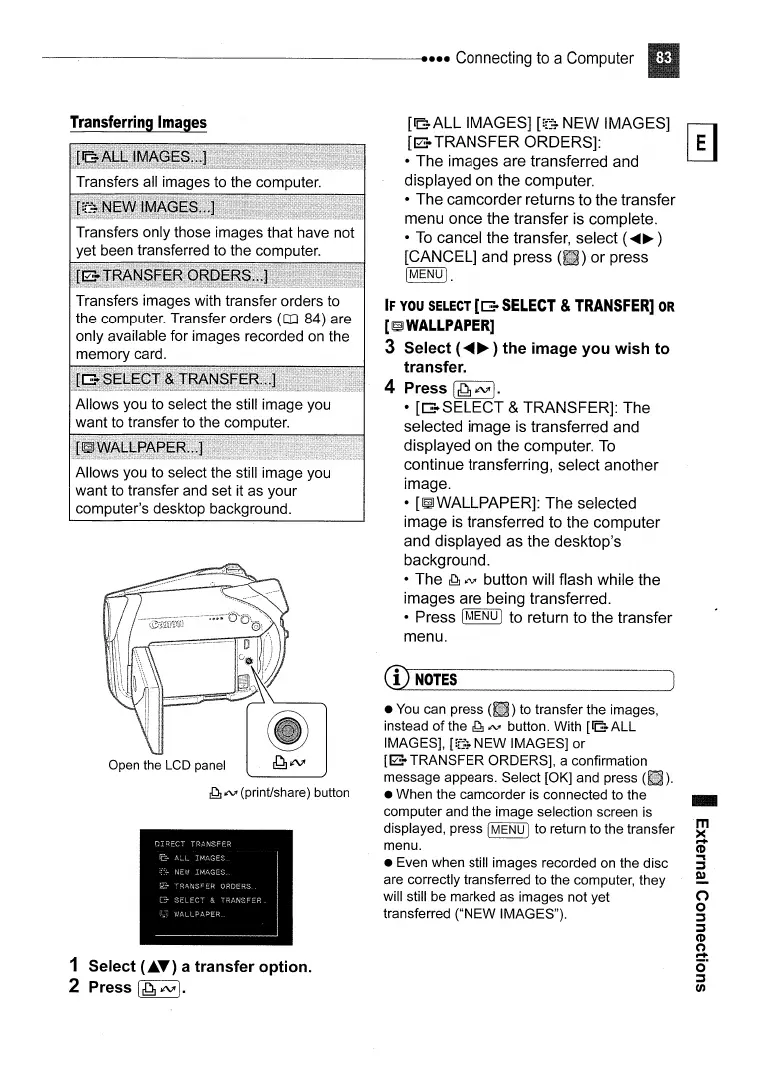
Open
the
LCD
panel
~
IN'
(print/share) button
1 Select (
....
) a
transfer
option.
2 Press
[~iN'].
[£B:
..
ALL IMAGES]
[rf~:-
NEW IMAGES]
I;;lE
[12::-
TRANSFER ORDERS]: L:J
• The
i~ages
are transferred and
displayed
on
the computer.
• The camcorder returns to the transfer
~enu
once the transfer is complete.
•
To
cancel the transfer, select (
....
~
)
[CANCEL] and press or press
IMENUI.
IF
YOU
SELECT
[[Z-
SELECT
&
TRANSFER]
OR
[~WALLPAPER]
3 Select (
.....
~
)
the
image
you
wish
to
transfer.
4 Press
I~
iN'J.
• [[Z-SELECT &TRANSFER]: The
selected image
is
transferred and
displayed
on
the computer.
To
continue transferring, select another
image.
•
[~WALLPAPER]:
The selected
image
is
transferred to the computer
and displayed as the desktop's
background.
• The
~
~
button will flash while the
images are being transferred.
• Press
IMENU I to return to the transfer
menu.
CILNOlli------------l
•
You
can press to transfer the images,
instead
of
the
~
~
button. With
[lG:
..
ALL
IMAGES],
Uf~:-
NEW IMAGES] or
[12::-
TRANSFER ORDERS], a confirmation
message appears. Select [OK] and press
• When the camcorder
is
connected to the
computer and the image selection screen
is
displayed, press IMENU I to return to the transfer
menu.
• Even when still images recorded
on
the disc
are correctly transferred to the computer, they
will still be marked as images not yet
transferred ("NEW IMAGES").



 To Next Page