Connecting
to
a Printer
•••••
----------------------
Printing
after
Selecting
the
Print
Settings
You can select the number
of
copies and
other settings for printing. The setting
options vary depending on your printer
model.
1 Press
(II).
• The print setting menu appears.
• Depending
on
the printer, the
message "BUSY," may appear before
the camcorder displays the print
setting menu.
2 Select the print settings
(CD
86).
3 Select
(1.."',
~~)
[PRINT] and press
nil)·
• Printing starts. The print setting menu
disappears when the printing is
completed.
•
To
continue printing, select
(~~
)
another still image.
O_IMP~~TA~!.
._._
..
__
..
_
_._
__
..
_ _
__
._
_
..
_
..
J
• The following still images may not be
correctly printed with a PictBridge compatible
printer.
- Images created or changed on a computer
and transferred
to
the memory card.
- Images recorded with the camcorder but
edited
on
a computer.
- Images
on
the memory card whose file names
were changed.
- Images copied from the memory card to the
disc.
- Images not recorded with this camcorder.
• Observe the following precautions during
printing:
- Do not turn off the camcorder or the printer.
- Do not change the position
of
the
.~
/0
switch.
-
Do
not disconnect the USB cable.
- Do not remove the disc or memory card.
• If the message "BUSY" does not disappear,
disconnect the USB cable from both the
camcorder and the printer and then reconnect
them again.
•
To
Cancel
the
Printing:
Press while
printing. A confirmation screen appears. Select
[OK] and press
(II).
With Canon's PictBridge
compatible printers, the printing will stop
immediately (even if not completed) and the
paper will
be
fed through.
•
Printing
Errors:
If an error occurs while printing,
an
error message appears
(CD
97).
- Canon's PictBridge compatible printers:
Resolve the error. When printing does not
resume automatically, select [CONTINUE] and
press If [CONTINUE] cannot be selected,
select [STOP], press
(Iii!)
and retry printing.
Refer also to the printer's instruction manual for
details.
- If the error still persists and printing does not
restart, disconnect the USB cable and turn the
camcorder off. Turn it on again, set it to
(PLAYhQ) mode and reconnect the cable.
•
When
you
have
finished
printing:
Disconnect the
cable from the camcorder and printer and turn
off the camcorder.
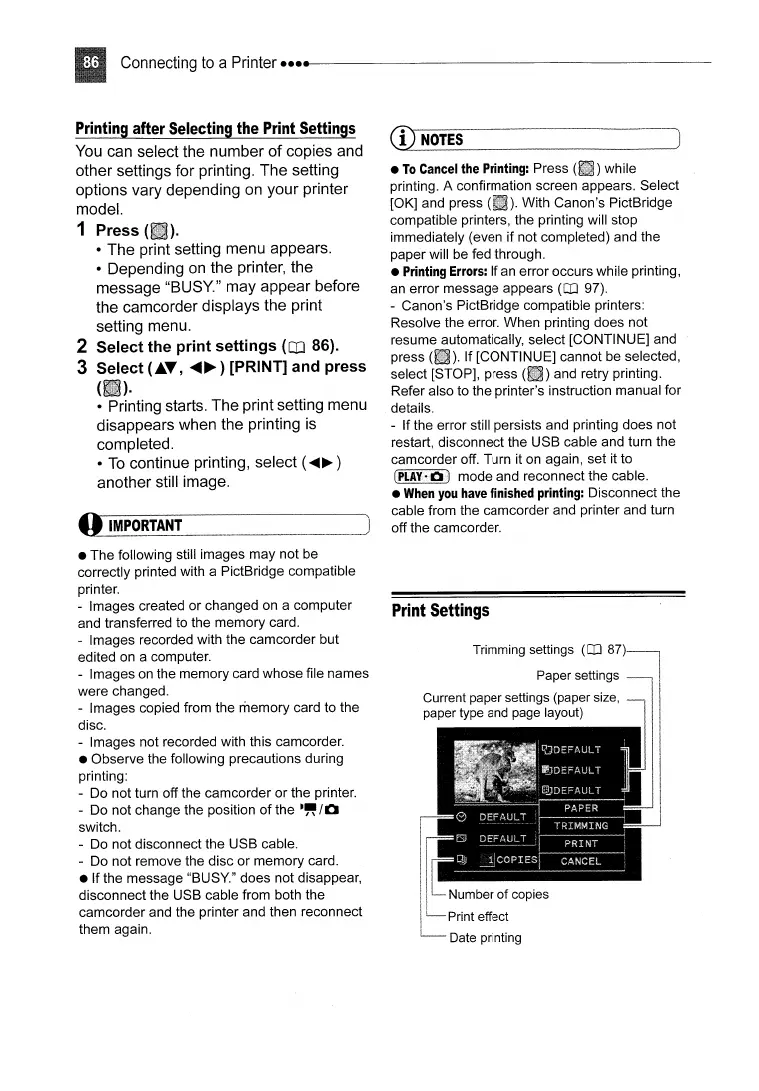
Print
Settings
Trimming settings
(CD
87)-~1
Paper settings
. . I
Current paper settings (paper
Size,
I
paper type and page layout) I
I
I
I
1-
Number
of
copies
L......
Print effect
Date printing



 To Next Page