~~~~~~~~~~~~~~~~~~~~~
••••
Connecting
to
a Printer
Options
[
[(J
PAPER SIZE]
Available paper sizes vary depending
on
the printer model.
[Ill PAPER TYPE]
Select [PHOTO], [FAST PHOTO] or
[DEFAULT].
[~PAGE
LAYOUT]
Select [DEFAULT] or one
of
the following
available page layouts.
[BORDERED]: Prints the whole image
area almost exactly as the recorded still
image.
[BORDERLESS]: Enlarges the center
portion
of
the still image to fit the width/
height ratio
of
the selected paper size. The
top, bottom and sides
of
the still image
may be slightly trimmed out.
[2-UP], [4-UP], [8-UP], [9-UP], [16-UP]:
Prints multiple small copies
of
the same
still image
on
one sheet
of
paper.
Canon
printers:
You
can also use the
specially designed Photo Stickers sheets.
The print effect can be used with printers
compatible with the Image Optimize
function to achieve higher quality prints.
Select [ON], [OFF] or [DEFAULT].
Canon
PIXMAISELPHY
DS
printers:
You
can
also select [VIVID], [NR] and [VIVID+NR].
1
In
the print setting menu, select
(
••
,
.....
~)
the setting you want to
change and press
011).
2 Select (
••
) a setting option and
press
(II}).
CD
NOTES
• Print setting options and [DEFAULT] settings
vary depending
on
the printer model. For
details, refer to the printer's instruction manual.
•
Canon
PIXMAfSELPHY
DS
Printers:
To
print
multiple small copies on a single print (2-, 4-, 9-
or [16-UP]), set [PAPER SIZE] to [10
x 14.8 cm]
or
[9
x13
cm].
•
Canon
PIXMAfSELPHY
CP
Printers:
To
print
multiple small copies
on
a single print ([8-UP]),
set [PAPER SIZE] to [CREDITCARD].
Trimming
Settings
Set the print style before changing the
trimming settings.
1
In
the print setting menu, select
(
••
,
.....
~)
[TRIMMING] and press
(liD·
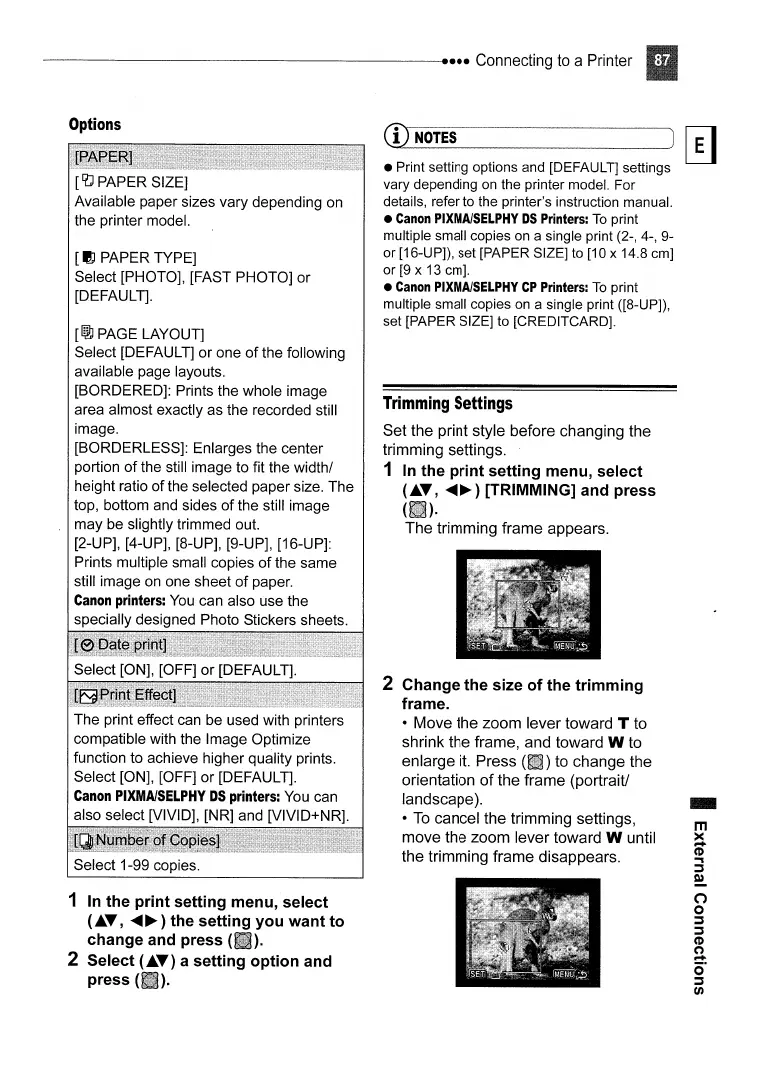
The trimming frame appears.
2 Change the size of the trimming
frame.
• Move the zoom lever toward
T to
shrink the frame, and toward W to
enlarge
it.
Press to change the
orientation of the frame (portraiU
landscape
).
•
To
cancel the trimming settings,
move the zoom lever toward W until
the trimming frame disappears.
-
m
><
.....
CD
..,
::s
~
("')
o
::s
::s
CD
(')
.....
c)"
::s
(J)



 To Next Page