---------------------------
••••
Connecting
to
a Printer
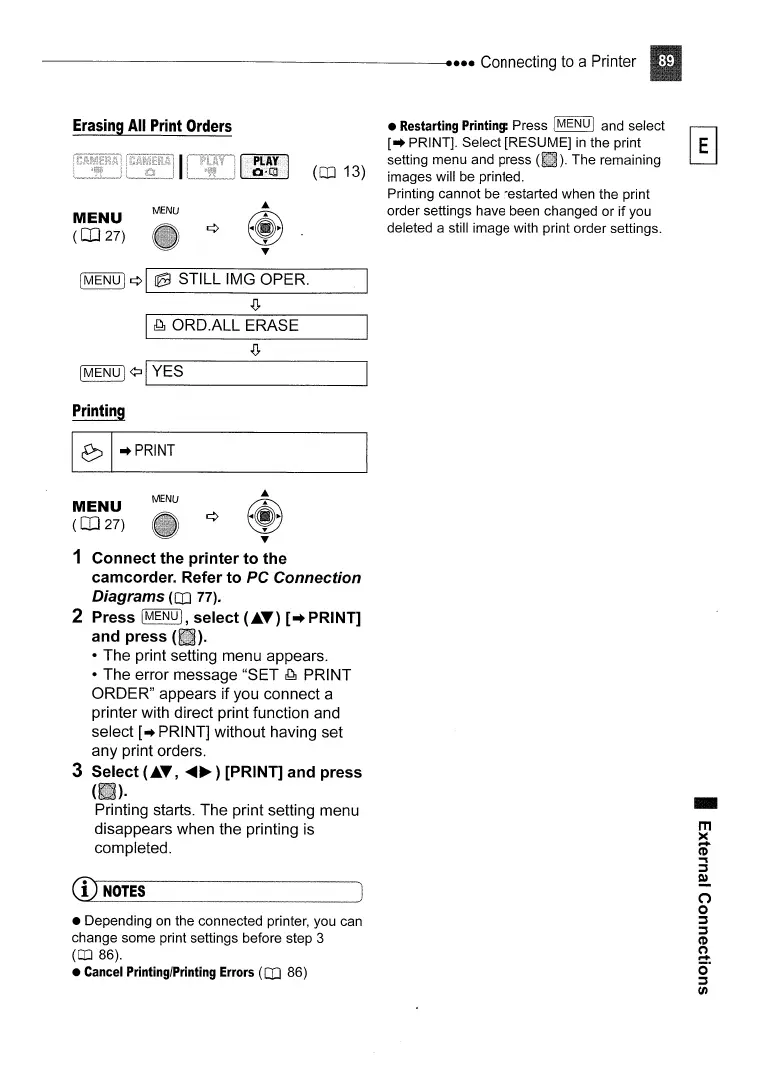
Erasing
All
Print
Orders
MENU
(CD
27)
MENU
(CD
13)
• Restarting Printing: Press IMENU I and select
[-+ PRINT]. Select [RESUME]
in
the print
setting menu and press
(II).
The remaining
images will be printed.
Printing cannot be restarted when the print
order settings have been changed or if you
deleted a still image with print order settings.
[MENUj
¢I
@3j
STILL IMG OPER.
.Q,
I
r!dJ
ORD.ALL ERASE
IMENU]
¢:II
YES
-----------
Printing
~"PRINT
MENU
(CD
27)
MENU
1
Connect
the
printer
to
the
camcorder. Refer
to
PC
Connection
Diagrams
(CD
77).
2 Press
IMENUI,
select
(.T)
[
..
PRINT]
and
press
(II).
• The print setting menu appears.
• The error message "SET
r!dJ
PRINT
ORDER" appears if you connect a
printer with direct print function and
select [
..
PRINT] without having set
any print orders.
3 Select
(.T,
......
~)
[PRINT]
and
press
H~ID·
Printing starts. The print setting menu
disappears when the printing is
completed.
CD
NOTES
• Depending
on
the connected printer, you can
change some print settings before step 3
(CO
86).
•
Cancel
Printing/Printing
Errors
(CD
86)
-
m
><
....
CD
..,
~
e!-
O
o
~
~
CD
(")
....
o·
~
en



 To Next Page