Changing Default Settings
19Y4-02F
The default settings are the settings that are rst displayed whenever you open the print settings screen of the printer
driver, but you can change them. For example, if you want to print all documents in such manner that each two pages
are shrinked and printed on one page, specify [2 on 1] as the user default of page layout. From next time on, the
printer driver will be opened with [2 on 1] specied as page layout setting and you will not have to change settings
each time you print.
● To perform the following procedure, log on to your computer with an administrator account.
1
Open the printer folder. Displaying the Printer Folder(P. 423)
2
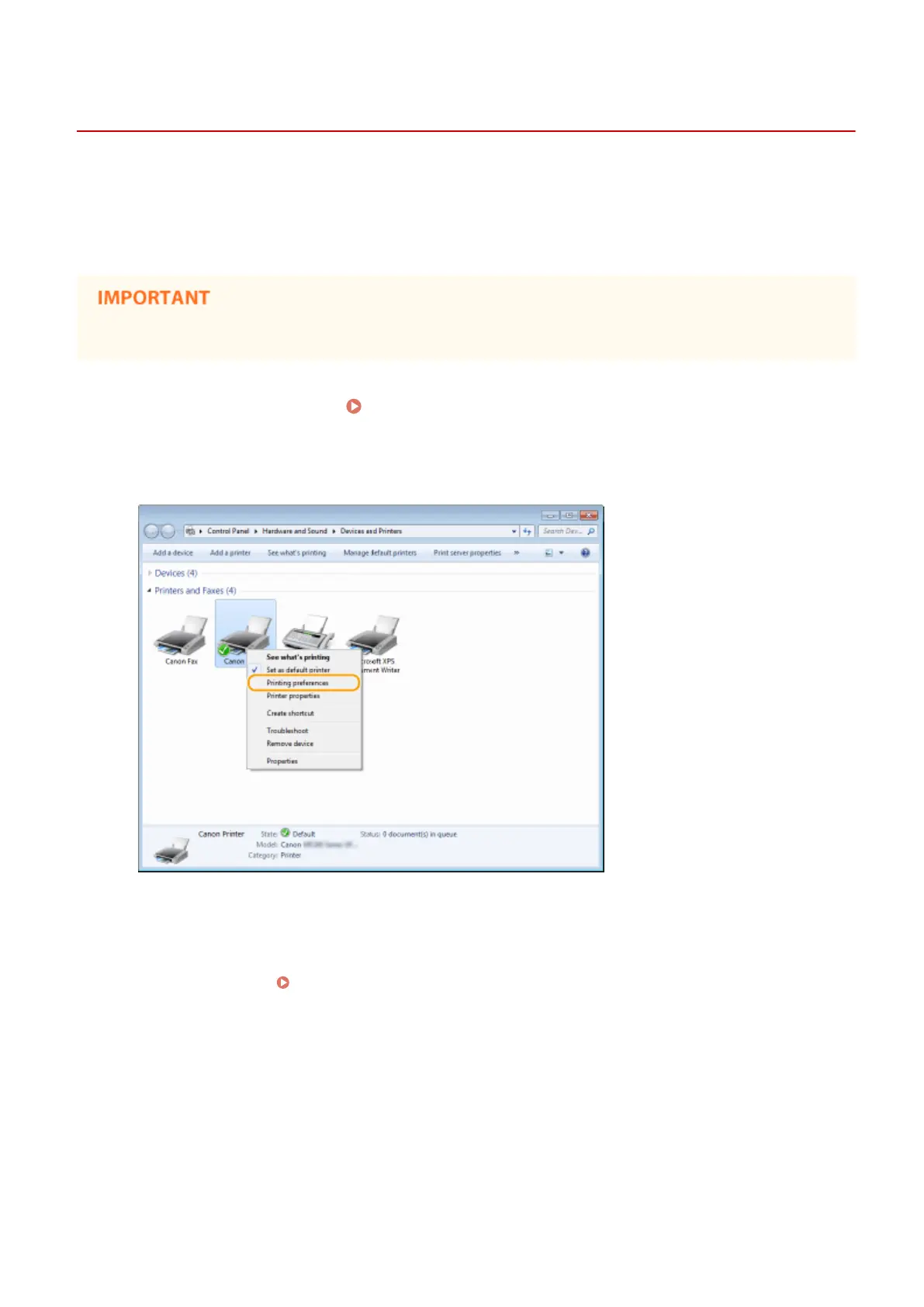
Right-click the printer driver icon for this machine and click [Printing preferences].
3
Change the settings on the print setting screen, and click [OK].
● Click the [Basic Settings], [Page Setup], [Finishing], or [Quality] tabs to specify the print settings on each
screen as necessary. Various Print Settings(P. 88)
Using the Machine as a Printer
118







 To Next Page