Setting Up Connection by Selecting a Wireless Router
19Y4-03H
You can search the wireless routers (or access points) available for connection and select one from the display of the
machine. For the network key, enter a WEP key or TKIP. Before selecting a wireless router, check and write down the
required setup information, including the SSID and network key ( Checking the SSID and Network Key(P. 177) ).
Security settings
If the wireless connection is set up by selecting a wireless router, the WEP authentication method is set to
<Open System> or the WPA/WPA2 encryption method is set to <Auto> (AES-CCMP or TKIP). If you want to select
<Shared Key> for WEP authentication or <AES-CCMP> for WPA/WPA2 encryption, you need to set up the
connection using the manual entry method ( Setting Up Connection by Specifying Detailed
Settings(P. 173) ).
1
Press .
2
Use / to select <Network Settings>, and press .
● If a screen for entering a PIN is displayed, enter the PIN with the numeric keys and press . Setting
the System Manager PIN(P. 222)
3
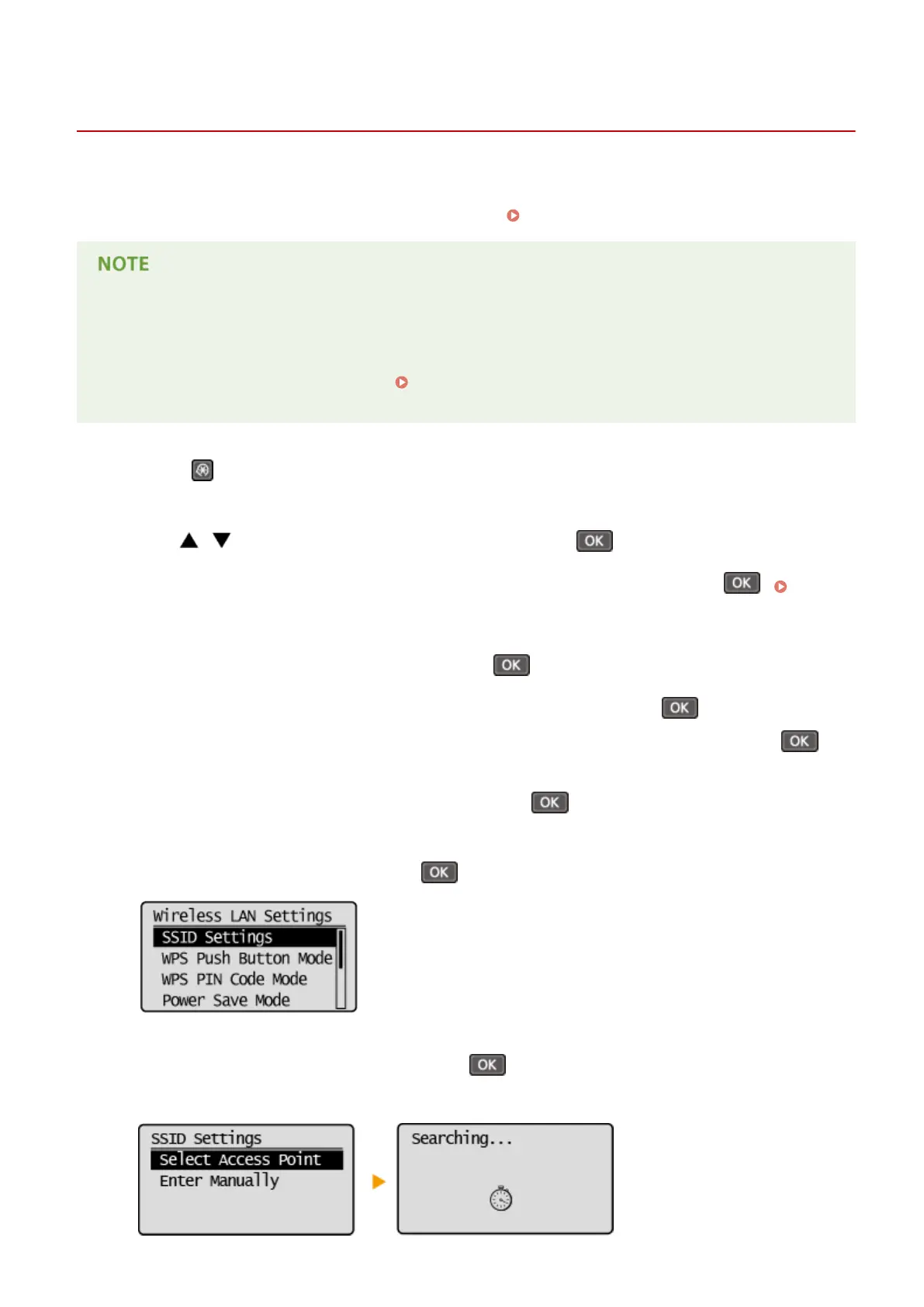
Select <Wireless LAN Settings>, and press .
● If the <Enable the wireless LAN?> message is displayed, select <Yes>, and press .
● If the <Direct Connection will be disabled. Is it OK?> message is displayed, select <Yes>, and press
.
4
Read the message that is displayed, and press .
5
Select <SSID Settings>, and press .
6
Select <Select Access Point>, and press .
● The machine starts searching for available wireless routers.
Network
170







 To Next Page