Clearing Jams
19Y4-05Y
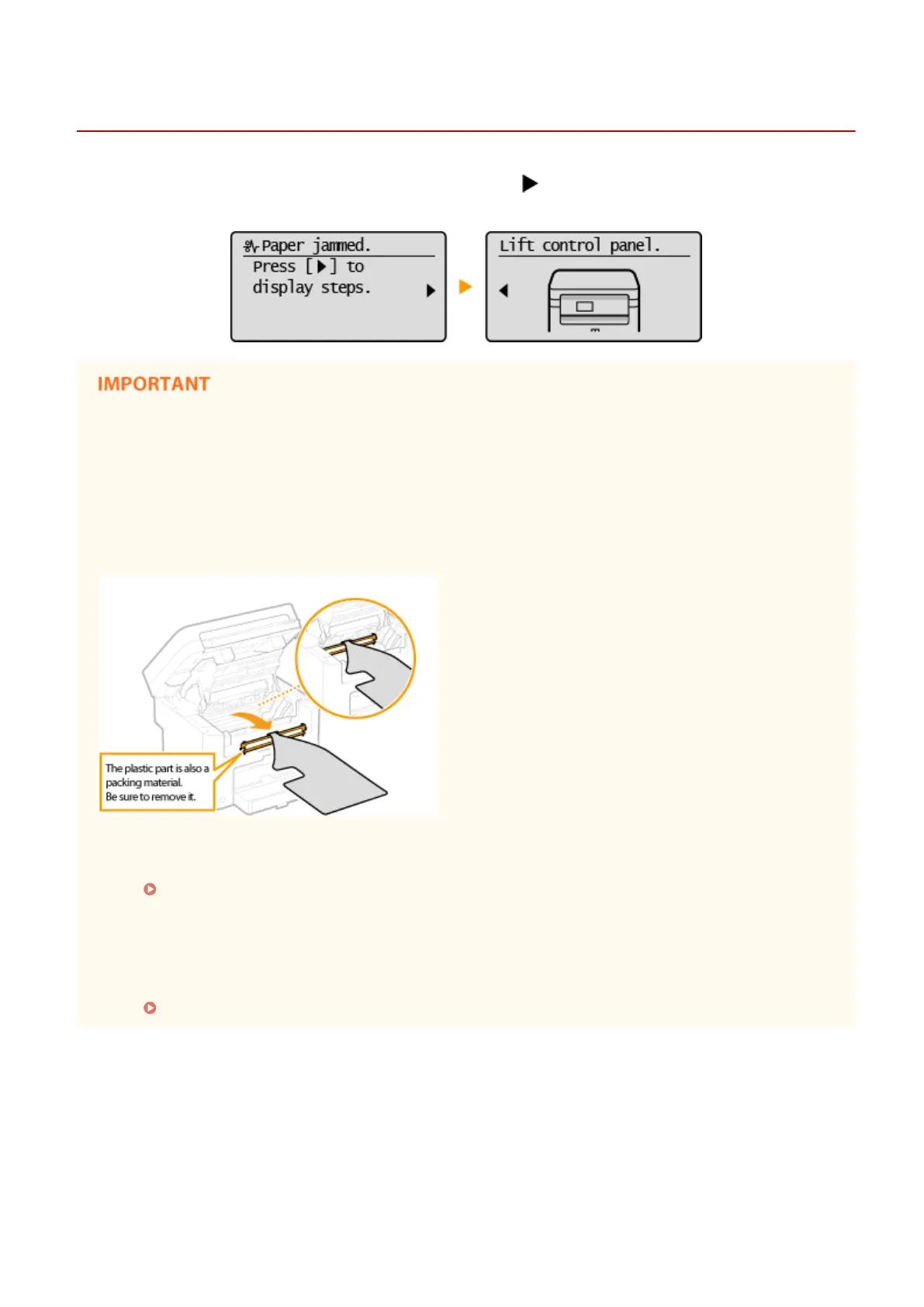
If a paper jams, <Paper jammed.> is displayed on the screen. Press to display simple solutions. If it is dicult to
understand the procedures on the display, see the following sections to clear jams.
When removing the jammed paper, do not turn OFF the machine
Turning OFF the machine deletes the data that is being printed.
If paper tears
Remove all the paper fragments to prevent them from becoming jammed.
If paper jams repeatedly
● Make sure that the paper and the packing material are completely removed.
● Tap the paper stack on a at surface to even the edges of the paper before loading it into the machine.
● Check that the paper is appropriate for the machine.
Paper(P. 408)
● Check that no jammed paper fragments remain in the machine.
Do not forcibly remove the jammed document or paper from the machine
Forcibly removing the paper may damage parts. If you are not able to remove the paper, contact your local
authorized Canon dealer or the Canon help line.
When a Problem Cannot Be Solved(P. 366)
1
Remove the toner cartridge.
1
Lift the operation panel.
Troubleshooting
334







 To Next Page